With fall upon us, I thought that it would be great to share an autumn-themed freebie.
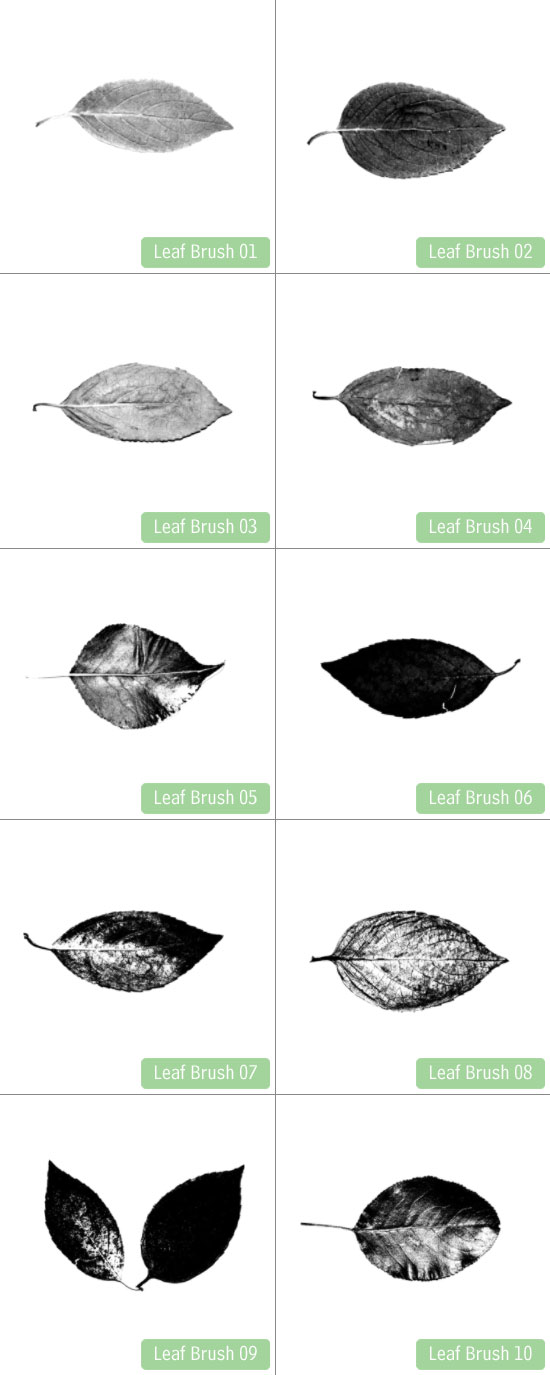
Leaf’d is a set of free Photoshop leaf brushes. The brushes are big – giving you flexibility in usage (they’re between 1,900 – 2,400+ pixels wide). They’re available for you to download under the Creative Commons license and you’re free to use them for any purpose, commercial or otherwise.
Preview
Here is a preview of the brushes included inside Leaf’d.
Download
- leafd-photoshop-brush-set.zip (ZIP, 6.1MB)
Licensing Details
The above works featured here are licensed under the Creative Commons license and can be used for personal and/or commercial purposes.
The Creative Commons license requires you to “attribute the work in the manner specified by the author or licensor”. Our attribution specification: you don’t need to attribute the work to us (though you’re more then welcome to, and we will definitely appreciate it).
Related Content
-
 President of WebFX. Bill has over 25 years of experience in the Internet marketing industry specializing in SEO, UX, information architecture, marketing automation and more. William’s background in scientific computing and education from Shippensburg and MIT provided the foundation for MarketingCloudFX and other key research and development projects at WebFX.
 -

WebFX is a full-service marketing agency with 1,100+ client reviews and a 4.9-star rating on Clutch! Find out how our expert team and revenue-accelerating tech can drive results for you! Learn more
Make estimating web design costs easy
Website design costs can be tricky to nail down. Get an instant estimate for a custom web design with our free website design cost calculator!
Try Our Free Web Design Cost Calculator
Share this article




Web Design Calculator
Use our free tool to get a free, instant quote in under 60 seconds.
View Web Design CalculatorMake estimating web design costs easy
Website design costs can be tricky to nail down. Get an instant estimate for a custom web design with our free website design cost calculator!
Try Our Free Web Design Cost Calculator