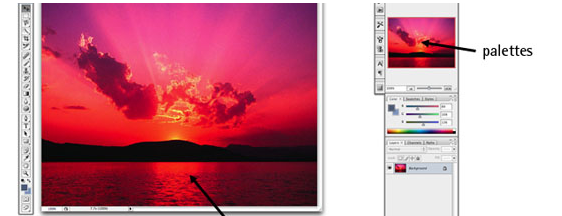


Adobe Photoshop is a very powerful and versatile image editing/graphics creation application that is the industry standard in its category. Though Photoshop’s interface is intuitive enough for an absolute beginner to learn basic image editing tasks such as cropping and resizing, to be able to fully master and utilize all of its tools takes a considerable amount of time. If you’re interested in honing your Photoshop skills to create spectacular compositions, this is for you.
In this article, you’ll find 35 Photoshop basics tutorials for getting started with Photoshop.
General tutorials
1. Getting Started with Photoshop
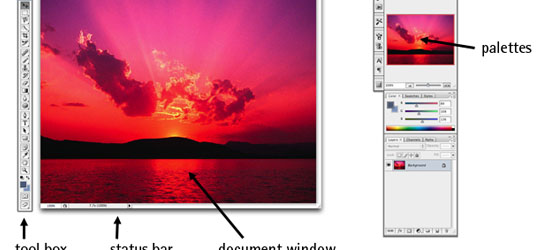 If you’ve never had any experience with Photoshop, this tutorial from SitePoint will get you up to speed with Photoshop’s basic features.
2. Adobe Photoshop Interface Tutorial
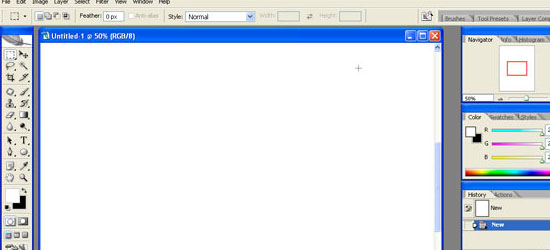 This tutorial outlines Photoshop CS2’s interface. Even if you use an earlier or later version of Photoshop, this Photoshop CS2 tutorial is still helpful in familiarizing yourself with how Photoshop – in general – is laid out.
3. You Suck at Photoshop (series)
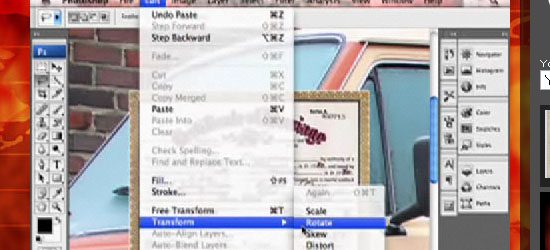 This wildly popular and humorous screencast on Photoshop techniques by (probably) fictional character Donnie Hoyle is an excellent Photoshop series to follow if you like laughing and learning at the same time!
4. Photoshop’s Toolbox
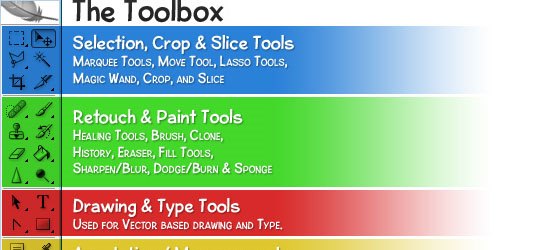 This basic Photoshop tutorial goes over the anatomy of Photoshop’s Toolbox.
Photoshop tools and features
5. Retouch and Healing Tools
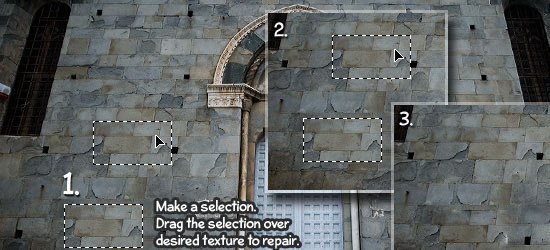 Photoshop has a host of tools and options for retouching and correcting images. This tutorial goes over the tools at your disposal and what situations each tool excels in.
6. Photoshop’s Pen Tool: The Comprehensive Guide
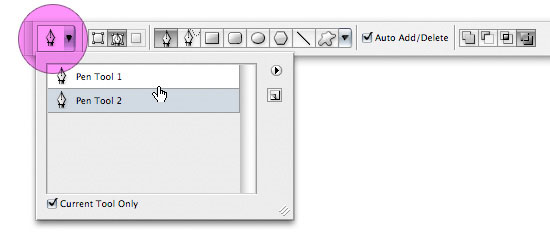 Photoshop’s Pen tool gives you the ability to draw objects in a vector-like fashion. This thorough tutorial even comes with a practice sheet that will help you master the concepts of working with the Pen tool.
7. Photoshop’s Painting Tools
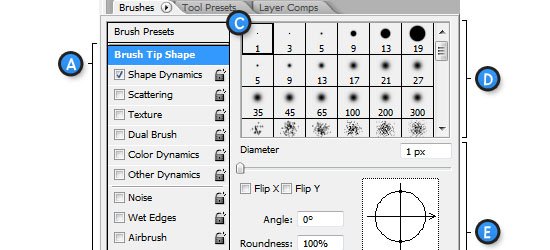 Photoshop’s Painting tools allow you to draw and fill in objects with colors and color gradients. This tutorial showcases Photoshop’s painting capabilities.
8. Photoshop Color Replacement Tool
 Sometimes you want to replace certain colors in an image. With the Color Replacement tool – you can specify which colors you’d like to change and Photoshop will automatically replace them for you. This Adobe Photoshop basics tutorial goes through the color replacement process and discusses all the things you need to know about the Color Replacement tool.
9. Understanding Layer Masks
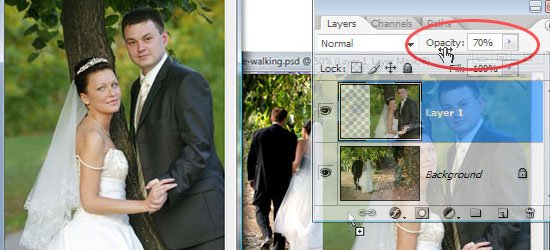 One of the fundamental skills to learn in Photoshop is the art of masking (isolating certain parts of a composition). This comprehensive tutorial goes over the Layer Masking features of Photoshop.
10. Photoshop’s Image Masking Tools
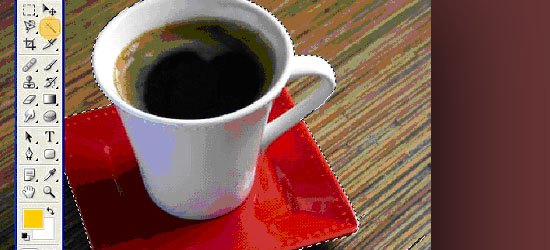 There are different methods of masking objects in your Photoshop composition. This tutorial goes over the basic masking tools available to you.
11. Layer Styles in Photoshop
 Layer Styles are the effects and options you apply to a particular layer. This tutorial discusses the concept of Layer Styles and how to utilize them in your Photoshop documents.
12. Understanding Bevel and Emboss
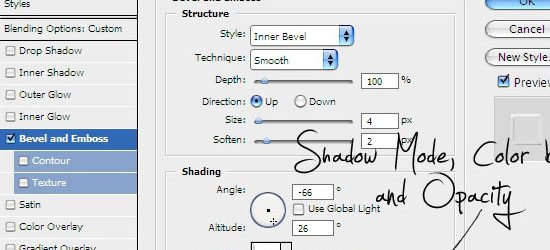 Bevel and Emboss is a particular Layer Style. There are many options you can tweak and change (such as the shading and the angle of light); this tutorial goes over what each option does.
13. Understanding Drop Shadows
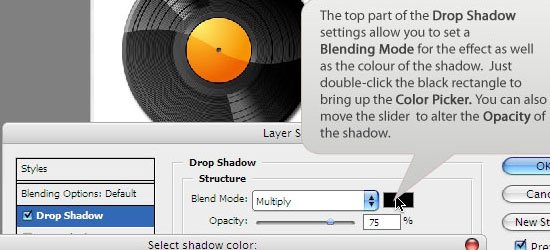 Drop Shadow is another Photoshop Layer Style that applies a silhouette to the objects in a layer. In this basic Photoshop tutorial, you’ll learn about the different options and settings of the Drop Shadow Layer Style.
14. Introduction to Blending Modes
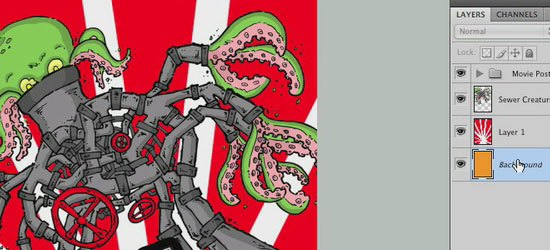 In this video tutorial, you’ll learn about the different Blending Modes available at your disposal.
15. Photoshop’s Filters
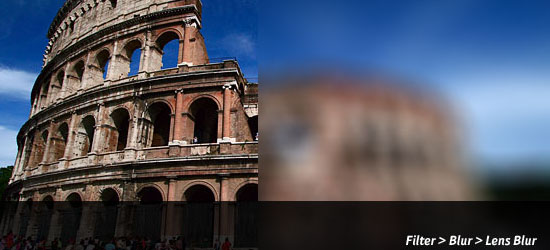 Photoshop filters are simply effects applied to your image (much like the concept of using photographic lens filters). For example, the Blur filter unsharpens the focus of your images. This tutorial goes over the Filters interface in Photoshop.
16. Useful Applications for the Clone Stamp Tool
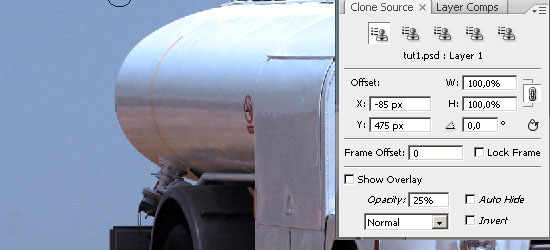 This tutorial goes over some excellent uses of the Clone Stamp tool in Photoshop.
17. Getting to Grips with the Vanishing Point Filter
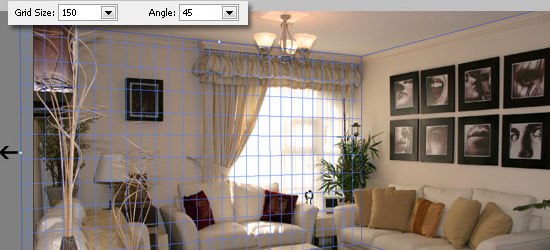 Master the Vanishing Point filter (a Photoshop filter that adjusts the image’s perspective) with this excellent Photoshop tutorial.
18. The Hidden Power of Photoshop Brush Tool
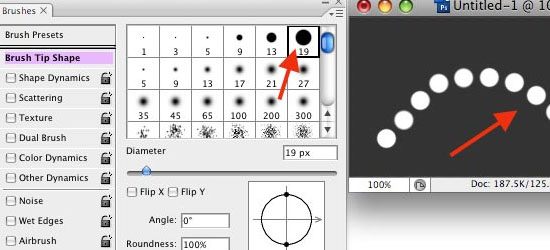 The Brush tool is a versatile drawing feature of Photoshop the mimics different art brushes and styles like water coloring, oil painting, or charcoal painting. This tutorial covers some of the best features of the Brush Tool in Photoshop.
19. “Background Eraser Tool” is the new Magic Wand
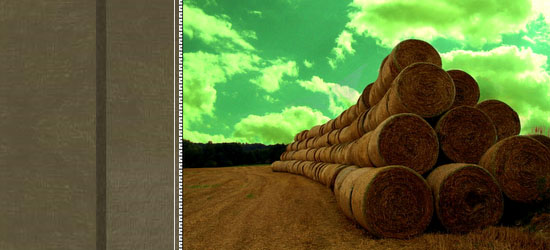 This tutorial goes over the usage of the Background Eraser tool in Photoshop.
Common tasks and techniques
20. A Comprehensive Introduction to Photoshop Selection Techniques
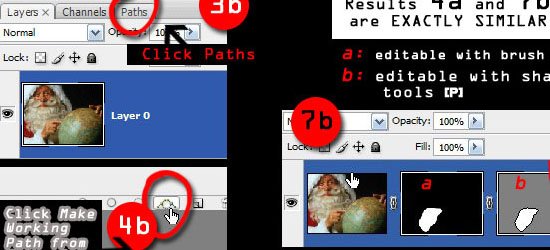 In order to become a Photoshop master, you’ll need to understand how to select different sections and objects in your composition. This guide goes over some techniques you can use to selectively isolate certain objects or groups of objects.
21. Sharpening the Details
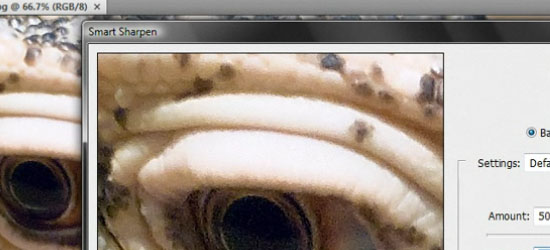 You’ll often need to sharpen photos for image correction. In this video tutorial, you’ll learn about various sharpening techniques.
22. Saving Images for the Web
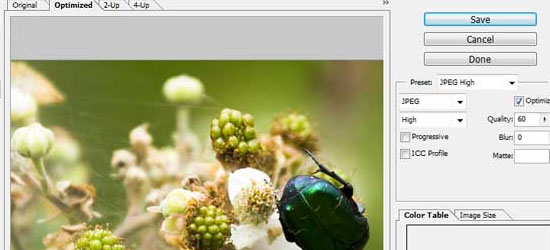 One of the most powerful features of Photoshop is its ability to save compositions in a variety of web formats. This tutorial explains the different options and settings of saving images for the web.
23. Create Your Own Custom Shapes in Photoshop
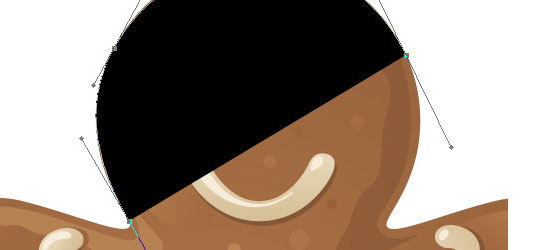 Custom Shapes are reusable objects in Photoshop. It gets stored in a library and you can access them later on from another Photoshop document. In this tutorial, you’ll learn how to create, import, and save your own custom shapes.
24. Photoshop Smart Objects, smart but not always that smart
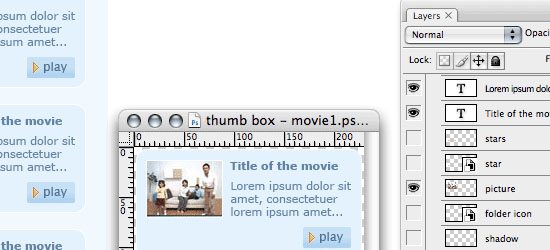 Smart Objects are instantiated objects – that is, you can create multiple instances of a source object and make a change to an instance of that object while still keeping the original object intact. This basic Photoshop tutorial goes over how to use Smart Objects.
Enhancing your workflow and efficiency
25. Using Pen Tablets in Photoshop
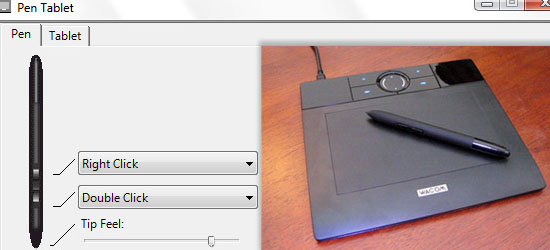 You can use a Pen tablet (an input device that lets you draw images directly into an image editor) over a mouse to create more accurate drawings by hand. This tutorial shows you the basic concepts behind utilizing a Pen Tablet to supplement your workflow.
26. Automating Photoshop with Actions
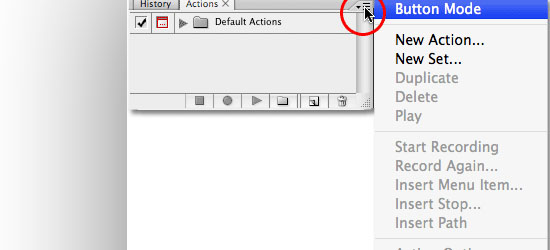 An Action is a sequence of Photoshop tasks that you can repeat and reuse. For example, if you find yourself constantly resizing images to 550 pixels in width and then saving them in PNG file format, you can record a Photoshop Action that will apply these settings automatically. This excellent tutorial covers the basics of creating and using Photoshop Actions.
27. Using Palettes in Photoshop
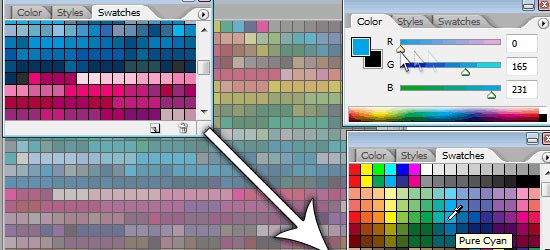 Palettes are sets of tools and options that help you organize Photoshop’s interface. In this Photoshop basics tutorial, you’ll get a great primer on how to take advantage of using Palettes.
28. Installing and Managing Brushes & Other Presets
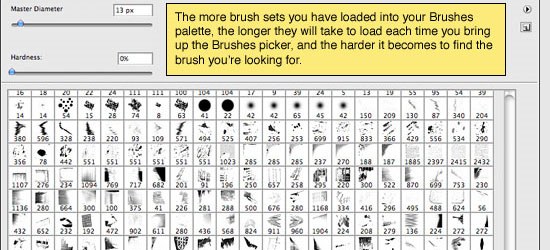 You can install pre-made brushes (instead of creating your own) in Photoshop as well as save important settings for future use. This tutorial will show you how to work with brushes and other Photoshop presets.
29. Layer Comps in Photoshop CS
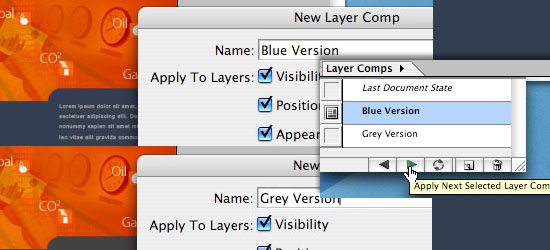 A Layer Comp is a version of your composition that you can switch back and forth to. Learn a little about an actual use of Layer Comps.
30. Photoshop Secret Shortcuts
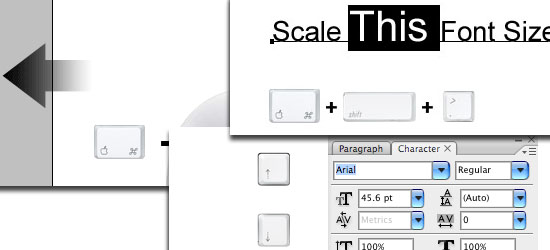 Shortcuts enable greatly increases your efficiency. In this excellent tutorial, you’ll learn about some of the lesser-known but tremendously useful Photoshop shortcuts.
31. Manage your shortcuts in Photoshop
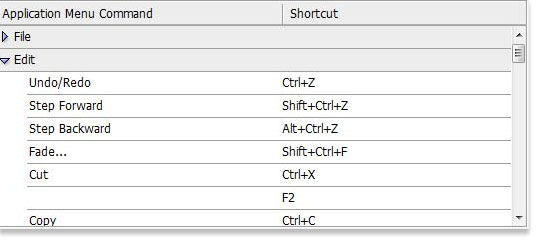 If you don’t like the preset keyboard shortcuts the Photoshop comes with out of the box, this tutorial will show you how to change and manage your Photoshop shortcuts.
Learning by doing
32. Manipulate an Image with Scripting
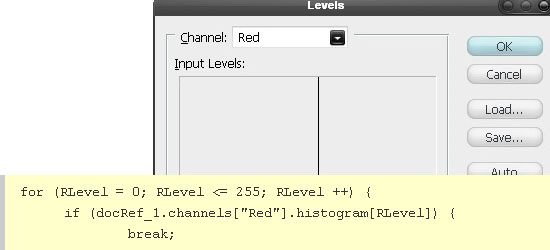 Scripting allows you to automate and extend Photoshop’s features by authoring your own code. Learn about Photoshop Scripting with this tutorial that uses image manipulation as a working example.
33. Use Photoshop’s Filters to Make Simple Illustrations
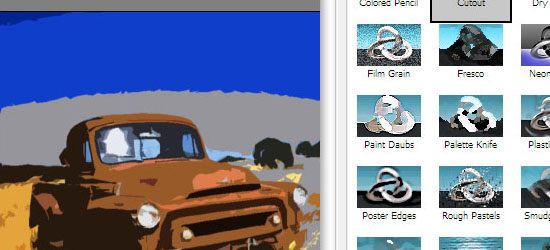 Learn to use Photoshop Filters to transform a photo into an illustration.
34. Custom made Seamless Texture Tutorial
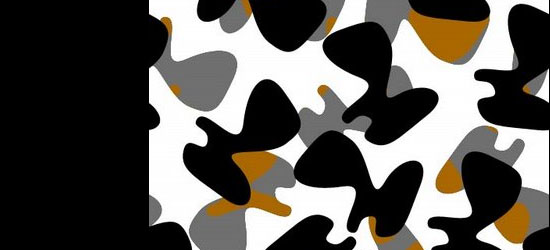 Learn to create seamless textures in Photoshop.
35. Simple organic shapes in Photoshop
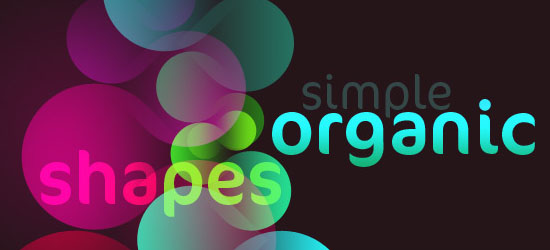 This tutorial goes over a technique for creating simple organic shapes using several Photoshop tools and techniques such as the Shape Tool and Gradient Masks.
Benefits of Photoshop
Photoshop can help increase the user experience on your site by making images more engaging, and assuring you are getting the most for your SEO budget. It’s a great tool to use to build icons, edit pictures, and make the media on your site more appealing to your users. It’s so much more than a random color picker because it allows you to change almost anything you can imagine on the media you have on your website.
For highly competitive industries on the internet, such as auto parts, a company can really make their images stand out from the crowds, and make their site more appealing than competitors. Simple photoshop techniques can make even the most boring of images have a little more pop.
Got more?
Do you have a tutorial you think will help beginners get started with Photoshop? Please share it with us in the comments.
Related content
-
 President of WebFX. Bill has over 25 years of experience in the Internet marketing industry specializing in SEO, UX, information architecture, marketing automation and more. William’s background in scientific computing and education from Shippensburg and MIT provided the foundation for MarketingCloudFX and other key research and development projects at WebFX.
 -

WebFX is a full-service marketing agency with 1,100+ client reviews and a 4.9-star rating on Clutch! Find out how our expert team and revenue-accelerating tech can drive results for you! Learn more
Make estimating web design costs easy
Website design costs can be tricky to nail down. Get an instant estimate for a custom web design with our free website design cost calculator!
Try Our Free Web Design Cost Calculator
Share this article




Web Design Calculator
Use our free tool to get a free, instant quote in under 60 seconds.
View Web Design CalculatorMake estimating web design costs easy
Website design costs can be tricky to nail down. Get an instant estimate for a custom web design with our free website design cost calculator!
Try Our Free Web Design Cost Calculator