There are many services out on the web for online collaboration, but there’s no doubt that Google Docs is rapidly becoming one of the more popular brands. Google Docs is free, web based (i.e. cross platform), and quite simple to use.
But that doesn’t mean it lacks features. Whether you’re a regular user or have just been thinking about trying it out, here are the top 6 tips and tricks to help you get the most out of Google Docs.
1. Chatting in Google Docs
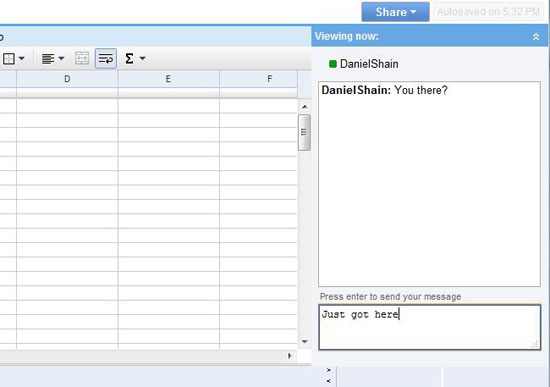 To get the most out of Google Docs, you’ve got to be able to communicate in real time and with more efficiency than simply writing notes to each other on the shared page. Google Docs takes care of this issue with a built in chat client that hides easily in the top right corner.
 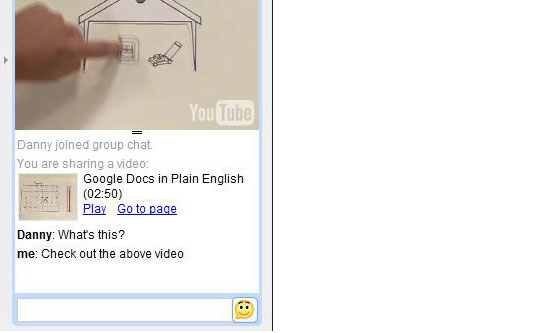 When sharing a presentation, the chat client has the ability to share inline photos from Picasa or Flickr and videos from Google video and YouTube.
2. Organize your documents easily.
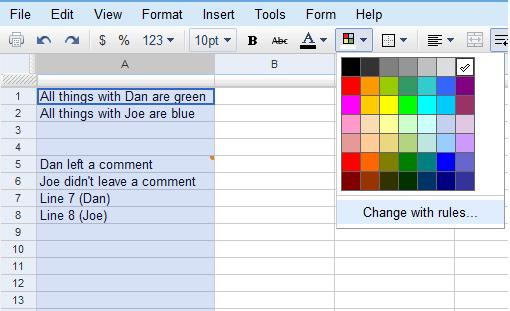 Google Docs uses a pretty clean interface, but any time you’re sharing with multiple people, it pays to be as organized as possible. With Google Docs, the best way to stay organized is by making use of colors and comments.
 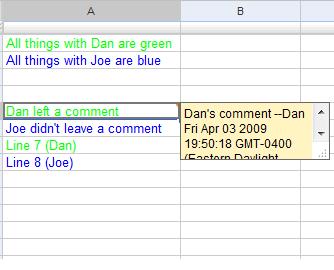 In a spreadsheet, colors can be set to follow certain rules (such as turning the text of every cell with your name in it purple), and you can insert comments by right-clicking on any cell to get your message across without taking up space.
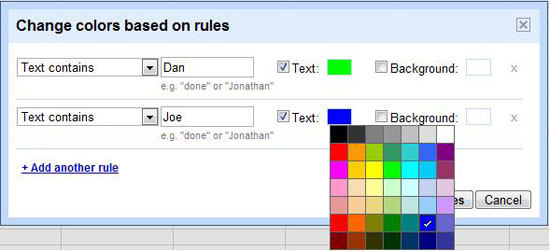 In the overall Docs interface, folders can be color coded too in a manner similar to Gmail labels.
3. Share with others
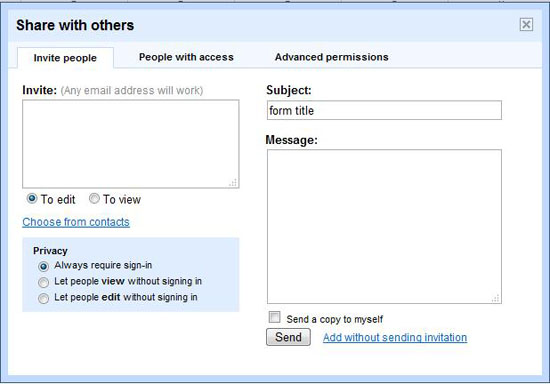 Google Docs is all about sharing, but you knew that. The key, however, is to know exactly how you can share. At the discretion of the owner, collaborators can be invited to edit or simply to view a shared document.
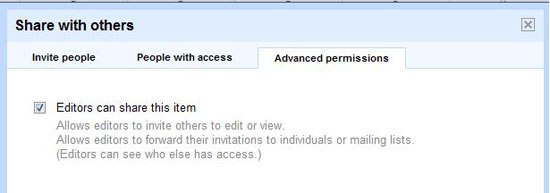 By default anyone who can edit the document has the ability to share the document with others, and if you really want to open the floodgates you can open the document for universal viewing or editing. Be warned, though, there is a limit of 10 people for simultaneous editing of documents and presentations (for spreadsheets, the limit is a much safer 50).
4. Scale back (revision)
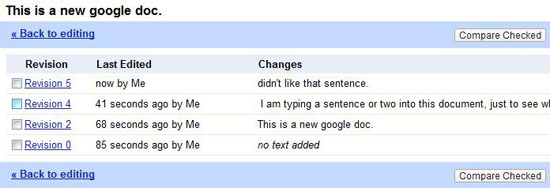 You already know Google Docs is autosaving everything you do, but you may not know that you can manipulate past revisions in order to see exactly what’s changed.
 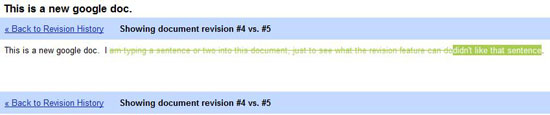 All Google Docs will keep a revision’s history, so you can track your changes and, if you want, revert to them at any time. In the document revision history, you even have the ability to look at two versions side by side to view color coded changes.
5. Draw
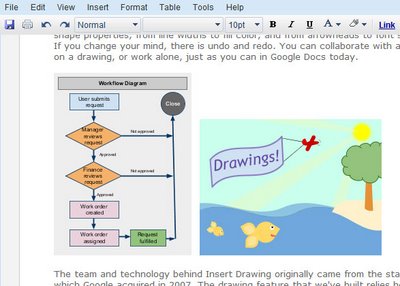 Just recently, Google added a collaborative drawing feature to Google Docs. This opens up a whole new array of sharing options, as diagrams and charts can now be constructed and shared with ease. The options are obviously not comprehensive, but you have your choice of a variety of shapes, lines, arrows, or text boxes, and you can color and rotate and even layer the objects to a certain extent.
The picture for this one is Google’s.
6. The rest
There are a number of other features located within Google Docs that you may or may not find useful. 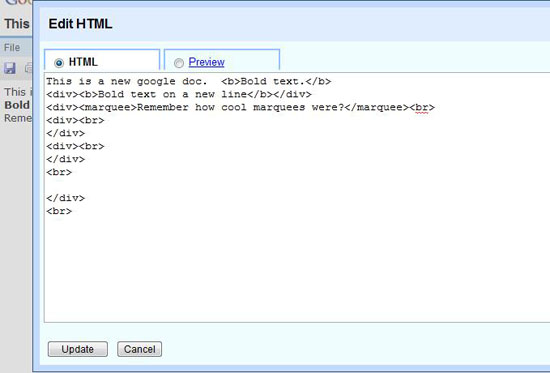 Google gives you the ability to edit the HTML or even the CSS of your documents. In a spreadsheet, you can reference one sheet from the other, allowing users to stay on their own sheet while simultaneously updating others.
There is also Google’s live lookup which can be used to have cells contain data gathered live from the internet, and much more. And yes, that HTML will put a marquee on your Google doc. Google Docs is currently in Beta and frequently changes.
Google provides their own tutorial here and blogs about many of the changes they make here. What’s your favorite Google Doc tip? This article was written by Daniel Shain, one of the best editors working for LaptopLogic.com. Are you planning on buying a new Dell laptop?
Check the latest laptop computer reviews before you make your final choice!
Related content
- 15 Free Tools for Web-based Collaboration
- 20 Useful Tools to Make Web Development More Efficient
- 20 Invoicing Tools for Web Designers
- Related categories: Tools, Project Management
-
 President of WebFX. Bill has over 25 years of experience in the Internet marketing industry specializing in SEO, UX, information architecture, marketing automation and more. William’s background in scientific computing and education from Shippensburg and MIT provided the foundation for MarketingCloudFX and other key research and development projects at WebFX.
 -

WebFX is a full-service marketing agency with 1,100+ client reviews and a 4.9-star rating on Clutch! Find out how our expert team and revenue-accelerating tech can drive results for you! Learn more
Make estimating web design costs easy
Website design costs can be tricky to nail down. Get an instant estimate for a custom web design with our free website design cost calculator!
Try Our Free Web Design Cost Calculator
Share this article




Web Design Calculator
Use our free tool to get a free, instant quote in under 60 seconds.
View Web Design CalculatorMake estimating web design costs easy
Website design costs can be tricky to nail down. Get an instant estimate for a custom web design with our free website design cost calculator!
Try Our Free Web Design Cost Calculator