

As a developer or designer, it is often helpful to have multiple monitors to increase the amount of screen real estate you have, which in turn can lead to higher productivity. For instance, you may have one screen as your primary monitor where you perform your work, and another one that has your email client, Skype, IM client, Twitter client, and other communication apps that you can easily monitor and switch to. We’d like to share several freeware and open source tools available for download to help you harness the power of multi-display setups and get you up and running quickly.
We hope that you might find the perfect dual monitor software free tools for you!
Synergy
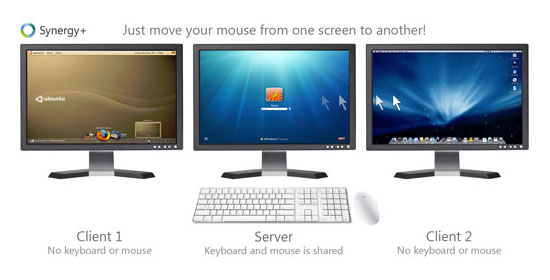 Synergy is free dual monitor software that lets users of multi-monitor workstations share a mouse and keyboard between several displays. All you have to do is move the mouse cursor off the edge of one display to have it on another adjacent display. It also creates a single virtual clipboard to allow the copy and pasting across the many displays.
With Synergy comes a handy module for synchronizing your screensavers across multiple displays so that they run in tandem. If there is a password required after screensaver mode, you only have to type in the password into one monitor to activate all the others. There is also a fork of Synergy called Synergy+ that you can check out on Google Code.
Input Director
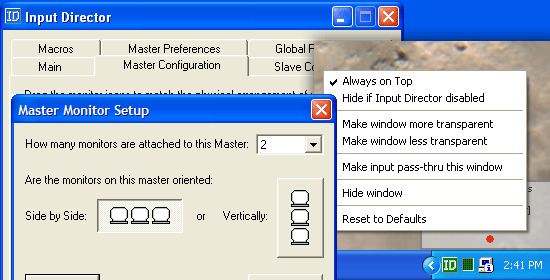 Input Director is multi-display software that grants you the ability to use a single keyboard and mouse on a multi-computer set up, making it the ideal solution for networked computers, a common situation where professionals have more than one computer (such as a desktop and laptop).
All you have to do is move the pointer off the edge of the display and it appears on the adjacent monitor on that side, making it the active monitor.
UltraMon
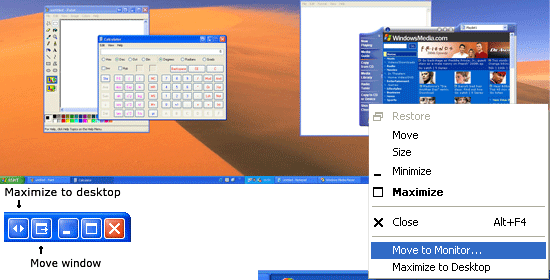 UltraMon is a great tool for multi-display computer configurations that can support up to 10 monitors. It allows you to set custom features for each monitor such as resolution, wallpaper, and taskbar settings. UltraMon allows for the moving of running programs from the primary display to the secondary (and vice versa).
Each of the monitors will have their own taskbar showing you the applications running on them. You can predefine and save monitor settings, as well as position where a program opens from the shortcut menu to help speed up your workflow. It also has a feature for easily turning off secondary monitors to conserve electricity consumption when you don’t need them and to reduce distraction when they’re not in use.
Multi Monitor Mouse (M3)
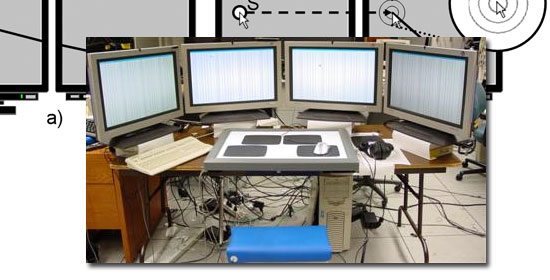 This app saves you from the hassle of having to drag your mouse off the desk as you try to get to the farthest monitor in a multi-monitor environment.
It immediately warps your cursor across the borders of the display on demand and runs in the background to avoid taxing the systems resources. It is accessible from the system tray where you can change the settings at will. It also speeds up mouse targeting by an estimated 30%.
The convenience that it creates makes it one of the best multi-monitor software choices.
MultiMon Taskbar
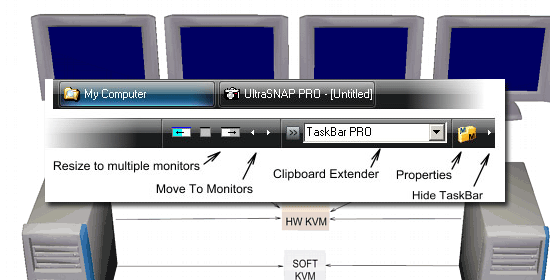 MultiMon Taskbar lets you have unique taskbars for each monitor, helping you to easily organize your applications across multiple computer screens. It has a move-to-monitor button accessible from all Windows programs for convenience and ease of movement from one monitor to another. In addition, MultiMon has a clipboard extender module for synchronizing your clipboards across multiple displays, making copy and pasting between networked computers a breeze.
Do you use multiple monitors? Are you looking into using multiple monitors? Do you hate multi-monitor setups?
Share your thoughts, opinions, and advice in the comments.
Related Content
-
 President of WebFX. Bill has over 25 years of experience in the Internet marketing industry specializing in SEO, UX, information architecture, marketing automation and more. William’s background in scientific computing and education from Shippensburg and MIT provided the foundation for MarketingCloudFX and other key research and development projects at WebFX.
 -

WebFX is a full-service marketing agency with 1,100+ client reviews and a 4.9-star rating on Clutch! Find out how our expert team and revenue-accelerating tech can drive results for you! Learn more
Make estimating web design costs easy
Website design costs can be tricky to nail down. Get an instant estimate for a custom web design with our free website design cost calculator!
Try Our Free Web Design Cost Calculator
Share this article




Web Design Calculator
Use our free tool to get a free, instant quote in under 60 seconds.
View Web Design CalculatorMake estimating web design costs easy
Website design costs can be tricky to nail down. Get an instant estimate for a custom web design with our free website design cost calculator!
Try Our Free Web Design Cost Calculator