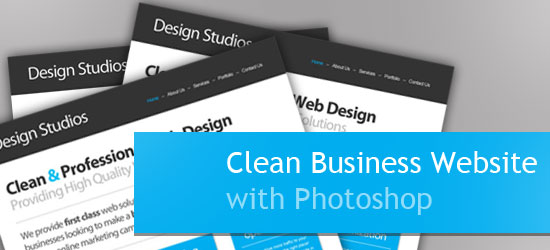
How to Design a Clean Business Website with Photoshop
The focus of this template is on a design agency that offers a range of web-based services. The primary aim of the page we’re designing, therefore, is to promote what the business does and what services they provide.
This is the first part of a tutorial on building a clean business website. This first part will focus on creating the design in Photoshop, and in the second part, will focus on converting the PSD outcome to a working XHTML template.
"Clean Business Website" Series
- Part 1: How to Design a Clean Business Website with Photoshop
- Part 2: PSD/HTML Conversion: Code a Clean Business Website Design
Final Result
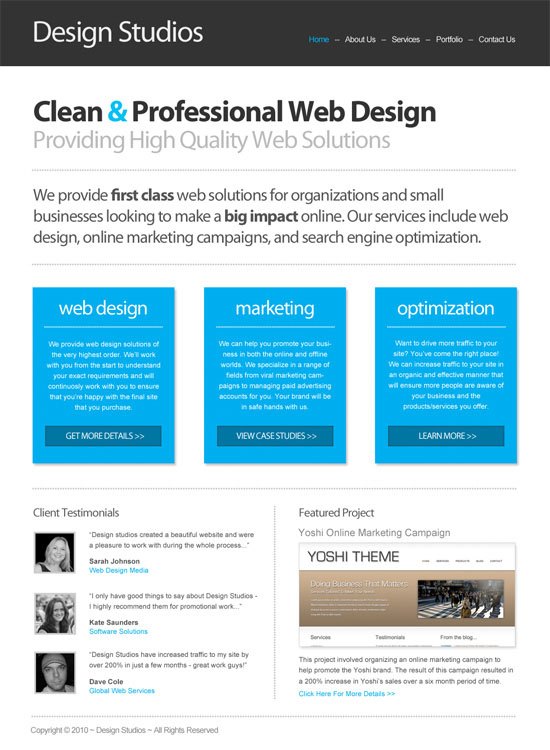
Here’s a screenshot of the design we’ll be creating.
Overview
In this tutorial, I’m going to assume that you have a basic understanding of Photoshop and know how to do basic tasks such as adding text, drawing shapes, and resizing/rotating objects.
My goal in this walkthrough is to show that you don’t always need lots of fancy effects in a design to make a nice-looking template. With a couple of fonts and some subtle effects, it’s still possible to create a professional-looking design that will impress your visitors.
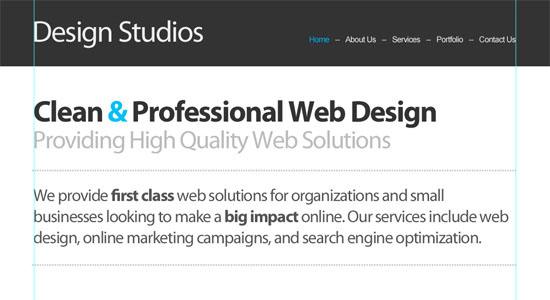
The design we’re going to build has a header that contains the name of the company and the navigation area. Below that is an area that highlights what the business does along with some additional details.
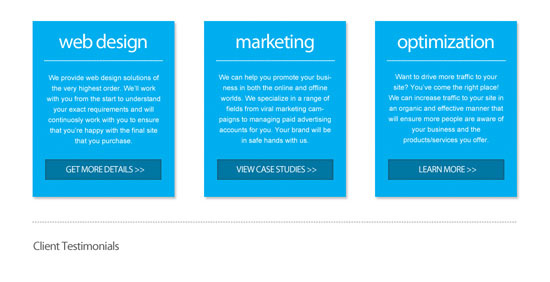
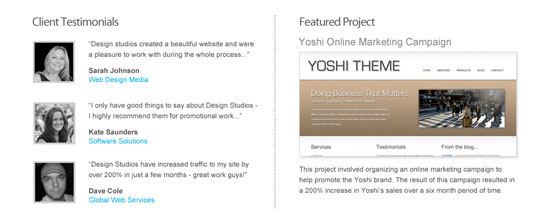
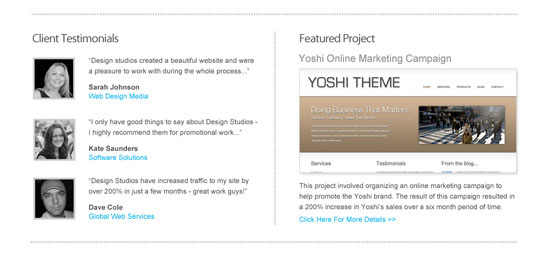
Following this, there is a section that describes the specific services in more detail. The section underneath this has some client testimonials and a featured project overview.
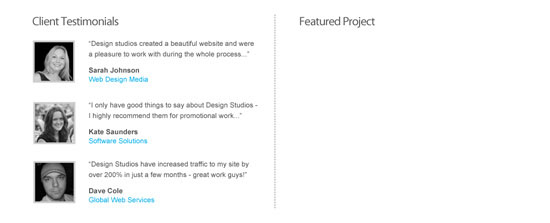
We also want to try and build credibility and trust through the use of some client testimonials and an example of a "featured project."
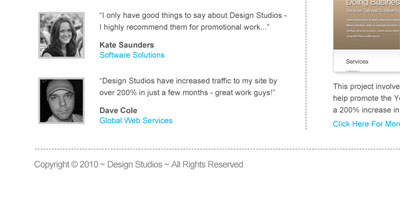
Finally, we have a simple footer at the bottom that contains some fairly standard copyright text.
Create the Document
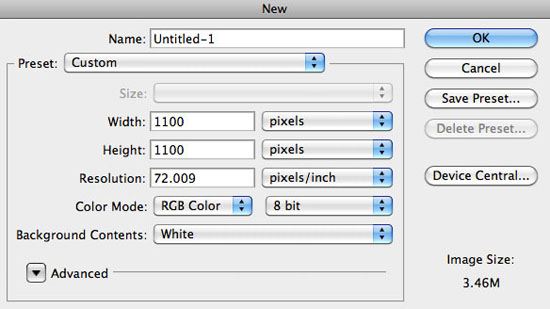
1 Create a new document with a size of 1100x1100px. Then add some vertical guides at 70px and 1030px — this gives us a width of 960px, which should easily fit on most screens.
Make the Header
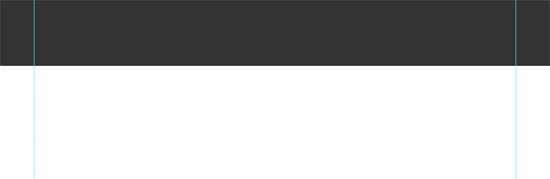
2 To create the header, we first need to add the background. Select the Rectangle Tool (U), set your Foreground color to a very dark gray color (#333333), and then draw a box from the left of the document to the right that is around 130px in height.
Add the Site Name/Logo
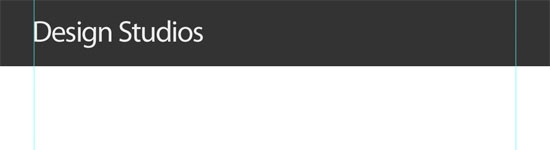
3 To add the company name, set the font to Myriad Pro. Set the font size to 60px, the color to a light gray (#EEEEEE), and the letter spacing to -40px. You can set all of these options in the Character Panel (Window > Character). With the Horizontal Type Tool (T), type the name and position it against the left guide.
Make the Navigation
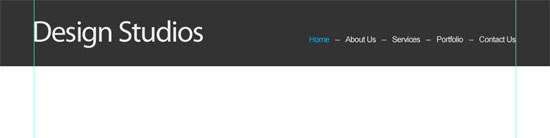
4 To add the navigation area, set the font to Arial. The font size to 16px and the color is #EEE. Type some page names (e.g. Home, About, etc.) separated by two hypens (–):
Create the Featured Content Section
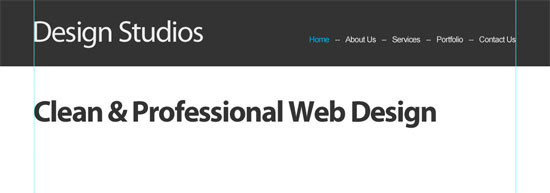
5 To create the featured content section, we need to start by adding the headline of the featured content. Set the font to Myriad Pro, the font weight to bold, the font size 60px, the letter spacing to -40px, and the color to #333333. Type the title in with the Horizontal Type Tool (T).
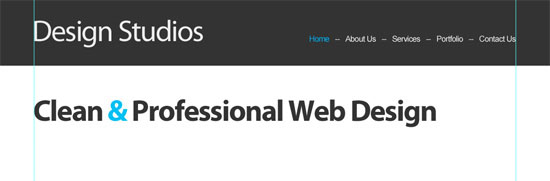
6 To make the headline stand out a little more, we’ll change the color of the ampersand (&) to a nice blue (#00BFF3).
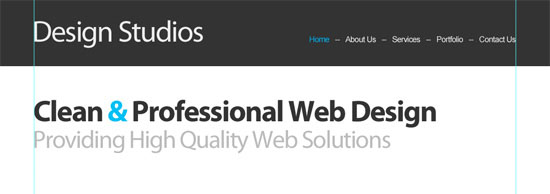
7 Underneath that, we need to add the subtitle. Set the font to Myriad Pro, the font weight to Regular, the size to 50px, and the color to #BBB. Type a subtitle and position it just underneath the title.
8 We now want to add a short overview of what the company does. Pick up the Horizontal Type Tool, set the font size to 30px, the color to #CCCCCC, and type a series of periods (.) from the left guide to the right.
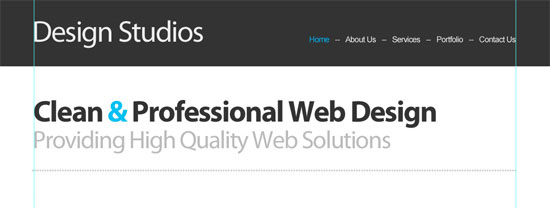
9 Create a copy (choose the text layer in the Layers Panel and then press Ctrl/Cmd + J) of this dotted horizontal line, and then place it about 40px underneath the first line.
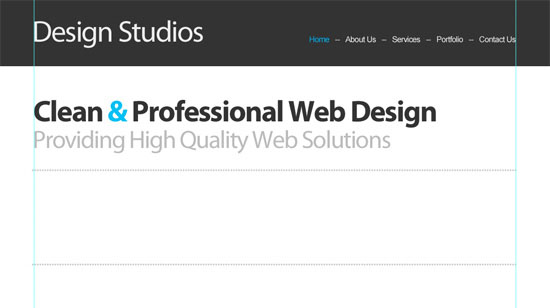
10 We now need to add the text between these lines. Set the font to Myriad Pro, the font-size to 34px, the color to #555555, the line spacing to 42px, the letter spacing to -40px, and then type a few lines of text. You can use a lorem ipsum generator just to get some dummy text content in quickly.
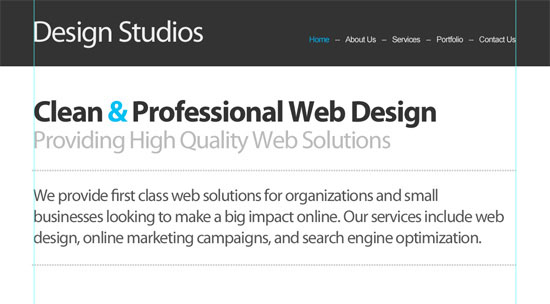
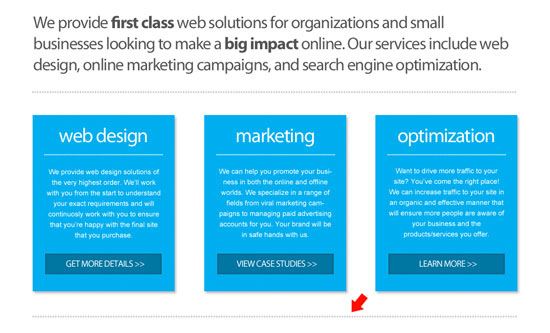
11 You may also want to pick out some key words and make their font weight bold to give them more emphasis; I’ve selected the words "first class" and "big impact."

Add the Services Details
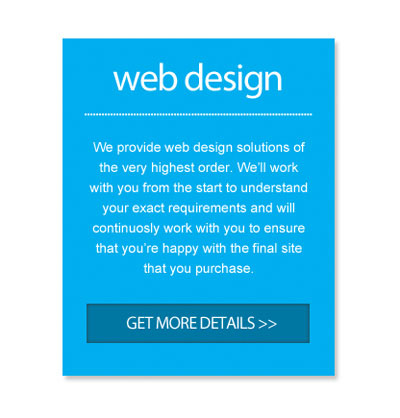
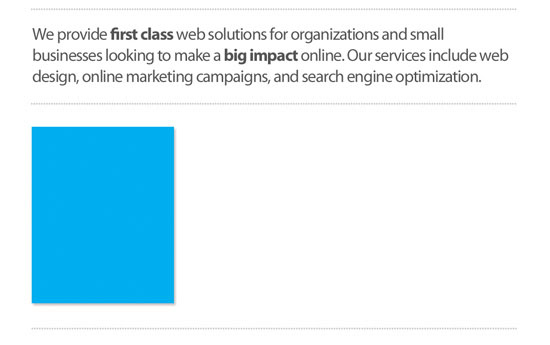
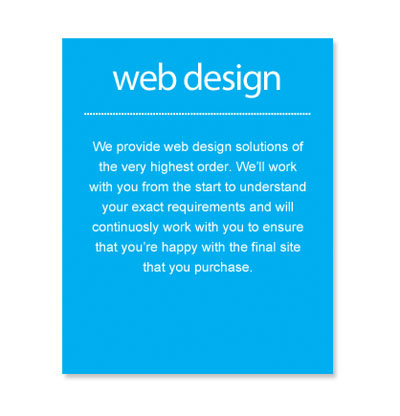
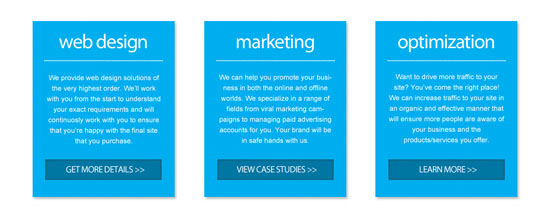
12 We now want to add some more specific details about our services. Select the Rectangle Tool from the Tools Panel, set your Foreground color to #00AEEF, and draw a rectangle shape that is around 280x350px in size, positioned against your left guide.
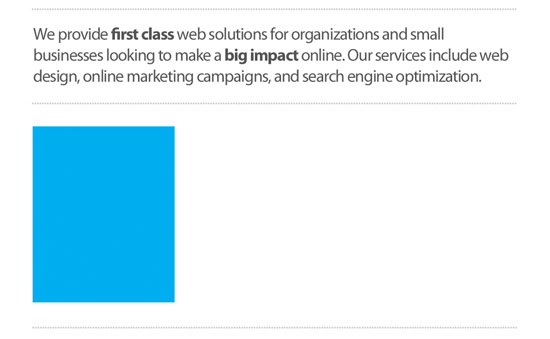
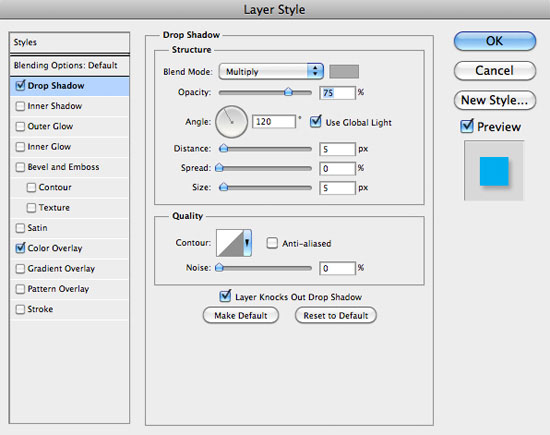
13 To make this box stand out a little more, we’ll add a drop shadow layer style (double-click on the layer’s thumbnail in the Layers Panel to access the Layer Styles dialog window); set the color of the dropshadow where the color is set to a gray color (#AAAAAA).
Your box should now have a little more emphasis.
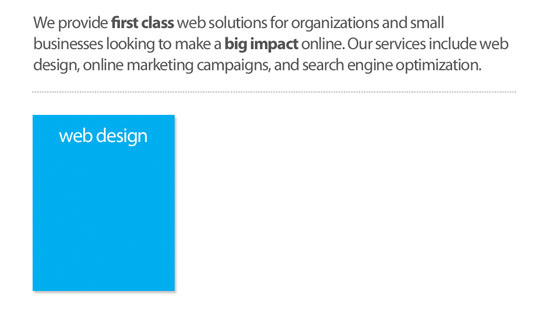
14 We now need to add a title for our service. Select the Horizontal Type Tool and set the font to Myriad Pro, the font weight to Regular, the font size to 40px, and the text color to white (#FFFFFF). Draw a text box from the left border of the box to the right and set the alignment to Center text. Then, type in a title.
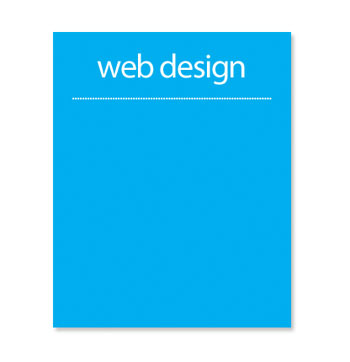
15 Now set the font size to 18px and type a series of periods that will become a dotted line.
16 Following this, set the font size to 15px and draw a text box from the left side of the box, to the right of it. Enter some text describing the services.
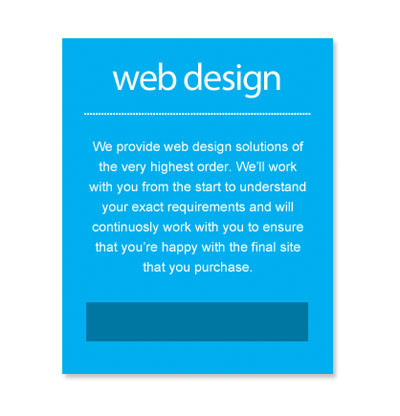
17 Finally, we need to add a button at the bottom of this box. Select the Rectangle Tool, set the color to a blue color (#0076A3), and draw a box that is around 230x40px in size.
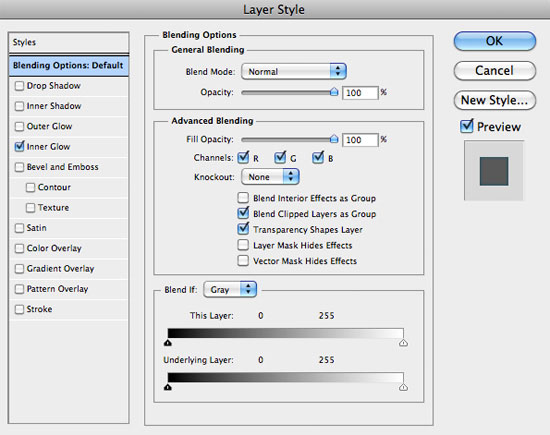
18 Add an Inner Glow effect to the button where the color is set to a darker shade of blue — I’ve used #235162.
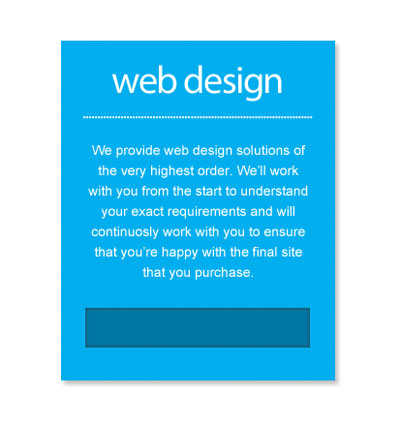
19 Now add a label to the button. Set your font size to 18px and type in uppercase, "GET MORE DETAILS>>".

That’s the first box created.
20 Create two copies of this box by duplicating the first box and everything contained within it. Use the Move Tool (V) to space them out evenly. Also, change the details in each of the boxes.
21 To finish this section of the layout, take a copy of the large dotted line that we created in a previous step and add it at the bottom of the section.
Add the Client Testimonials
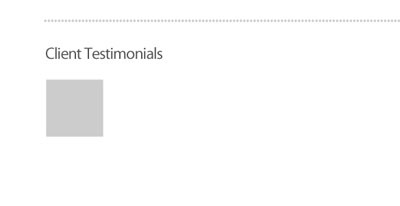
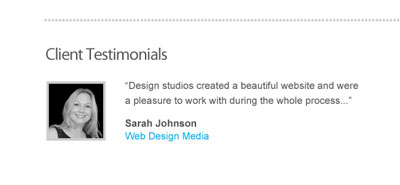
22 For the client testimonials section, we initially need to create a title. Set the font to Myriad Pro, the size to 24px, the color to a dark gray (#555555), and then type "Client Testimonials" with the Horizontal Type Tool (T).

23 Now for the first testimonial author photo, choose the Rectangle Tool, set the the color to a lighter gray color (#CCCCCC), and draw a box that’s around 84x84px.
24 Now add a photo of yours that has slightly smaller dimensions. Add the photo in a layer above the Background layer.

25 Next, we need to add some text next to the photo. Set the font to Arial, the font size to 14px, the color to the dark gray we used for the title of the client testimonials section (#555555), and then type some dummy text (again, you can use lorem ipsum for this).
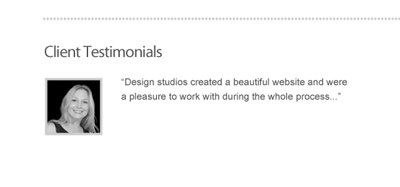
26 Now, set the font weight to Bold and type the author’s name. On the next line, type the author’s affiliation (i.e. the name of their organisation/company) and set the color to bright blue (#00AEEF).
27 Take all of the elements used to create the first testimonial and create two copies. Place them underneath each other with consistent spacing and change the content and images.
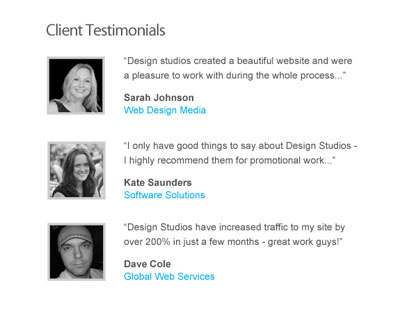
28 We now need to add a vertical divider to the right of the testimonial section. Create a copy of the dotted line we created earlier and delete around half of the periods. Rotate the line about 90o degrees (Edit > Transform > Rotate 90o CCW) and place it to the right of client testimonials section.

Create the Featured Project Section
29 To create our featured project area, first we need to add a title. Set the font to Myriad Pro, the size to 24px, the color to a dark gray (#555555), and then type "Featured Project".

30 Now add a title for the featured project. Set the font size to 20px, the color to a gray color (#888888), and type a title.
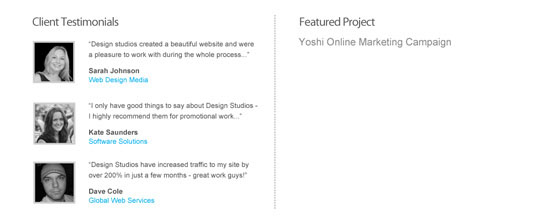
Below this title, we need a screenshot of the project that is around 430x200px.
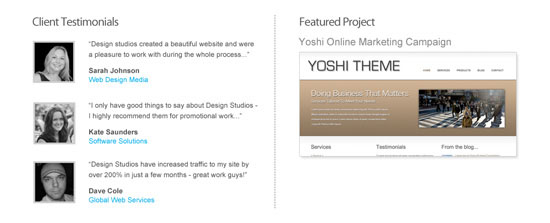
31 Then add some text that provides a brief overview of the project. Set the font to Arial, the font size to 14px, the text color to a dark gray (#555555), and type a few lines of content.
32 Also include some text at the bottom that says something like "Click Here For More Details." Change the color of this text to a light blue (#00AEEF).
33 Finally, add another copy of the dotted horizontal line at the bottom of this section.
Make the Footer
34 The footer is very straightforward to complete. Set the font to Arial, the font size to 16px, the color to #888888, and type some footer content.
All Finished
That’s everything done!

Wrapping Up
In this tutorial, I was hoping to illustrate that you don’t always need lots of fancy effects to create a nice design. Sometimes a couple of fonts and colors coupled with some subtle effects can do the job nicely.
Let me know if you have any questions or if anything was unclear and I’ll my best to answer them in the comments. In the next part of this tutorial, I’ll show you how to create an XHTML template from this design.
"Clean Business Website" Series
- Part 1: How to Design a Clean Business Website with Photoshop
- Part 2: PSD/HTML Conversion: Code a Clean Business Website Design
Download Source Files
- clean-business-website-psd (ZIP, 0.53 MB)
Related Content
- Create a Clean and Professional Web Design in Photoshop
- Coding a Clean and Professional Web Design
- Create a Slick and Minimalist Web Layout in Photoshop
- Related categories: Tutorials and Web Design


51 Comments
Geoffrey Gordon
June 23rd, 2010
Nice, Great tutorial, it real is simple and clean
Jacob
June 23rd, 2010
Great stuff Chris! Would be interested to see how you approach the deeper pages for this template.
neve
June 23rd, 2010
Nice lay-out. However… why would one do all this effort in Photoshop, while all effects (none?) could be accomplished easy using just CSS?
S.M.Karthick
June 23rd, 2010
I couldn’t understand the 9th step..what are we copying ?
Jordan Walker
June 23rd, 2010
Nice clean theme, thanks for article.
Mike
June 23rd, 2010
This is great! Please get the “How to Code a Clean Business Website Design” tut up soon…that’s the one I am more interested in!
Aisha
June 23rd, 2010
Illustrators are always creative and beautiful, above are so amazing loved each of them.
Metin
June 23rd, 2010
Good tutorial & clean result.
John
June 23rd, 2010
Awesome man! Also really like your site =D
Craig Wann
June 23rd, 2010
@neve
It all depends on your workflow. Many of us prefer to start with photoshop/fireworks while the website is still in the proofing stage. Easier to go back and make changes especially if you are going to send the design out for review. A design can change a lot after you get input from others, and you may have to change the way you would have coded the site.
I find it MUCH easier to stick with a graphic mock-up until the design is finalized – no matter how simple the design.
Jacob Gube
June 23rd, 2010
@neve: A valid and seemingly-easy-to-answer-question, but I could write 10 pages worth of text trying to answer it! My short answer would be the same as @Craig Wann – it depends on your personal workflow.
The choice depends on many (many) factors, and a lot of them are related to personal choice. That’s why when it comes to design — through it is a science — the way you arrive at the final product is very subjective and variable. It’s hard to state black and white rules for a lot of decisions we need to make when designing something. There are guidelines. There are best practices. But saying “This way is always better,” is hard to prove to certain people who work a certain way that’s different from the way you work.
There are definitely many advantages to skipping Photoshop in this particular instance, and with a lot of buzz and advantages surrounding designing in your web browser, you’d be quite fine skipping Photoshop or Fireworks or whatever graphic editor you use.
It depends on the project. For example, I read a great comment on a 37Signals blog post about skipping Photoshop where the commenter says (Jeff Croft):
In this instance, where the design is clean and simple, it would definitely have fallen on the other side of his argument. But you would have had to have known that from the start and you would have had to be limited to a “clean and plain” design during the creative process.
But let me go through my personal logic — not speaking for Chris, but speaking for myself — with regards to my personal workflow:
- Using Photoshop in this instance gives you a bit more creative freedom. You can move things around quickly and realign things in less than a second using the Move tool.
- You can create layer comps, which is more difficult when designing in a browser/code editor.
- You can change elements quickly, especially if you take advantage of smart objects.
- Personally, I like compartmentalizing design and code, if possible and beneficial because they’re intimately related enough as it is. Some individuals are better at imagining things in their mind and then coding it, but me, I need to see things “on paper”, which in the end saves me a lot more time.
There are a lot of advantages to designing in a browser too:
- Skipping a step in the process (Photoshop)
- CSS3 offers us more flexibility with gradients, rounded corners, drop shadows that can help us quickly change our designs when doing these more complicated layouts.
- Your focus shifts from aesthetics to writing code.
- Some people are great at visualizing things in their mind and don’t need a wireframe or mock-up to code what they want to code.
I can go on, but what I’m trying to highlight is that there’s no right or wrong way or better way, because it’s subjective. It’s not like a math problem where 2 + 2 will always be 4. There are a lot of factors that come into play, and we, as web designers, have to make these decisions for ourselves. If your design is great and its usability and accessibility is great and you’re within the budget and timeline of the project – it doesn’t matter how you go about your design process, and I, or anyone, can’t tell you what you’re doing is wrong (and if they did, they’d be just as wrong).
ddeja
June 23rd, 2010
I’m observing new sites comming out every day. And as I was going through this article I realize there is some strange connection betwean series of desings that are comming out nowadays. And right now we are having something like a mix where almost all of the things used in this desing are present.
First is the big commercial slogan that says something verry important to the users:))
The second thing are those three block that right now you can find on almost every new website that comes out:)))
And the third thing is that big big footer with some contact form, or as in this case some testimonials and additional info.
The cool thing about those desings is that every day more and more typography leads the way in the desing structure, which i like a lot.
Also not so long ago there was an article about what the designer should do to avoid burnout. But when I see all those desings I sometimes think that most of the designers are a little afraid of stepping out of the line of what is “cool and trendy” right now.
Anyway thanks for the article.
Ejaz Siddiqui
June 23rd, 2010
really nice and very helpful tutorial. With the help of these instruction any novice can create a website.
tuananh
June 23rd, 2010
excellent tut,interesting read. thanks so much
Chis Creed
June 23rd, 2010
Thanks everyone for your comments.
@S.M.Karthick – in step 9 you need to create a copy of the dotted line that you added in the previous step.
@neve – I agree with Jacob and @Craig Wann that it largely depends on your personal workflow. When working on a new design I really like the freedom that applications such as Photoshop provide – it enables me to easily add new elements to a design and then quickly manipulate them in various ways. I personally think this freedom is essential when working on new designs as you want to be able to play around, experiment with different combinations of colors/text/images, and generally try out lots of different ideas.
dobrio
June 23rd, 2010
Great Tutorial!!!!
Yofie Setiawan
June 23rd, 2010
Great tutorial… Thanks for sharing…
@neve : to get good visualization first, after sure with the composition color and structure, so start to use coding then…
Raneesh
June 24th, 2010
Hello Chris
I saw your website and i believe that your site looks all similar, why is that?
Regards
Raneesh
Anca
June 24th, 2010
I really like the layout and I think it can fit pretty well in the minimalistic trend :)
@ddeja – this things – “big commercial slogan” and a “big footer with some contact form” has proved to be the best bet when it comes to usability. When you create a website you are trying to communicate with your visitors (which might be your potential customer), so this things can really help you…
Gil
June 24th, 2010
The headline is misleading. As stated at the beginning of the article, this is a photoshop tutorial on how to build a pre-designed website, not design one.
As a graphic designer, I design websites in Photoshop and have a web developer code it for me. As mentioned above, it’s personal workflow. Having said that, I don’t think a lot web “designers’ spend enough time designing, so all the sites look very similar.
Jacob Gube
June 24th, 2010
@Gil: If you really want to be pedantic, then let me respond in kind: I don’t think you meant “misleading.” Misleading means “to lead in a wrong direction or into a mistaken action or belief often by deliberate deceit” (source). How did the title deliberately deceive you? Did this tutorial not take you through the design process of creating a clean business website using Photoshop?
I’m all for openness. I want you to share your opinions and thoughts. Your second paragraph is a great thing to note, but your great idea and opinion was lost because of a baseless critique.
Steve
June 24th, 2010
This article should be entitled:
How to Sketch One Page of a Content-less Website in 60 Minutes and Prop Your Brand New Business on the Web 2.0 Bandwagon to Seem More Established and “Professional”
ddeja
June 25th, 2010
@Anca – I totally agree. I’m just saying that the reality is that this is a new trend right now, and hardly every we can find some cool alternatives for this solution. More over the idea nowadays is that you need to have big balls to step out of the line. Now one want’s to be a hero…
Why flash sites can be so creative and different one from another? Why XHTML + CSS sites walk the same path?
DSM Design
June 25th, 2010
Great easy to follow tutorial, very informative and thorough! :)
Pierre
June 25th, 2010
Totally agree with you Steve….
It’s a generic template without real style… like each template on Voosh themes… I know it’s in order to be compatible with all type of business, but on other websites in the same area (themef***** for example) templates are less common.
I didn’t say it’s not aesthetic, I just said it’s too classic.
Cody Swann
June 25th, 2010
Good job. Thanks
Izzat Aziz
June 25th, 2010
Either start design with css or design it on photoshop, for me right now i prefer just do the css.. but trust me it much easier if there is guideline like a psd theme file.
Gil
June 25th, 2010
@ Jacob
This tutorial did not take me through the design process at all. It was a step by step tutorial on how to use Photoshop tools to build a site. From your own dictionary source: “to lead astray : give a wrong impression”. I’m suggesting it was the latter, and no deceit intended.
Perhaps it’s a difference of what we mean by design process (I’m not going to quote a dictionary). Perhaps I’m old school. If someone is going to teach me about web design, I hope to learn about the thinking process, layout design, and especially usability issues. I want insight on how to approach my next web project, not copy someone else’s design.
This article is about production of the his template. I was hoping to read a bit more about how Chris came about with his layout and why he thinks it works as a website. There are so many unique challenges that the designer has to contend with when designing for the web, like usability, that any insight is helpful.
As a designer, not a developer, I’ve learned a lot about designing for the web from your site and the others listed on it. Too many times, I’ve heard developers complain about the designs that designers have handed them to code. I visit sites like yours to better design my own sites so that there is a good workflow between me and my developer. I don’t code at all, so I need to understand where my developer comes from – less “I can’t code that!” to “that’ll work nicely”.
I think this article is very helpful for a lot of people who are not as familiar with Photoshop. From my point of view, the headline gave me the wrong impression of what it was about.
Jacob Gube
June 26th, 2010
@Gil: Thanks for the reply. I hear you, and your comment is valid. I also think it’s important to explore the actual design process (color choice, layout choice, interface layout) – to explore “Why this is the way it is.” I can also see why “How to Design” can be confusing in this sense. However, I also think something like this, a step-by-step process, to help you see a designer going through his creation process, is very helpful, especially for beginners. It’s pragmatic, at the expense of discussing more theoretical concepts. Step-by-step tutorials are effective in outlining techniques that you can incorporate in your workflow, at the cost of the reader having to critically think about the whys. It’s hard to reconcile both these things (I tried to do it with limited success when I wrote my book), but there’s no reason why we can’t have a mixture of both these things, content-wise.
I like the idea, and I don’t think we’ve done a tutorial/article before on exactly how to design a layout: Things that go into it like picking your color palette, things to keep in mind for a business website versus, say, a personal portfolio, and even maybe include a discussion on design trends in this niche (and WHY they’re trends and WHY they work). This tutorial, in my mind, would answer the whys. Why is it blue? Why is this section where it is? Why use 10 layers instead of 2?
I may have spoken too brashly in my first reply to you. No excuses, and I’m half glad I said what I said because I was able to get a better idea of how to make things better in the future. Thanks for your continual support Gil, and thanks for reacting positively/constructively (instead of negatively – which wouldn’t have surprised me) to my first comment.
Chris
June 30th, 2010
I am actually taking “Web Design” in school right now. Almost finished, on the last month, where I am to build a portfolio of various sites. The last book I read was called Transcending CSS by Andy Clarke. He does say it probably takes as much time to design a site in Photoshop as it does to actually write out semantic HTML and CSS. The site wouldn’t have to be complete, or fully functional, but providing a customer or client with something they can interact with, even minimally is a good thing. I agree.
On the other hand, I am no where near capable of doing that yet. I do need the visual layout, I like working with a 960 grid in photoshop (not while coding), and if nothing else this tutorial did teach some good techniques. I would never of thought to use periods as a separator. I am not sure why it needs to be said that this is great for beginners. If you were not a beginner and you were an expert, I assume you wouldn’t need the tutorial in the first place, as you would be doing tutorials yourself and giving back to the design community.
I appreciate the effort, and the design. The more tutorials I feel I do, the better I get and the more risks I take in my own design. Thanks.
Zach
July 5th, 2010
I agree with Chris entirely… I also want to add that as a novice to photoshop (im well versed in html & css) this has been incredibly helpful. While it is easy to find photoshop articles on the interwebs, I have struggled finding any that show me how to do things that are relevant to designing simple web sites. This article effectively doubled my abilities.
However, I could definitely see how this could be a disappointing article for many here, having read many Six Revisions articles and tutorials, and their articles, I can see that the general knowledge level is probably higher than this article caters too.
ashraf azeem
July 6th, 2010
nice way to teach those who like to learn. but make every thin very easy to understand for new students.
ashraf azeem
July 6th, 2010
i will be very thankfull to you if u send me some basic information about website making.
[email address removed for privacy]
prmble1616
July 24th, 2010
ashraf,i have an ebook,that could solve your problems
Jass
July 30th, 2010
Good one..!I will implement it in my new website.
yury
August 8th, 2010
thanks for a great tutorial!!!!
Abe
August 14th, 2010
Hi Chris,
Thank you so much for this tutorial! I really appreciate how you didn’t assume anything but explained each step in great detail.
Jacob, just wanted to comment that this site is awesome!
Please do post more Photoshop web design tutorials like these on the site.
Chris
August 16th, 2010
Real simple and clean. I like it.
Childmonster
August 27th, 2010
Really useful. Thanks for posting
Richard
September 3rd, 2010
I really appreciate with your tutorial, simple and easy to understanding. Thank you Chris
jesse
September 28th, 2010
Great, just great.
Glad to see people who have made it big give back.
I can use this theme I just made right? lol
idk how that works, but i’m going to use it, e-mail me if I cant!
Tadd Rosenfeld
October 2nd, 2010
If you are designing your own website, “The Non-Designer’s Design Book” is a great short read.
Notts Forest
November 15th, 2010
I thought this tutorial was very straight to the point and you gave the step by step process and actual tool to use in Photoshop. What can i say that hasn’t been said for those that aren’t as versed in Photoshop this was on the money. To the person that mentioned the Hows and Why’s – some great books out their that give that but not to many that give you really effective step by step for creating a mock-up.
Great job and keep the website photoshop tuts coming.
shi
November 23rd, 2010
This tutorial is very clean, but i couldn’t understand the 9th step..what to copy ? if it with video tutorial is better.
Leon
December 27th, 2010
Really simple but effective website. Less = more in this case.
I’m starting out as a web designer myself but I find it very hard to come with original ideas/ designs for layouts (such as these).
Does anyone have any suggestions on good books that talk about graphic/ web design?
It is very difficult to find inspiration and create a solid UI.
pratik
February 8th, 2011
simple but very nice tutorial.
thanks Chris Creed.
Jennifer
April 18th, 2011
Sorry – but this is a total newbie question!! Which version of Photoshop is the best for creating web sites?
Thanks so much for this site!! I was just referred by a web designing friend. What a fabulous reference!
kumargautam
June 2nd, 2011
Nice tutorial, very useful for me :)
Pali Madra
June 6th, 2011
First of all thank you Chris for putting this post/tutorial together. It is a great tutorial for anyone who wants to learn Photoshop or wants to restart using Photoshop which is the case with me.
However, there is an error in the instructions, at least that is what I think. In the post you say
“Step 9 Create a copy (choose the text layer in the Layers Panel and then press Ctrl/Cmd + J) of this dotted horizontal line, and then place it about 40px underneath the first line.”
The space of 40Px is too small to fit the text in the next step.
I downloaded the PSD that you have shared and in that PSD the difference between the two dotted lines is 190px.
I hope that I’m correct and not missing something obvious. If I’m missing something then please excuse my ignorance.
Once again a great post and helped me a lot. Are there any other posts which I can follow to improve my Photoshop skills.
Thanks a tonne.
avinash
August 31st, 2011
nice
Ann Kristin
November 8th, 2011
Great tutorial! Really easy to follow :)
Leave a Comment