Using XAMPP for Local WordPress Theme Development

April 26th, 2009 by Jacob Gube | 287 Comments | Stumble It! Delicious

Become a Facebook Fan of Six Revisions.

Using XAMPP for Local WordPress Theme Development - leading image.

In this tutorial, you’ll learn how to install and configure XAMPP for the desktop. Once that’s out of the way, we’ll install WordPress so that you can have your very own professional, light-weight PHP and WordPress development environment.

Introduction

To sum it up in one sentence: XAMPP, which stands for Cross-Platform (X) Apache, MySQL, PHP and Perl, is a popular, free and open source web server package that you can use to install a web server onto your desktop.
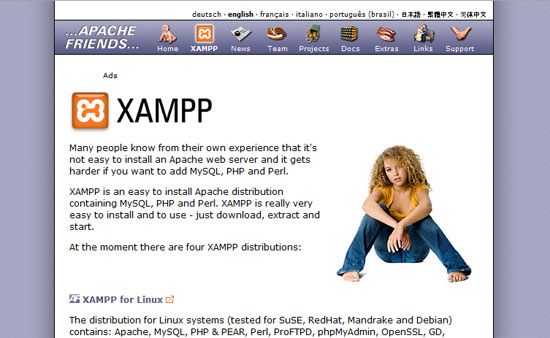
XAMPP home page.

XAMPP allows you to develop PHP and Perl-based server-side scripting applications without the need for a remote web server, offering you the opportunity to work faster, develop stuff more securely, and work on your apps without an internet connection.

In this tutorial – you’ll see exactly how XAMPP can do splendid things to your development cycles.

We’re going to use a simple xampple (sorry, I had to get that out of the way, been thinking about saying that for a long time): we’re going to install XAMPP and WordPress with some test data to have WordPress right on our desktop.

This tutorial is for Windows Vista, so you’ll have to tweak the steps involved depending on your operating system. Here’s what you’ll be doing in this tutorial:

Objectives

  • Downloading and Installing XAMPP
  • Starting up your Apache and MySQL services
  • Installing and configuring WordPress locally
  • Creating a MySQL database for WordPress
  • Creating a MySQL database user for WordPress in phpMyAdmin
  • Importing some test data for WordPress using an XML file

This tutorial covers installing XAMPP in Windows Vista, so you’ll have to tweak the steps a little bit if you’re using a different operating system.

Obtaining XAMPP and choosing a version

1 Obtain a copy of XAMPP for Linux, Windows, or Mac OS X at the apache friends XAMPP web page.

http://www.apachefriends.org/en/xampp.html

XAMPP home page.

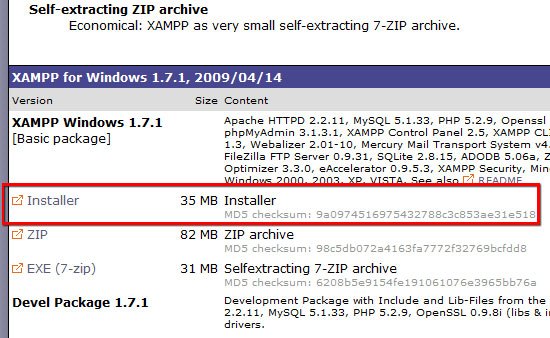
2 Choose the package you want: for normal web development, just go with the Basic Package.

The Basic Package comes with a host of useful applications, libraries, and extensions such as phpMyAdmin (which we’ll use to set up WordPress later on) and eAccelerator (a popular PHP caching application to optimize and improve PHP script performance). For this tutorial, choose the Installer version.

Download it (Save File) onto your computer.

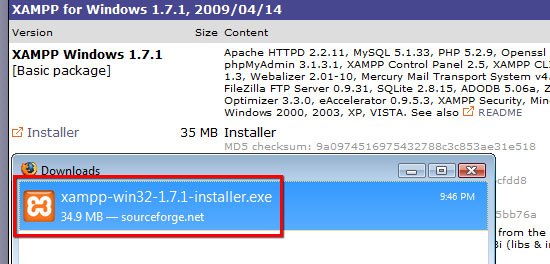
3 Open up the executable (for Windows users, it’s called xampp-win32-1.7.1-installer.exe).
download XAMPP

Download Installer.

The following figure shows the first dialog box; it asks you to select which language you want to use.
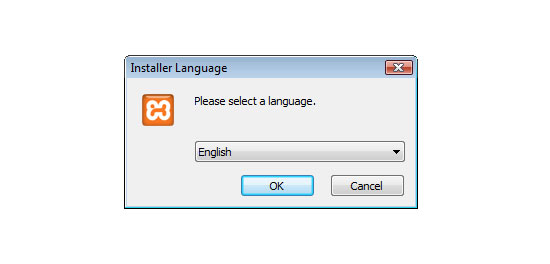
Select language.

The next dialog you’ll see is the first page of the XAMPP Setup Wizard.
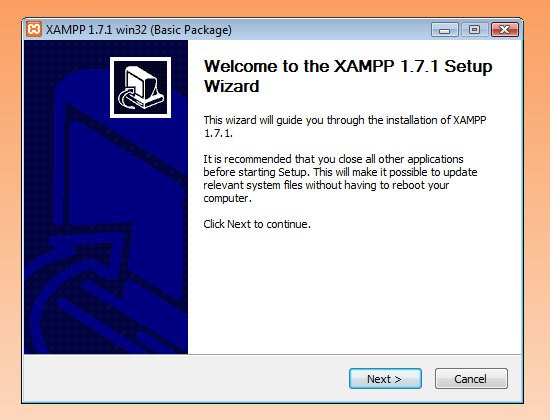
XAMPP Setup Wizard

4 Pick a destination for the installation.

Note: XAMPP suggests not to install it in the Program Files folder (i.e. C:\Program Files\xampp), so just install it in the root of your drive (C:\xampp)
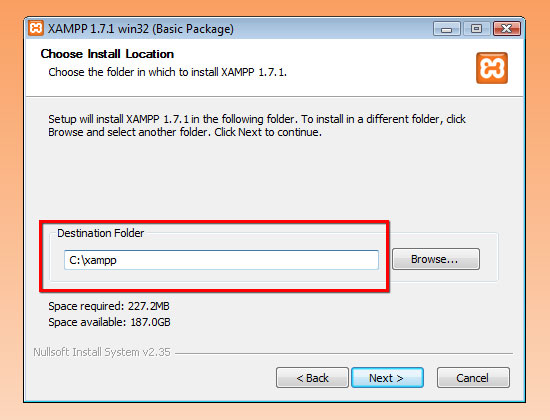
Pick a destination for the installation

5 Configure your options in the XAMPP Options dialog box. For this tutorial, just go with the default installation options.
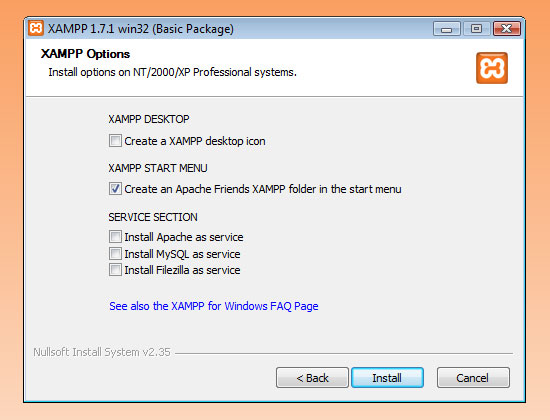
XAMPP Options

That’s it for the installation, quick and painless wasn’t it? Let’s fire up Apache and MySQL.

Starting up your Apache and MySQL services

6 After the installation, you should’ve been presented with an option that asks you to open the XAMPP Control Panel. If you didn’t get that option, do one of the following:

Option 1: Navigate to it using the Windows interface

Start > All Programs > Apache Friends > XAMPP > XAMPP Control Panel

Option 2: Open the XAMPP Control Panel directly

If you didn’t select the "Create Shortcut" option in the installation, then navigate to the XAMPP installation folder and open the file called xampp-control.exe.
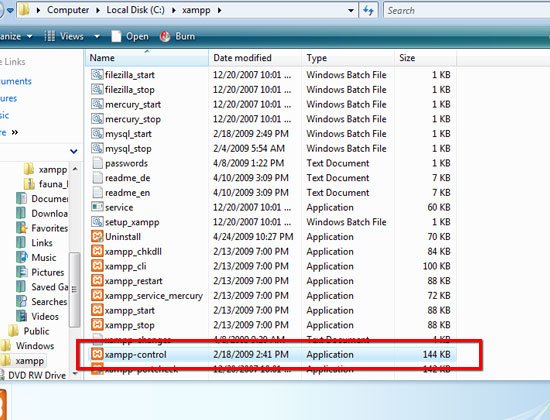
Control Panel.

7 The XAMPP Control Panel should look like the following figure:
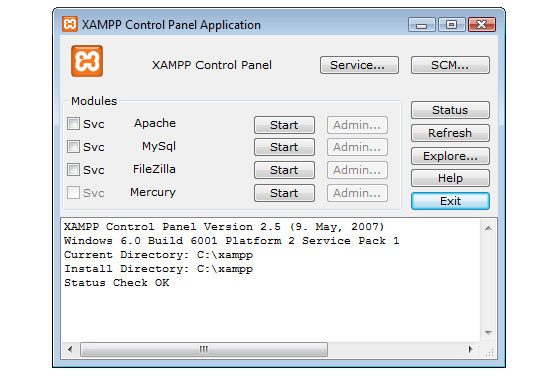
XAMPP Control Panel

8 Click the Start button beside Apache. If you’re on Windows, you’ll get a Windows Firewall warning: choose Unblock.
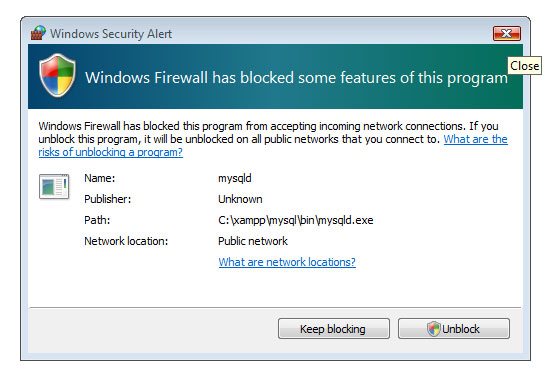
Start Apache unblock.

9 If all goes well, you should see the XAMPP Control Panel log updated with "Apache Started", and "Running" with a green background right beside the Apache service.
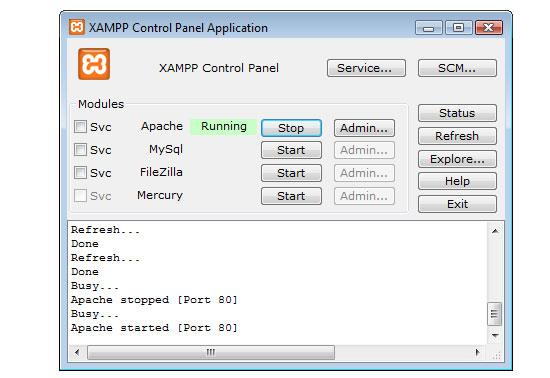
Apache running.

10 Start the MySQL service using the same method as step 8.
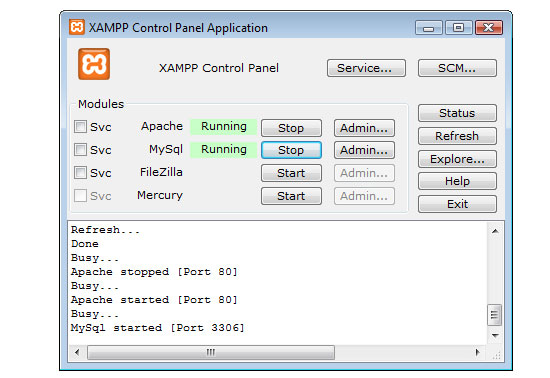
Both services running.

Testing to see if it works

11 With your Apache and MySQL services started, open up a web browser and navigate to localhost using the following path:

http://localhost

12 You should see the following screen:
welcome screen.

Congratulations, you now have your very own locally hosted (localhost) web server!

Depending on your operating system, you’re now the proud owner of a WAMP (Windows users), MAMP (Mac OS X users) or LAMP (badass Linux users) server right there inside your computer.

Now let’s move onto installing WordPress on your machine. First, we’re going to set up your WordPress MySQL database and create a MySQL database user for it. That’s the topic for the next section.

Setting up your MySQL database for WordPress

The easiest way to create a MySQL database using XAMPP would be to use phpMyAdmin, which comes with the Basic Package that we installed.

13 Navigate to phpMyAdmin through your web browser. The URL is:

http://localhost/phpmyadmin/
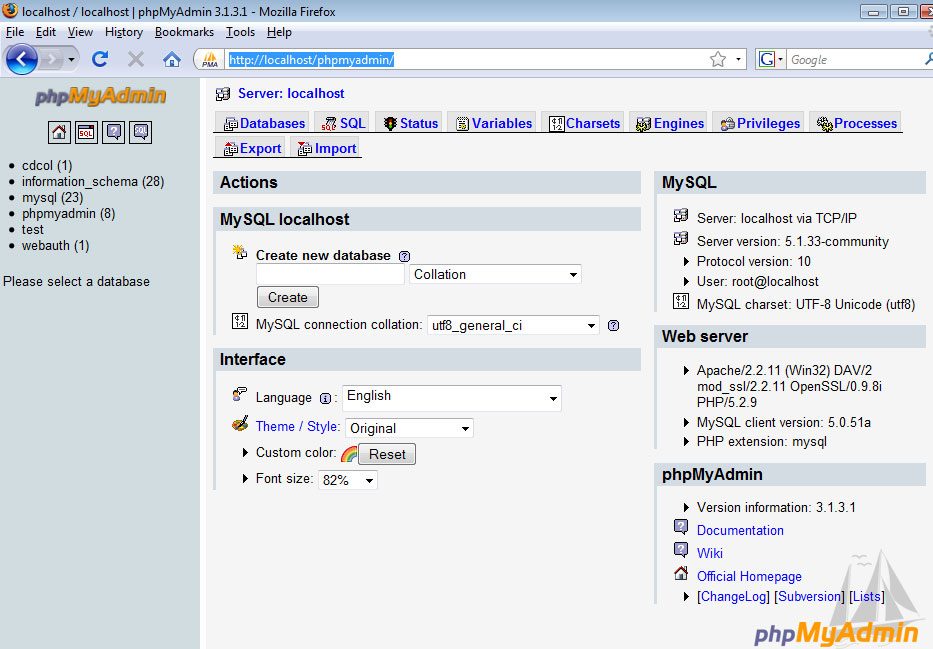
14 Create your WordPress database by entering in a name and pressing the Create button.

In this tutorial, we’ll call it wordpress_db. You’ll need to remember this value for a later step when we configure WordPress.
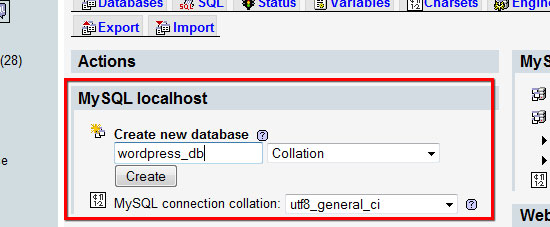
wordpress_db creation.

This is what the following screen will look like:
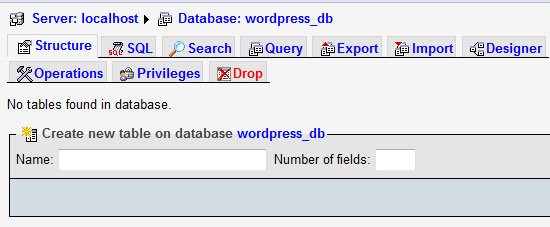
Created DB.

Creating a WordPress database user

In real-world scenarios, you should never use the default root user because it has all privileges and you don’t want a simple WordPress bug or vulnerability taking down your entire MySQL service.

This isn’t necessary if you’re only testing locally, but we’re going to do this right to promote best practices.

15 Go to phpMyAdmin home by either clicking on the logo on the top left or clicking on the home icon.
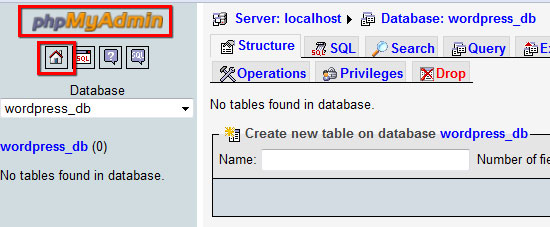
phpmyadmin home.

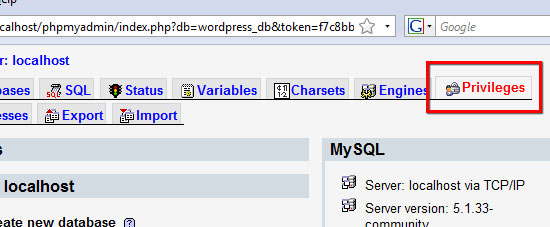
16 Click on the Privileges tab.

Previledge tab.

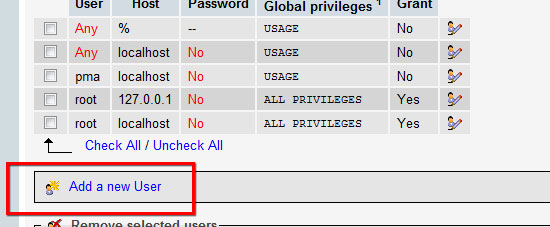
17 Click on "Add a New User"

Add a New User

18 For the User name field, type in any name, this tutorial uses wordpress_user for simplicity. For Host, select Local.

For Password, type in a value, but it’s highly recommended that you use the Generate Password button to randomly generate a password for better security.

Once you hit the Generate Password button, click on Copy button right beside it to copy it automatically in the Password and Re-type fields.

Important: take a note of the User name and Password you used, we’ll be using it later on.

Here are the settings used:
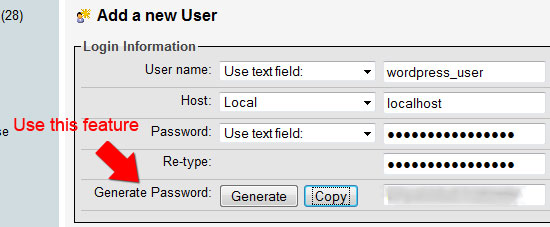
DB Settings.

19 Set the Global Privileges of wordpress_user. Typically, you should try to limit the privileges of your database users to a minimum to improve security.

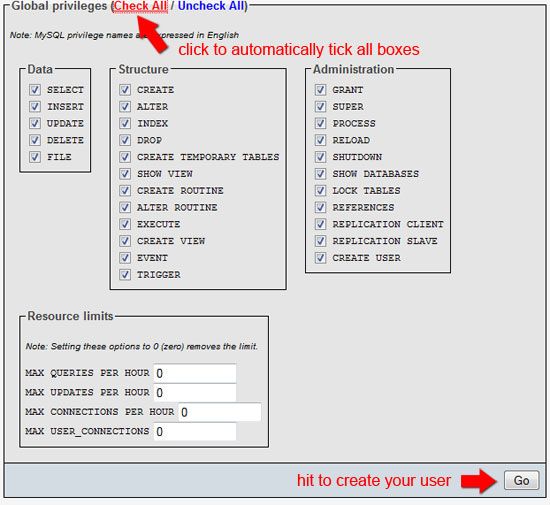
For this example, since it’s a local installation – just check all of them. When you go into production, pare down the privileges!

Hit the Go button to create the database user.
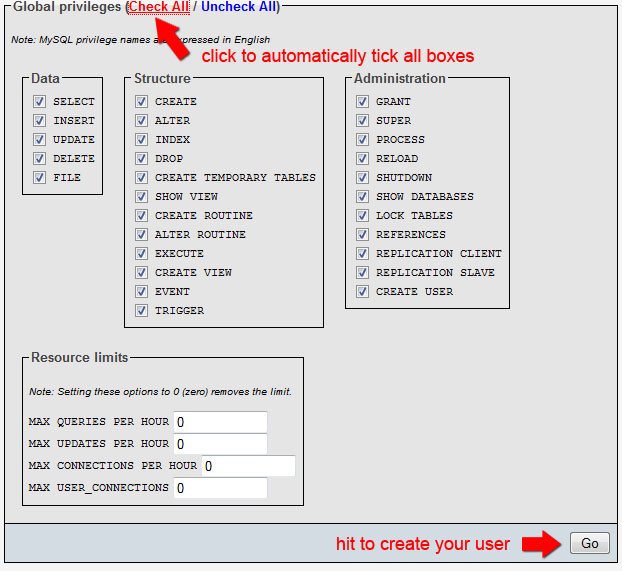
Go button.

20 If everything went well, you’ll see a confirmation that you’ve created the user successfully.
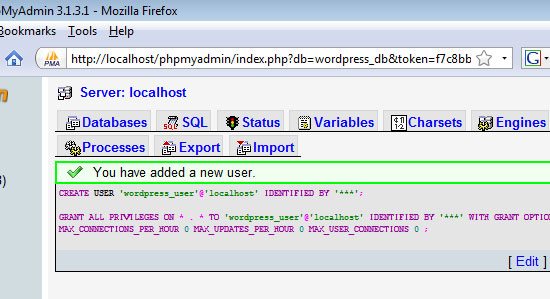
Success screen.

Adding your newly created user to your database

21 In the next screen, in the Database-specific privileges fieldset, in the Add privileges on the following database field, select wordpress\_db.

This will add wordpress_user as a database user of your wordpress table, wordpress_db.
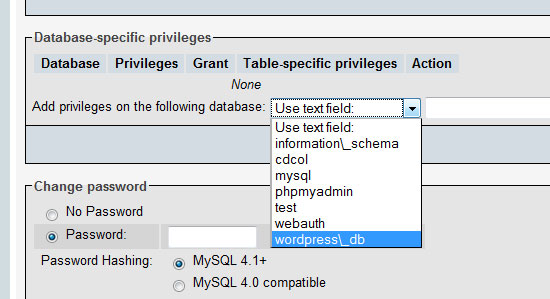
wordpress_user

22 Check that wordpress_user has been added to the database by entering your database.

To enter your database, click on wordpress_db in the left-hand navigation.
left-hand navigation

23 Click the Privilege tab to see all users that have access to your WordPress database. You should see wordpress_user listed in the Privilege section.
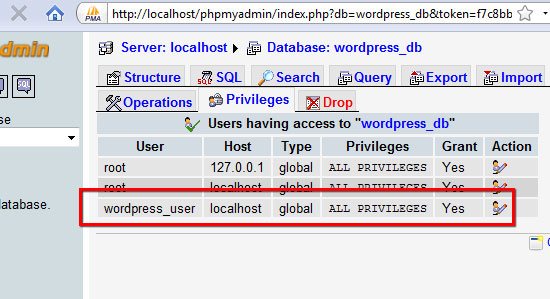
Previlege

Alright, you’ve just learned how to create a MySQL database user using phpMyAdmin. Give yourself a pat in the back before moving on!

Installing WordPress on your computer

If you’re not familiar with the process of installing WordPress, you should take a look at the following guide on the official WordPress.org site first:

This guide will get you up and running with the general process that we’ll be taking. Please take a moment and read it – I promise, it’ll be quick and painless.

24 Download the latest version of WordPress, save it on your computer.

25 Open your xampp folder. Navigate to the htdocs folder.

If you used the default installation destination, the file path is:

C:\xampp\htdocs

26 Open up the WordPress ZIP file you downloaded. Extract the entire contents in the htdocs folder.
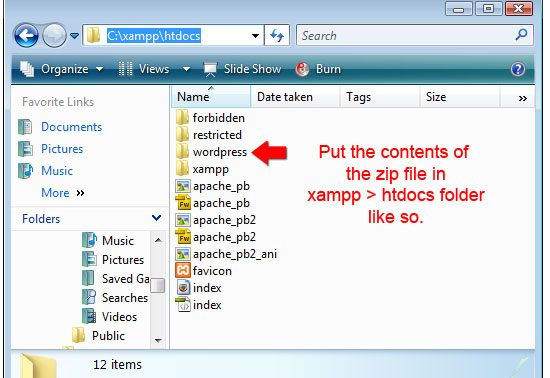
ZIP file you downloaded

Configuring WordPress: entering your MySQL database information

27 Inside the wordpress folder, open wp-config-sample.php file using your favorite text editor.

Fill in the information with your database information. If you followed along and used the same values as this tutorial, you can use these values:

/** The name of the database for WordPress */
define('DB_NAME', 'wordpress_db');
/** MySQL database username */
define('DB_USER', 'wordpress_user');
/** MySQL database password */
define('DB_PASSWORD', 'typeyourpasswordhere');
/** MySQL hostname */
define('DB_HOST', 'localhost');

28 Once you’re done with the configuration file, save it as wp-config.php in the same folder.

Note: You have to save it as wp-config.php and not wp-config-sample.php.

Running the WordPress install script

29 To finish the installation of WordPress, navigate to the install script. Here’s the file path:

http://localhost/wordpress/wp-admin/install.php

30 If you did everything correctly, you should be greeted by the following screen:
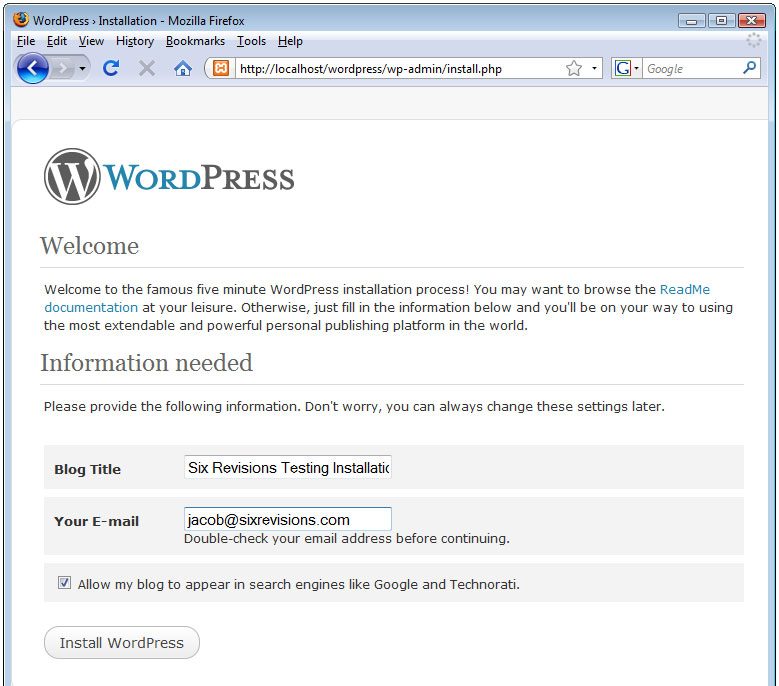
install success.

31 Just hit the Install WordPress button, and follow the steps. If this is your first WordPress installation, read the steps of the installation dialog carefully as we won’t be covering it here in detail.

Testing to see if your WordPress installation works

32 Navigate to the home page of your WordPress installation. The file path is:

http://localhost/wordpress/

If everything went well, you should see the default WordPress home page:
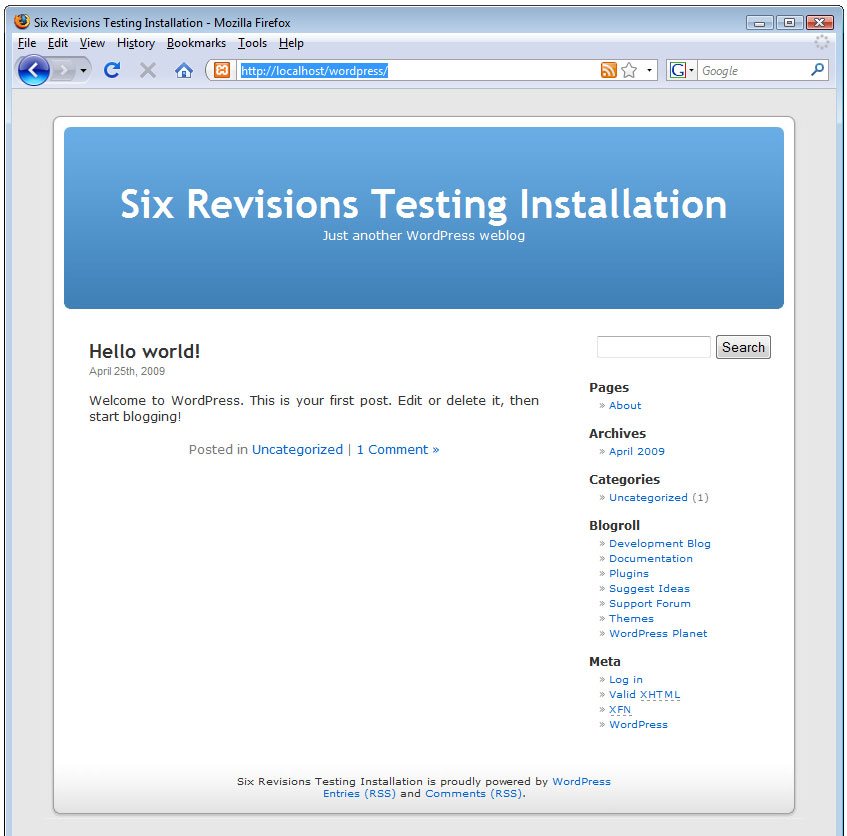
default WordPress home page

Important: take a note of the auto-generated password or else you won’t be able to log into WordPress.

WordPress local installation completed!

Woot, you just installed WordPress on your computer! No more FTP’ing or live web development! You can now test your themes or test site updates before going live.

At this stage, you can log into the WordPress administration section:

http://localhost/wordpress/wp-admin
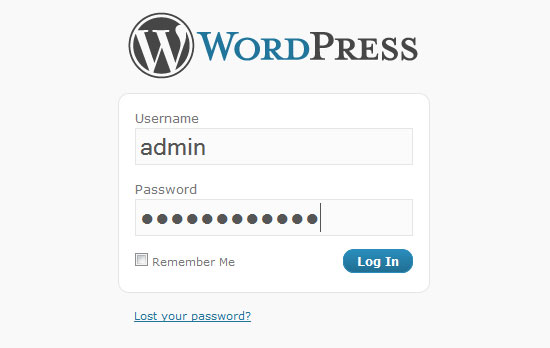
Alternatively, you can continue in the tutorial (because we’re not done yet).

Next, we’re going to import some test data which you should do when you’re developing WordPress themes to be released to the public.

Importing WordPress test data

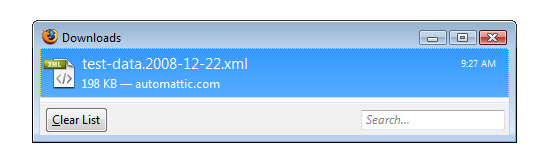
33 Download the WordPress XML file from the official WordPress.org site. You can get it through the Theme Development Checklist (which is a great guide by the way), under the Theme Unit Test section.

Here's the direct download link:

http://svn.automattic.com/wpcom-themes/test-data.2008-12-22.xml

Download XML file.

34 Log into the WordPress administration section:

http://localhost/wordpress/wp-admin

Admin section.

35 In the WordPress admin section, go to Tools > Import (using the sidebar navigation on version 2.7).
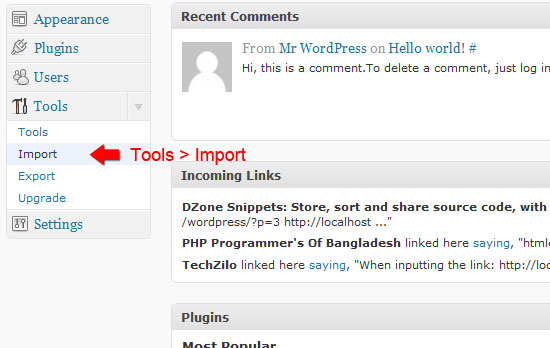
Tools import.

36 In the Import page, click on WordPress.
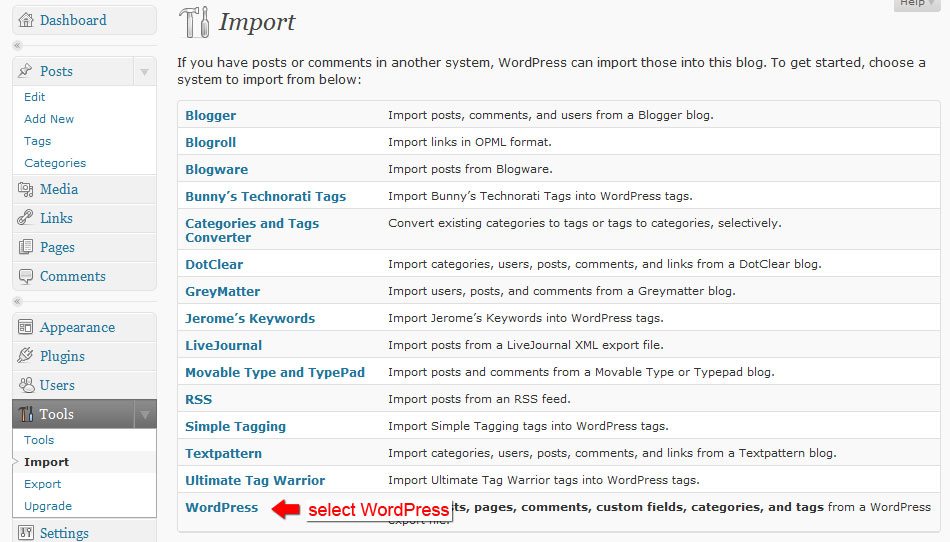
Import page.

37 Browse to the XML file we downloaded (test-data.xxxx-xx-xx.xml).

Hit the Upload file and Import button.
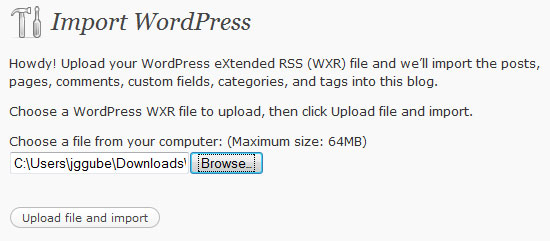
Upload file.

38 Assign the authors of the post. The XML file created a testing author named Noel Jackson for you.

If you don't want to assign the test posts to Noel Jackson, use the or map to existing field and select the author you want. For this tutorial, assign it to admin.
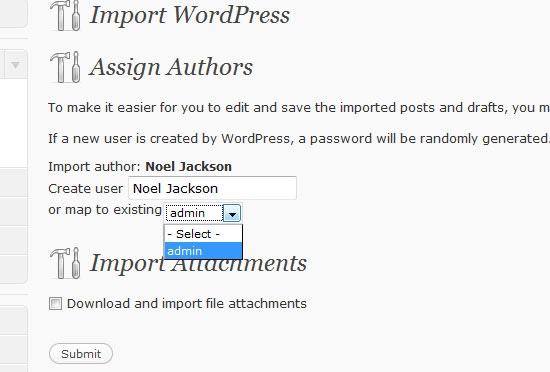
Submit

Click the Submit button.

39 You'll be presented with a log of all the changes made by the import process. Examine it if you want to see exactly what happened.
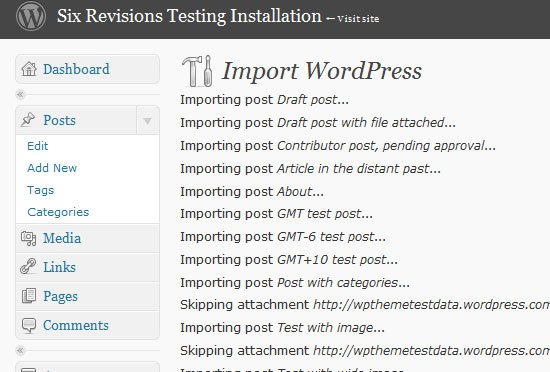
Log.

40 Check to see if the import went according to plan. Easiest way is to go to the home page of your WordPress installation (http://localhost/wordpress).

41 In the home page, you'll see that there's now content for your WordPress installation. This way you can easily check and test your theme for public release.
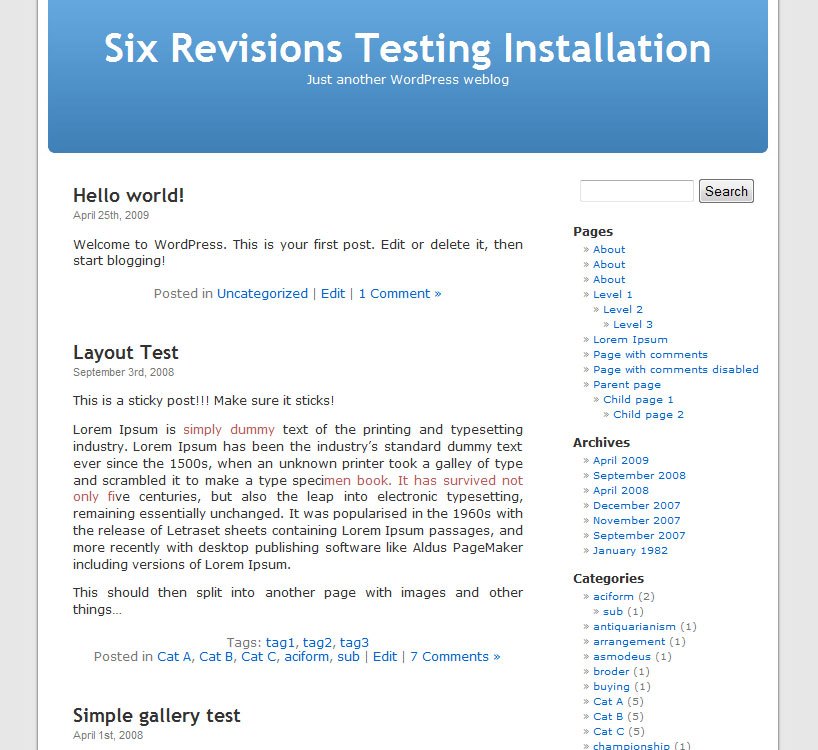
Finished.

You're done, you professional PHP/WordPress developer!

Now you can develop WordPress themes and test changes locally on your computer, just like the pro's, not only speeding up your development cycles, but also being able to securely test updates to your existing themes.

Where to go from here

Here are things you should try and do to explore XAMPP:

Try to install a free WordPress theme

Go to the WordPress Themes section for themes you'd like to try out. Alternatively, check out our lists of free WordPress themes: Excellent Free WordPress Themes and Beautiful Free WordPress Themes.

Create a new site

Create a folder under the xampp > htdocs and put some test PHP scripts in it. As you can see, you don't need a web server anymore, you have a fully-featured MySQL and PHP server right there in your computer. Go develop some cool web applications!

Explore additional XAMPP add-ons

There are a good number of XAMPP add-ons for you to extend your local web server. Check them out and install the ones you need. Go to either the Windows, Linux, or Mac OS X download pages to see a list of add-ons you can install.

Summary

In this tutorial, you just learned how easy it is to install XAMPP to the desktop so that you can have your very own PHP web development testing server. More specifically, this is what we did together:

  • Installed XAMPP
  • Started the Apache and MySQL Services
  • Created a MySQL database
  • Created a MySQL database user
  • Installed and configured WordPress
  • Imported some test data

Further resources

Report a bug or provide some feedback, why don't you?

Feel free to provide feedback and ask questions (lots of them!) in the comments. Mistakes happen - so please let us know if we made a mistake or you see an error.

Related content

287 Comments

Raymond Selda

April 26th, 2009

Great article. Very detailed and clear instructions. Learned a lot on the Wordpress part. I prefer to use wampserver though. Thank you

Jan Seidl

April 26th, 2009

Nice tutorial, very well detailed.

Keep up!

Jacob Gube

April 26th, 2009

Let me know how I can improve these tutorials. We’re still just starting out with this new step-by-step tutorial format here on Six Revisions, and any feedback, good or bad, would help us improve this format and get it to where it’s perfect.

@Raymond Selda: Heard good things about wampserver, but I thought I’d do a tutorial on something I use and something that’s cross-platform (Mac OS, Windows, Linux).

Callum Chapman

April 26th, 2009

very detailed tutorial, can’t quite think of anything that could improve it! must have taken a while to put together! thanks :)

cah cepu

April 26th, 2009

wow, very detailed tutorial…
XAMPP is easy to use for me as newbie web designer…
thanks for share Mr. Gube :-)

Jacob Gube

April 26th, 2009

@Callum Chapman: It did take a while, for the amount of time I spent on this, I could have written 4 regular articles instead. But, I’ve committed to providing useful information about web development and design – and that involves publishing, step-by-step tutorials.

It’s great that I’m getting help from some of the top tutorial writers out there though – Tyler Denis, from Denis Designs just sent me a preview of the layout tutorial that he’s working on and we should be posting that sometime in the next week; I’ll be following that up with a Photoshop to XHTML/JavaScript tutorial so that you can see the process from mocking up a design to actually getting a template up and running. In the meantime, I already have his first tutorial (graphic design related) scheduled for this week.

Matthew Heidenreich from PSDVIBE sent me tutorial #2, another awesome web layout in Photoshop tutorial to follow-up his first tutorial: How to Create a Sleek and Textured Web Layout in Photoshop.

I’m working hard to garner these talented tutorial writers for you guys, and it’s an uphill battle to find quality writers that fit the style of Six Revisions – but I’m really excited to be moving in this direction, and I hope you are too!

@cah cepu: Yep, the name is intimidating (XAMPP – an acronym, which turns off web designers) – but if you follow along, you’ll see that there’s really nothing to it. Glad you liked it!

Kawsar Ali

April 26th, 2009

Wow , jacob very nice detailed tutorial. Thanks for sharing

James Robertsib

April 26th, 2009

Wow that’s got me up and running very fast – thank you very much :)

Jacob Gube

April 26th, 2009

By the way, 4 (in my previous comment) is an exaggeration not to be taken literally, what I meant to say was “… like 4 articles”, just to emphasize how the tutorial format really does take a while to write. My time log says this took 6 hours to write; screenshots are a pain – any tips for a Windows user is appreciated; And no, I won’t accept “switch to a Mac/Linux”! :)

@James Robertsib: Awesome, the tutorial’s only been up for a few hours! Let us know how it goes as you explore XAMPP a bit more, alright?

Azad

April 26th, 2009

That is exactly how I set up my development server. I have been using XAMPP for 4 years now and it is really good for setting up personal dev servers.

Michael Mogill

April 26th, 2009

Excellent tutorial! I’ve been using XAMPP for Web Development for quite some times. It was interesting to learn how to use it in conjunction with WordPress. Thanks Jacob!

Matt

April 26th, 2009

I’m a wampserver user as well, but I think I might move over to XAMPP to have the perl functionality. And the control panel appears more user-friendly than the wampserver’s list that appears when you click the tray icon.

Thanks for sharing, coincidentally has just downloaded WordPress prior to reading to take a crack at hosting through localhost, so it was well timed. Well written and explained, too.

Jacob Gube

April 26th, 2009

@Matt: Good deal, let us know how that goes. It’s great for messing around with WordPress themes since you’re not editing live, you don’t have to worry about password-protecting your development site and robots.txt and FTP’ing and… well, you get the picture (though you can do that as well with wampserver).

Rizal

April 27th, 2009

yes, i love to use XAMPP .
but, there is some differences between using internet and local server in case you use WordPress.
I don’t know but I can edit my permalink in my localhost server if I install Wordpress on it.
is there any ideas?

cookoo

April 27th, 2009

Other than this 1 guy in the #xampp irc channel I haven’t been able to find much xampp specific help forums in the 4 months I’ve been using it. But it’s not like I had any deal-breaking problems with it.

Artem Russakovskii

April 27th, 2009

@Jacob
re: screenshots are a pain in Windows. I encourage you to try TechSmith’s SnagIt. Absolutely amazing tool for screenshots, plus it has a small very useful inline editor for quick edits or adding things like arrows, boxes, highlights, etc.

http://www.techsmith.com/screen-capture.asp

I’m not affiliated with them in any way – I just love the tool.

Artem

Roderick

April 27th, 2009

Nice and detailed tut for those scared of XAMPP, good job.

It might be beneficial if you also mention XAMPP Lite, that is the same thing but, well… lighter… It doesn’t need installation, just copy to a directory, and not only is smaller in size but you can use it in a flash drive. Developer Server whatever you are.

I’ve been using XAMPP for a while now, but since I found WampServer I stopped with it, because (at least in my opinion) WS is smaller, has less files, loads faster and the speed of PHP and MySQL is better. So try both before you start making too many changes.
Cheers.

Usman

April 27th, 2009

Really detailed tutorialz, this is exactly what i am looking for websites offering guidance / lessons. Keep posting and i make sure that i keep on reading it :D.

PelFusion

April 27th, 2009

yes! this is very quick to deal with
thanks

Francesco Giossi

April 27th, 2009

Excellent tutorial!
I use something like this!
Even if I’m an old-school-windows-dude, I prefer to develop wordpress websites on a Linux machine, so I use:
- vmware server (which is free)
- ubuntu 8.04 (running in vmware server)
- xampp running over ubuntu

I connect to phpmyadmin using http://192.168.221.128 (which is a subnet created by vmware), managing the files using a ftp client (like filezilla or similar).
I still have to find something more usefull to manage the MySql database, but so far I’m happy wth this configuration.
Why do I do that? First, because wordpress runs better on a plinux-php scenario. Second, I don’t want to introduce garbage on a windows configuration.
Don’t get me wrong, I don’t consider linux and apache as garbage! It’s just that I prefer to work as I described :p

Catuira

April 27th, 2009

wow this the answer to my long time problem! thanks!

Tao

April 27th, 2009

You can also point the MySQL database config in the local XAMPP wordpress at your “live” database on the web too!

That means that if you work with custom fields or a certain way of working in Wordpress – that will all be available to you in XAMPP

Jacob Gube

April 27th, 2009

@Francesco Giossi: There’s no such thing as an old-school Windows dude, Windows is alive and well. Though I can’t say anything positive about Internet Explorer, I think Windows is well done and provides you with the least headaches in terms of software/hardware compatibility, has the best price vs. performance (well that goes for both Linux-based and Windows-based machines), and mimics a set-up that your client most probably has (Windows/PC).

Great tip and thank you for sharing your process with us – a virtual machine is a good idea if you’re production server is a LAMP server.

@Tao: You definitely can, especially if you’re just doing site update testing – so that you can simulate your current content in your local machine.

Sam G. Daniel

April 27th, 2009

Great tutorial. Are you planning on writing one for the Mac using XAMPP or MAMP?

joyologo design shop 2.0

April 27th, 2009

i like to use XAMPP for wordpress theme designs. thanks for the helpful article..

Jacob Gube

April 27th, 2009

@Sam G. Daniel: Possibly in the future – but the general steps in this tutorial is still applicable to Mac’s using XAMPP; installing it, starting up your Apache/MySQL services, creating your WordPress database and database user, etc.

Dan

April 27th, 2009

I have found that XAMPP to be difficult to make config changes to the PHP,MySQL and Apache installs, especially to do things like configure mod_rewrite.

I prefer WAMP Server if I’m using a Windows box. (http://www.wampserver.com/en/), which is a lot easier to use and allows you to change configuration on the fly through an easy system tray based menu.

Omar

April 27th, 2009

You should do a follow up on migrating to a online host. It can be a real headache sometimes.

True George

April 27th, 2009

That’s a nice detailed tutorial even non-techies understand!

Binny V A

April 27th, 2009

I am using Linux – I prefer installing the LAMP stack myself instead of using a prebuilt solution like XAMPP.

Also, XAMPP may be the recommended software – but there are a few alternatives

Jacob Gube

April 27th, 2009

@Dan: WAMP Server is a very popular choice – no doubt. I do, however, wanted to do a tutorial on a (x)AMP stack so that people who use other operating systems can still benefit from the tutorial. But yeah, WAMP Server’s awesome.

@True George: Great to hear!

@Omar: There’s so many variables to that, that it would be hard to come up with a silver-bullet solution to local host->remote host migration. I guess I could do the general steps (db export, import, etc.) and maybe do it specifically for WordPress to make it a bit more specific.

@Binny V A: Great resource you’ve shared there, people should check out that page if they’re still deciding on an option.

Tanchuvt

April 27th, 2009

Thanks for the helpful tut. i’m use XAMPP right now

Madhav Parashar

April 28th, 2009

Hi,
Very detailed tutorial but I think its more easy to use on WAMP. I am using XAMPP and WAMP both. WAMP is more user friendly than XAMPP.

Madhav

sagara

April 28th, 2009

thx man. u save my life =)

Jonny W

April 29th, 2009

what a fantastic tutorial, thank you!!

Adeyeye

April 29th, 2009

thanks. the article came right on time. I been hearing a lot about wordpress and this got me started.

Jeff

April 30th, 2009

hello.. i was able to install everything on my pc now.. i was wondering if you have a tutorial how to install it in LAN>?? thnaks so much

Rob jaudon

April 30th, 2009

Jacob,

Thank you so much for putting in the time for this guide. I am a Pixelpost user and I have been thinking about moving to something new. I have looked at Wordpress before but never ran into a step by step guide like this. This ROCKS!!!!!! You rock!!!!!! Your site rocks!!!!

I am no designer by any stretch of your imagination but I love to get behind the scenes and play around. With your guide and a little virtual development environment I will be on my way to creating my new photoblog! Thanks again.

Question: not sure how to do this but whenever I am done developing the new site how would I transfer it to my webserver? Is that a simple process?

adam16ster

April 30th, 2009

i second omar’s suggestion for a quick tut on taking a xampp setup live.

@tao: right on

great tut…love the content you publish.

mang

April 30th, 2009

Hi,

Thanks very much for the tutorial! I agree with Omar – I’d appreciate some advice on migrating from local to hosted, and hosted to local too.

Regards,
mang.

PS: I look forward to browsing the rest of this site :)

Jacob Gube

April 30th, 2009

@Rob jaudon: It’s a simple process. If you’re talking about WordPress specifically, it’s a basic export and import. Check this guide out: WordPress Migration in 5 Minutes

@adam16ster and @mangI’ll see what I can do about that tutorial; If it’s a WordPress localhost -> WordPress web server migration, I should be able to do it. Is that what you guys would like to see?

mang

May 1st, 2009

Hi Jacob,

Yes please! I think there are three things that someone like me who wants to develop a Wordpress site on a localhost needs to know:
1: How to copy localhost to server
2: How to copy server to localhost – so that I can safely experiment locally with a copy of the live site.
3: Key to all that is guidance on how to work safely so that I can make and restore a backup.

I appreciate that’s a lot to ask for, but making major changes (eg: a version update) to a live site is the scariest thing when I don’t know if anything will break, and even more so when I don’t know how to backup and restore.

Let’s see what adam16ster adds to the mix here…
Thank you :)

Luc

May 1st, 2009

Good overview – but steps 14 – 23 can be simplified (although probably not without security implications – I’m not a server admin =] );

From #14 – don’t create a database first – when you’re in phpmyadmin, go to “Priviledges”, and create a user as you’ve described in #17, but make sure you check “Create database with same name and grant all privileges”.

When I first strated out with XAMPP I ran in to no end of problems with user permissions, and this seemed the easiest way to deal with it.

Chris

May 1st, 2009

Just a quick note to say this is brilliant – I hate trying to set up local versions of sites for testing and managed to follow your tutorial through very quickly.

Well done, and thanks.

Jacob Gube

May 1st, 2009

@mang: Definitely will use your ideas when I get that tutorial written, thanks for taking the time to share your feedback!

@Luc: This tutorial can be simplified for sure, but I chose to set the process of creating a mySQL database and mySQL user as one of the learning objectives. I’m sure many people who’re just starting out are still confused with regards to creating mySQL users (as I was when I first started). If you’re just testing locally, you don’t even need to set up a database user, you can use root/no password (as I noted in the tutorial).

As a security precaution: I would name my WordPress user some obscure and random name (like: oihj32awsj) which will reduce the chances of you getting hacked by brute force. I’ve seen mySQL db users using the site admin’s email address, or very easy to guess usernames such as wordpress, and even worse still: root. That’s one reason I don’t like using phpMyAdmin’s “Create database with same name and grant all privileges” option.

Thanks for the feedback and for sharing your method – I should have at least mentioned that option though.

@Chris: Glad you liked the tutorial and that it helped!

Suds

May 1st, 2009

Great Tutorial.. Everythings working fine at my end except importing the /test-data.2008-12-22.xml file…
Imported data working fine with IE but not working well in Firefox (version 3.0.1).. not showing Description.. only Titles are there..

Do you know wts the problem..

Thanks for the tutorial again.

Prescott Linux

May 2nd, 2009

Linux is the way to roll, Wordpress is also a great blogging platform!

Alvaris Falcon

May 4th, 2009

This is so far the best tutorial for absolute Wordpress beginner like me, thanks for the sharing!

Leo

May 8th, 2009

Just like to say that this was an informative post, more of these kind of posts would help the greater audience in my opinion.

By the way i would like to suggest the issue of ‘UPGRADING WORDPRESS’. At present there is not step by step so to speak regarding it.

Thanks again for the post.

Kakasab

May 9th, 2009

Fantastic tutorial, was lookin XAMPP and SQL since last few days. thanks again dear.

Chris

May 9th, 2009

Excellent article. I first looked at the steps and thought “oh thats too much”. Then I said F it, just do it. It seriously went flawless thanks to your screen shots. It took me less than 30 minutes. I’m using XP and didn’t have any issues. Thanks.

Jacob Gube

May 10th, 2009

@Chris: Awesome! I thought I made it obvious that this shouldn’t take you a while, I should have put a number on it like (will take you 30 minutes). The instructions here are lengthy only because I want to be very thorough. You can definitely make shortcuts too, such as not setting up a WordPress user and using root as your database user. But that whole process seriously takes like 5 minutes – which will make migration later on a bit quicker.

Keith D

May 10th, 2009

Thanks Jacob

I’m determined to understand and set up a Wordpress site.

Tutotials of this quality give me hope that I can actually do it.

The first question is XAMPP or WAMP?

I’ll go with the XAMPP, which you recommend.

It may be some time, but I’ll let you know when my first Wordpress site is up and running.

Many thanks

Keith D

Jacob Gube

May 10th, 2009

@Keith D: Are you using Windows? I did a tutorial on XAMPP because it’s cross-platform. If you’re lucky enough to be a Windows user (we’re a dwindling group), I would use WAMP. There’s really not a whole lot of difference though, so if you’ve set up XAMPP already, use it. I use XAMPP now (though I did use WAMP), and I would have to say they do equally well at what they’re supposed to do.

Yes, please do shoot me an email or leave a comment here when you get your first WP site up and running, would love to see your progress!

Keith D

May 10th, 2009

Thanks for your quick response Jacob.

I haven’t set up XAMPP but I probably will because it will allow me to follow your screenshots.

Thanks

Keith D

Jacob Gube

May 10th, 2009

@Keith D: Strictly speaking from experience… you can’t go wrong with either WAMP or XAMPP. Check back here if you run into trouble or if there are any confusing parts to the tutorial. Good luck Keith!

onelargeprawn

May 12th, 2009

This is excellent, thanks indeed. I used the instructions at http://geeksaresexy.blogspot.com/2006/06/installing-wordpress-locally-under.html in the beginning but yours explains it really well.

I’ve passed this link onto a friend.

emmei

May 13th, 2009

Hi Mr Gube,

I’m at a complete loss as to what I’m doing, but I’m thankful I found your article. After 6 attempts on 6 different tutorials, this is the only one that actually gave the clearest instructions.

I just have a tiny problem with the final bit, the importing. Wordpress gives me this message:

Unable to create directory /Applications/XAMPP/xamppfiles/htdocs/wordpress/wp-content/uploads/2009/05. Is its parent directory writable by the server?

Did I do something wrong with the creation of my account, like not giving it enough permissions or something? I’m sorry for the trouble, thanks for your time!

Jacob Gube

May 13th, 2009

@emmei: It’s no trouble emmei, let’s work through this together. First: what operating system are you on?

Joe

May 14th, 2009

Nice job Jacob!
Thanks a lot!!!!!!

Many

May 16th, 2009

I’ve been using xampp lite to install a local web server on my usb drive stick but for an install on my desktop I’ve always been using wampserver. I guess I’m gonna give xampp a try.

PTK

May 18th, 2009

Great tutorial!

I’m running into the same error message as emmei when trying to upload the test-data.2008-12-22.xml file:

“Unable to create directory /Applications/XAMPP/xamppfiles/htdocs/wordpress/wp-content/uploads/2009/05. Is its parent directory writable by the server?”

I am working in Mac OS X. Everything was going great until that point. Where did I go wrong?

-pk

Bryan

May 20th, 2009

Wow, that’s a great tutorial. I wish I would have had it five months ago!

I have a question that perhaps you could make into part 2. I want to take an existing Wordpress database where I have a blog running on the Internet and download it to my local computer in order to conduct an extensive re-design while leaving the current site up.

I’ve tried several tutorials for this but could never make it work.

Thanks.

Vivekanand

May 20th, 2009

Hi All,

I have written the article, loading wordpress locally in a WAMP Server and Customizing it!, please have a look and let me know your feedback.

Test and Customize your WordPress CMS themes locally before launching it – http://www.developersnippets.com/2009/04/15/test-and-customize-your-wordpress-cms-themes-locally-before-launching-it/

Erik Teichmann

May 21st, 2009

Note to people having Apache start errors:
If you are running Skype, go to Tools->Options->Advanced->Connection and disable the checkbox to use port 80. Apache wouldn’t start, and it was driving me nuts, because Skype was bogarting the port 80! Hope this helps somebody!

Thanks for the great tutorial!

Barb

May 29th, 2009

Great tutorial, Jacob! Very easy to follow…I am a total newcomer to Wordpress. I followed all of your directions to a T. I imported the test data to my WP installation; now I want to go back to the default install and get rid of all the test data. How do I do that? Thanks for the help!

Jacob Gube

May 29th, 2009

@Barb: The best way would be to go into phpMyAdmin, go into your new database (click on the right hand side navigation, it should be called wordpress_db if you followed the tutorial in full), then delete all the tables in there. And then run the install script again (Step 29).

Let me know if this was successful or not.

DemoGeek

May 29th, 2009

Any issues with running XAMPP and IIS side-by-side on Windows machines?

Jacob Gube

May 29th, 2009

@DemoGeek: Not sure, but there’s definitely an issue with running an IIS server, in general. :)

I’m just teasing, I’ve been having problems today with Drupal on an IIS server (PHP mail() function, quite obviously).

solja

May 29th, 2009

Sweet! Nice tutorial. Thanks for sharing.

Barb

May 30th, 2009

Jacob,
Thanks for the directions on clearing out the test data! I deleted the tables, which actually deleted the wp_database. So I had to go in and create the database again (step 14). Then I skipped to step 29 and ran the install. Worked like a charm! Thanks for your help!
Barb

Jacob Gube

May 30th, 2009

@Barb: Oh no, sorry about that – maybe my instructions weren’t clear. You can just delete the tables inside the database without actually deleting the entire database. For future reference: this is how you delete tables in phpMyAdmin:
1) Select the database with the tables in the left-hand navigation.
2) Select the table/s that you want to delete by checking the checkbox field on the table’s left-side (right by its name).
3) In the “With Selected: ” drop down, select “Drop”. If you just want to delete the data inside the tables, but still keep the table’s structure, choose: “Empty”.
4) Press the “Go” button on the right of the web page.

Matt

June 2nd, 2009

This was beautiful Jacob, thank you very much.

I installed this on a VPC running Windows XP. That way I can make changes and save the setup just in case I make any critical mistakes.
Would you recommend using this as a production evironment? I am having a little trouble figuring out how to secure XAMPP and make my test server available to view on the net.

Thanks again, Matt

Jacob Gube

June 2nd, 2009

@Matt: Your VPC running Windows XP as a production environment or the set-up I used in this tutorial as a production environment? With regards to the former – I’ve never encountered that set-up (VPC’s are fairly new and I still use Vista), so I couldn’t say for sure.

Anton

June 4th, 2009

Cool!

Matt

June 5th, 2009

@Jacob: OK, sorry. I mean using the XAMPP/Wordpress as a production environment. Or at least, how can you make the XAMPP viewable remotely, through the Internet? What do you do?

Thanks!

Sparky Teaching

June 10th, 2009

This article helped me out of a fix. Thanks. It’s a real pain to have to rely on being online to check the design side of my website and now I don’t have to.

Thanks for taking the time to put it all together.

Josh

June 12th, 2009

Thanks for a great article. I am now successfully running XAMPP(LITE). There is a problem around the corner. I am getting VERIZON FIOS installed in a couple of days, and have read that port 80 will be blocked by VERIZON, hence no local host for me with the present settings.

There is a workaround I believe, but I am not very smart at all this stuff so have not been able to really understand. Could you please guide in a simple and clear way just like this article? Many thanks.

Ber2

June 14th, 2009

Great article. Thanks for the sharing.

Vikas

June 16th, 2009

This is my first time… i read this article which i just stumpled upon..
I have never seen such a detailed article on anything till now.
YOU ARE THE BEST

I am goin to try and build it now.

I have a small question.

Can u write an article on how to upload wordpress them on free web hosting site like 110mb or anything. so that some bloggers can use .co.cc domain and have their independent domain without a single penny….

Many will love it.

and follow the comments via email link plzzzz

Atarki

June 17th, 2009

Great article i love it. Thanks alot

ognjen

June 19th, 2009

Hi,
good article indeed, very pro i must say!

I have just one question and i would appreciate your feedback.

I just Installed everything fine and i’m using this for a local wikipedia for a client of mine.
My Problem is: it should to be accessible via the local LAN – i can access the URL server/wordpress and i can see the word press page but as soon as i click on anything on the page i end up on the Welcome to XAMPP for Windows Version 1.7.1 ! page. I have the same issue on the local server, i can access the word press admin and start page but as soon as i click on the header or any other link i get routed to the XAMMP page!

The idea is 5-10 to have 5-10 PC’s access this and update there knowledge onto it, but i have difficulties finding out why the access is not working properly.

Maybe you have an idea!?

Thanks a lot

Dler

June 19th, 2009

thanks jacob for the tutorial
i hope that in the fiture you upload more tutorials
as a continuation of the first one for a beginners like me
pleease!!!!!!!

Jacob Gube

June 19th, 2009

@Dler: Yes, and in fact there are more and more tutorials on here now. Check out the Tutorials section, it lists all tutorials for designers and developers. Thanks Dler and I am grateful that you find all our efforts useful!

Keith D

June 21st, 2009

Hi Jacob

Finally sat down and followed your tutorial… went like a dream.
Stopped at “Importing Wordpress test data” and will do that next week.

I now have a local server and can play around with the Wordpress Dashboard, I feel like a pro.
Couldn’t have done it without your great tutorial and am more interested than ever in Wordpress – real content management system.

Now the cheeky part…
Any chance that you will be showing us how to turn the default blog into a custom blog and upload it to a host?

Can’t thank you enough.

MH

June 27th, 2009

Very nice tutorial Jacob.. really helpful!

RM

June 30th, 2009

Dear Jacob:
Thank you for your very detailed simple step by step instructions with screen shots that made installing wordpress locally go smooth. I used xamp lite. I had reached an stage where the tutorials seemed too technical or are written in such a way that leaves out steps or as if the user is supposed to know things they don’t. I’m now on the search for a tutorial as simple to understand for actually uploading live. Thanks again

Fadango

July 1st, 2009

Unable to create directory /Applications/XAMPP/xamppfiles/htdocs/wordpress/wp-content/uploads/2009/07. Is its parent directory writable by the server?

Using Xampp on the Mac. Any suggestions?

Tia

July 2nd, 2009

Amazing tutorial! I can’t believe you took the time to get so detailed step-by-step like that, but I appreciate it! Thanks a lot.

Keith D

July 4th, 2009

I’m with @RM “I’m now on the search for a tutorial as simple to understand for actually uploading live.”

And I also agree with @Tia “I can’t believe you took the time to get so detailed step-by-step like that”

The detailed steps are what made it for me… but I would like to take the site live.

Keith D

July 4th, 2009

Sorry… forgot to add this in last comment.

I found this on the webdesignerwall site…

http://www.webdesignerwall.com/tutorials/exporting-and-importing-wordpress/

The information is not as detailed as Jacob’s, but it is a start.

I’ve read through a couple of times and might give it a go.

Or I might wait for Jacob’s info… always the optomist.

EvilMammoth

July 7th, 2009

This is a great tutorial. I’d had a few kinks with a previous install and decided to wipe away everything and follow your tutorial from scratch.

As far as I can tell, everything is running great. Thanks again for taking the time to provide a thorough explanation.

Bobby B

July 7th, 2009

Jacob, thanks for the tutorial; this is exactly what I have been looking for to do some Wordpress experimenting.

I got XAMPP and Wordpress installed just fine, but I get an error when I try to upload/import any content:

Unable to create directory /Applications/XAMPP/xamppfiles/htdocs/wordpress/wp-content/uploads/2009/07. Is its parent directory writable by the server?

Can you advise? I’ve searched some forums about port conflicts, etc to no avail. Thanks so much for your help.

Jacob Gube

July 8th, 2009

@Keith D: Thanks for that comment – it took a while to write this out even though the process itself takes like 20 minutes!

@Bobby B: It looks like several people are having problems with this but I can’t seem to recreate the error. What operating system and version are you using? Vista can be tricky with permissions sometimes (even though this tutorial did use a Windows Vista machine).

v

July 10th, 2009

this explanation saved my week. i can’t believe how much trouble i was having setting up a simple wordpress install. THANK YOU!!

andreas

July 11th, 2009

Hi Jacob

I’m yet another one having problem uploading images.
Just like Bobby B I was getting
“Unable to create directory /Applications/XAMPP/xamppfiles/htdocs/wordpress/wp-content/uploads/2009/07. Is its parent directory writable by the server?”

I created the uploads directory and set the permission to 777. The only thing this did was to change the error text to :

“The uploaded file could not be moved to /Applications/XAMPP/xamppfiles/htdocs/wordpress/wp-content/uploads.”

I’m using xampp for mac. Thanks

Dave G

July 11th, 2009

I was doinf ok up until the point where I had to log into wordpress. Im using the user name we set up in the xampp, and then pass word generated from word press but it says invalid user name. The only thing is I can think of is that im running word press through my webserver with the same user name, is that perhaps the problem? Thanks!

Dave G

July 11th, 2009

oops log in with admin…more coffee…alot more

andreas

July 18th, 2009

Installed MAMP insted of Xampp for mac and everything works great.

Joel

July 22nd, 2009

Hey, great info, I’m a newbie have no idea what I’m doing and been to heaps of other tutorials but yours has been the best and easiest to follow. I just have one problem, I followed the tutorial to a t, but when trying to install wordpress at the link http://localhost/wordpress/wp-admin/install.php it comes up saying that it can’t select the database. That the username and password is ok, but that it just can’t select the database. I can’t figure it out, any help is greatly appreciated, and keep up the excellent work!

meenakshi

July 24th, 2009

Hi,
Thanks a lot for writing such an amazing tutorial. It really helped me a lot and saved my time to understand the entire installation and configuration procedure.

coder

July 25th, 2009

how to delete the wordpress and the database? can give a guideline

Amey

July 26th, 2009

For all those that are getting this error and you are on Mac

(“Unable to create directory /Applications/XAMPP/xamppfiles/htdocs/wordpress/wp-content/uploads/2009/07. Is its parent directory writable by the server?”)

Use Mamp. I was having the problem with Xampp, but now it all works with Mamp.

billyk2373

July 27th, 2009

Hi Jacob

Thanks for taking the time to write such a great, detailed, useful tutorial. I’ve been using wordpress for a few years now and I still have no idea what I did in this installation, but it works!

I had problems running apache during the first install, but I just uninstalled xampp and reinstalled it from download.com – it worked then.

Thanks again for your help and may the great Buddha of wealth grant you all you wish.

Cheers
Bill

Jacob Gube

July 27th, 2009

@billyk2373: A lot of times, re-installing and starting over solves it, thanks for the kind comments and I hope XAMPP helps you accomplish your tasks quicker.

Keith D

July 27th, 2009

I’m up and running with XAMPP and wordpress 2.8.

Wordpress 2.8 has an automatic upgrade facility (for upgrading to 2.8.1 or the latest version) but it doesn’t work on my local setup… does anyone have any idea why not.
Or how I can get the automatic upgrade to work.

Andrew

July 27th, 2009

Apache wouldn’t run for me. The green bar would appear for a second, then disappear. My error message left nothing.

If you’re having this problem, you’re probably running Skype. If so, in Skype, go to Tools -> Options -> Advanced -> Connection and uncheck “Use port 80 and 443.” If that doesn’t help, this page has some more suggestions. I didn’t read them because, obviously, my problem was fixed.

Jacob Gube

July 28th, 2009

@Keith D: Off the top of my head, I don’t know. I usually upgrade the old way by copy and pasting the files into the directory, overwriting the old files. I just don’t feel comfortable with 3rd party apps being able to write files on my server.

@Andrew: Thank you for sharing your tip, that is very helpful to those who can’t get Apache working!

Aakash Chakravarthy

August 4th, 2009

Amazing tutorial! I can’t believe you took the time to get so detailed step-by-step like that, but I appreciate it! Thanks a lot.

Shawn

August 6th, 2009

Excellent tutorial! Followed it step-by-step and I am now running Wordpress on my computer. Thanks.

Jacob Gube

August 6th, 2009

@Shawn: Woot! :) Now you can safely mess around with WordPress all you wish, to re-install, just copy a fresh new version of WP in the htdocs folder!

Trunkneck

August 9th, 2009

Thank you a million times over. Worked like a charm. I had tried this once before with no success, until this one!

MIke

August 10th, 2009

Followed your XAMP instructions to the T. All went well till #30 – WP can’t find my localhost. WP has a new version. That the problem?

Jessica

August 10th, 2009

How can I make my xampp secure?

Caroline

August 18th, 2009

Just to say many thanks for the tutorial, I already had Xampp, but was getting unstuck installing Wordpress to the right place. Reading the rest of the tutorial then saved me a whole load of groping around in the dark; and it is up and running like a dream. Excellent!

Luis Lopez

August 18th, 2009

Hello Jacob and thanks for this excellent tutorial, I just did everything and it looked ok until I installed wp, I have and error maybe is stupid maybe not, can you help me.
the error:
strtotime() [function.strtotime]: It is not safe to rely on the system’s timezone settings. You are *required* to use the date.timezone setting or the date_default_timezone_set() function. In case you used any of those methods and you are still getting this warning, you most likely misspelled the timezone identifier. We selected ‘Europe/Paris’ for ‘2.0/DST’ instead in C:\xampp\xampp\htdocs\wordpress\wp-includes\functions.php on line 35

I am using windows vista and Xampp wp 2.8.4 I also have the same error on line 47

Thanks Jacob

Luis Lopez

August 21st, 2009

is ok i found a solution, anyway really thanks for this great tutorial, now I can start really my wordpress theme development.

13thREAR

August 21st, 2009

Hi, Jacob…
Nice Tutorial…
BTW, I have problem when using wordpress, i always got warning like this:

Warning: strtotime() [function.strtotime]: It is not safe to rely on the system’s timezone settings. You are *required* to use the date.timezone setting or the date_default_timezone_set() function. In case you used any of those methods and you are still getting this warning, you most likely misspelled the timezone identifier. We selected ‘Asia/Krasnoyarsk’ for ‘8.0/DST’ instead in C:\xampp\htdocs\wordpress\wp-includes\functions.php on line 35

Can you tell me where i should fix this? This warning is really annoying… :( It always showed up in my post…
Thanks before…

Edmond

August 24th, 2009

Thanks…great tutorial. I appreciate it a lot since I’m getting started on developing. Keep it up.

Cheryl

August 26th, 2009

Seriously . . . great tutorial. Clear and easy to understand. Thank you!!!!!!!

Tracy

August 28th, 2009

Excellent tutorial for excellent software. Having used xampp on windows and xampp lite on a portable usb stick, I now use Lampp on Linux Mint. I wrote a tutorial on my site as setting it up on Linux is a little more akward than on windows.

Carol

August 29th, 2009

Wow! This is a great tutorial! My wordpress is already working!

Phil Dunseath

September 1st, 2009

Followed all the steps and it worked perfectly. I’ll be dipping into the other resources you mentioned. Great job. Thanks

Joel Y.

September 5th, 2009

I followed your tutorial exactly and without issue until I loaded the install.php file for wordpress. Above the form, this error appears:
“Warning: Cannot modify header information – headers already sent by (output started at C:\xampp\htdocs\wordpress\wp-admin\install.php on line 36″
When I first encountered this error, I completely re-installed everything (both times using the latest stable release of xampp and wordpress) and it gave me the exact same error the second time. If I contine creating the blog, the blog itself words fine, but when I try and login to the admin it gives me a page full of errors similar to the one above.
Is this a problem with their code, or mine? Is the any way I can fix this?
Thanks!
– Joel Y.

Brad

September 8th, 2009

Jessica

Have a look at:
http://diyws.ath.cx/lesson4.php

And thanks to Jacob for this lesson / tutorial – it makes me feel better about what I’m doing… (even if you *are* the competition, as it were!)

:)

Cheers
Brad

Brad

September 8th, 2009

KeithD

I just installed XAMPP on localhost here (v 2.8.1) and was prompted to upgrade to 2.8.4 – clicked the link and it did it’s thing. All fine for me.

Just let it go – it has to download the entire zip file, extract and upgrade – depending on your Internet connection, it could take a few minutes.

So go grab a cuppa and come back in five to ten minutes – it should work out ok eventually.

Cheers
Brad

Simca

September 10th, 2009

I often use XAMPP in my development, it save your time to setup Apache, PHP, and MySQL all together. Thanks for sharing this great tutorial.

Terri

September 11th, 2009

Can someone help please, (using windows vista)I installed xampp everything seemed to go thru fine but here is the problem….I can type in http://localhost/index.html and see my webpage but when I try to use the outside address http://www.poe2.com I am getting access denied forbidden 403 error, when I type in just localhost I get the password box that comes up and I can put my pass info in and bring up the xampp pages that has status and all that stuff, the forbidden page says I can change this problem in the http-xampp.conf file but not sure what I need to change, does anyone know what exactly I need to do? any help would be greatly appreciated.
Thanks
Terri

Robert Nelson

September 18th, 2009

Terri
Think the problem is your trying to access a normal(think internet or www)address from your local server. My understanding is that this isn’t possible. www=internet, localhost(OR127.0.0.1)=local

Robert Nelson

September 18th, 2009

Very detailed tutorial on both installing Xampp and WordPress.Don’t suppose you would do the same for using WodPress MU, or would you? Got as far as trying to do the install and then started running into various database problems,

the latest being the “infamous” Error Eastablishing a Database. I am right in thinking that one can create more than one database in XAMPP , right?

Penstalker

October 5th, 2009

wow! This article blew me away. really helpful and downright east to follow. Thanks so much! :)

Partha Bhattacharya

October 8th, 2009

…and any feedback, good or bad, would help us improve this format.

Unfortunately I’ve nothing ‘bad’ to say Jacob. The tutorial is so thorough that it shows a very clear mind working behind. Thanks.

@parthabha

Kim

October 8th, 2009

A million, zillion thanks!!! I tried instructions from other people, but had to uninstall. Yours are the best, most thorough and most importantly, they work!

Keith Davis

October 21st, 2009

I’ve added the cforms form plugin to my local XAMPP wordpress setup, but can’t get it to send out emails.

I’ve found a few tutorials on the web for using sendmail, which comes with XAMPP, but still no joy.

Any suggestions?

Phil

October 23rd, 2009

Thanks a lot! This was a lot easier then i thought.

Phillip

October 26th, 2009

Great tutorial. Took me through the process, start to finish, without a hitch.

Thanks!

Kobe Blount

October 27th, 2009

Honestly, I have spent HOURS both researching this process, reading forums, dealing with tech support with my hosting company. Minimum 10 hours. Bottom line folks this is your one stop shop for this process this article is brilliant.

I noticed Jessica asked how to make it secure. Although this article is basically perfect, the security process was another all nighter for me and would be helpful! If I find one of the links I used I’ll be sure to post it for refernce!!

Thank you

Jacob Gube

October 27th, 2009

@Kobe Blount: Glad you found this tutorial useful. Security is a concern and if you find links throughout your research, please share it here.

Barb

October 30th, 2009

Great tute, Jacob!
I followed your instructions and developed a WP site locally.
Now I have an additional wp site to develop. Do I have to install a whole new mySQL or can I use the existing installation and just create another database (any instructions you care to share?)? Thanks for the help!

johneeds

October 31st, 2009

Hi Jacob
Cn’t tell you how much I appreciate your work, and that of the other developers, for such a great piece of software and fantastic tutorial!
Now I can get on and play around with WordPress, and especially themes, without stuffing up my online blog. What a Godsend!

John

Hozefa

November 2nd, 2009

Hi,
I have installed xampp server in my winxp sp2 system. directory used is d:/xampp
I have also installed wordpress in htdocs of the xampp and put all the wordpress files in a folder “blog”. I had made an index.html file of my own in htdocs folder and made a link there for my wordpress blog. I also removed the default index.php file that is present in htdocs directory.

It works perfectly on my local machine. when i type localhost in my browser, the index.html file created by me appears and when i click on go to my blog link then the wordpress blog page also open well.

The problem is that when I try to open my wordpress blog globally(means through internet from some other pc). it doesn’t open.My domain name is hozefa.blogsite.org that I am hosting from my own pc. when I type my domain name in the browser the first index.html file opens but when I click on go to my blog link, it doesn’t work. An 403 Error message appear. what is the problem? How we can solve this problem? Please help me!

pearllysun

November 14th, 2009

wow ! many thanks ….. my local site now work’s just perfect by doing exactly u’ve instructed ….good tutorial …..explained everysingle step well…..good luck

puzhu

November 19th, 2009

wonderful tutorial! Really helpful!
Thanks a lot.

amy

November 23rd, 2009

Thank you so much for this tutorial. It was just what I was looking for and the instructions were so clear. Great use of screen shots as well.

Matt Trevino

November 24th, 2009

Jason! Thank you for a great tutorial. I learned a lot. Your tutorial was easy to read and was thought out really well. Looking forward to moving on to your other tutorials.

ANandaVImal

November 26th, 2009

Hey man,
For some reason the MyQXL is already running and when I try to start the apache it starts and just turns off even though I dont even have my firewall turned on. Do u or anybody have an idea of what the problem could be?

ANandaVImal

November 26th, 2009

You know what? ITs was because Skype was occupying the ports.:s
Whatever that means

sergey

November 27th, 2009

And it is possible such to make on joomla 1.5?

Shona

November 28th, 2009

Thank you for this tutorial – definitely the clearest idiot’s guide to installing WP locally I found on the web.

steve

November 30th, 2009

Great tutorial Jacob I followed along and installed XAMPP and wordpress without a hitch.
QUESTION:
How do I add new sites??
I can change the themes on the original tutorial site but how do you work on multiple sites.
Brilliant job on the tutorial though mate one of the best I’ve seen.

Thanks
Steve

Jacob Gube

December 1st, 2009

@ANandaVImal: That’s odd, but thanks for sharing it here so that people with similar issues can look at open internet-enabled desktops if they’re having connection issues.

@steve: Just create another folder in the htdocs folder to create another site. to get to it, you would then just do http://localhost/websitefoldername

steve

December 1st, 2009

Jacob Thanks for the help.

I am a bit stuck though and can’t seem to get my head around something.
I created a new folder under the htdocs “sitetwo”
It is an empty folder.
I visit http://localhost/sitetwo and get the
Index of/sitetwo Page

My question and this may seem obvious to some but I am bamboozled…
What do I put in the empty folder to give me a site

When I visit http://localhost/sitetwo/wp-admin.php

I get Object not found (because the folder is empty right?)

Do I need to install wordpress into that folder.

I appreciate any help and I have been stuck on this for hours other wise I wouldn’t bother you.

Thanks
Steve

Jacob Gube

December 1st, 2009

@steve: You’d have to do the entire tutorial over (but you can still use the same database if you are sharing the same exact information as your first WordPress site, or use WordPress Mu which is a way to install multiple WordPress sites using one WordPress installation. If you go with WordPress Mu, you’d have to still do this walkthrough over again.

Let me know if this all makes sense, or if you’re still having trouble, email me at jacob[AT]sixrevisions.com

steve

December 1st, 2009

Thanks Jacob I finally get it.

I had to install a new database for the new site.
It’s obvious when you know how.

Thanks for your help.

Steve

JanetC

December 2nd, 2009

Jacob, wonderful to provide such good detail. Everything went very smoothly for me running under XP.

The only problem I have is that although I see the homepage fine:
http://localhost/wordpress/
when I try to navigate to any other page or content, it redirects to the xampp page here:
http://localhost/xampp/

The structure is:
xampp > htdocs > wordpress

In the htdocs folder I just have the main wordpress folder, another xampp folder, and index.php

index.php contains:

Something is wrong with the XAMPP installation :-(

Please any clues here ? I’m twisting my hair in knots trying to see what I’ve missed !

thanks

JanetC

December 2nd, 2009

sorry, the index php file wrote the oputput. It is:

if (!empty($_SERVER['HTTPS']) && (’on’ == $_SERVER['HTTPS'])) {
$uri = ‘https://’;
} else {
$uri = ‘http://’;
}
$uri .= $_SERVER['HTTP_HOST'];
header(’Location: ‘.$uri.’/xampp/’);
exit;

Andy

December 2nd, 2009

Nice tutorial!

Concerning the Unable to create directory problem emmei, PTK, Fandango, Bobby B, and andreas were having on the mac version of XAMPP.

I had the same problem and found it was a permissions issue. The workaround I found was to reset ownership of the Wordpress instillation to nobody by running the following command in the terminal application (Applications>Utilities>Terminal).

sudo chown -R nobody:staff /applications/xampp/xamppfiles/htdocs/wordpress

Replace the last filename (wordpress) with the name of the folder for your Wordpress instillation. Terminal will ask for your root user password. You will not be able to see what you are typing, but type it and hit enter.

The matter is more complicated if you have run the [ /Applications/XAMPP/xamppfiles/xampp security ] program in terminal. I think this command changes the user permissions mask for the user nobody so that Wordpress does not have write access to the folders it creates. I’m sure this was done for security reasons. I don’t know where this setting is in XAMPP so the only solutions I can think of is either not to run the security program or set up Wordpress as it’s own user and reset file ownership accordingly.

I hope that helps a few people. Good luck!

Talal

December 8th, 2009

Thanks Andy it worked for mac. :)

Mike

December 8th, 2009

Hi Jacob,

Thank you very much for the tutorial. I’m new to the development world and your tutorial has helped me immensely.

I do have a quick question. I set the WP database to my Work PC’s localhost. If I wanted to work on the site/blog from my house, how do I go about doing this?

Thank you for your help!

Best,
Mike

Anne Phillips

December 11th, 2009

This unquestionably is the best tutorial for how to install and use XAMPP for WordPress development. I am a patient person and always willing to do a lot of “bootstrap” learning — reading manuals, checking glossaries, and searching help FAQs and support forums. Until I found you, I tried at least 4 other tutorials plus the other supplements across 4 days without success — just a lot of error messages and having to do several uninstalls and even one system restore things got so messy. With your tutorial, things went swiftly and without a hitch!!!! Thank you!

JanetC

December 13th, 2009

Arghh! I’m still stuck :-(

As per my earlier post:

Although I see the homepage fine:
http://localhost/wordpress/
when I try to navigate to any other page or content, it redirects to the xampp page here:
http://localhost/xampp/

P l e a s e – any thoughts ?

Doug

December 13th, 2009

The only problem I have had with xampp is getting my wordpress and plugins to “update automatically”

What might be wrong?

mick

December 16th, 2009

Hi Very Nice tutorial – thanks a million.

Lets say we have developed a fully functioning w/press site.

What are the steps for getting everything onto the live server for the live site? (linux)

Cheers – Mick

iceflatline

December 18th, 2009

Great post Jacob! I especially appreciate the information on creating a new DB user/privileges, something I was scratching my head on. Thanks again.

Gopinathan

December 23rd, 2009

Just what I was looking for…

Why not follow up with a sequel on wordpress theme development proper?

Neale

December 23rd, 2009

I’m with Mick. I’ve got MAMP up and running no problem… but I’m a little fuzzy about where to go after I’ve got a fully developed/checked site up and running locally…

In my case, its not developing an existing site, but launching a brand new one, so I would need to be creating new databases for the live server that coincide with the local MAMP WordPress install.

RyoBase

December 26th, 2009

thank you very much. Save a lot of my time and very useful.

frances

January 4th, 2010

The xampp setup instructions were just what I was looking for and very clearly explained.

Thanks.

crazy blogger

January 5th, 2010

I have landed on this page for more then 10 times now because setting up WP in XAMPP is a really hard task. Thanks for making my job easier.

Carrick

January 6th, 2010

Just wanted to thank you for the tutorial.

This is just what I was looking for.

I wanted to play around with wordpress development, and I though setting it up locally was going to be a real pain.

With your instructions I now have my local install, which I did in 10 mins. flat.

Thanks!

James

January 7th, 2010

Thank you so much for this tutorial.. it was exactly what I was looking for, and helped me get this set up in no time. Cheers!

Ivaylo

January 13th, 2010

Hi,Jacob.
I use this Article and install my first blog quickly and easily.
What are the steps if you want to install second blog of another language?

bruno

January 15th, 2010

Thanks a lot man, just perfect tutorial

Nadine

January 18th, 2010

purrrfect! I love this tutorial!

Kupwa

January 22nd, 2010

Thanks Jacob ! I got a headache trying to install wordpress on WAMP, getting an “error establishing a database connection” no matter what i tried. Found your tutorial on XAMPP and everything went like a charm.

Apryle

January 25th, 2010

Great article – very step by step on the installation process for Wordpress on XAMPP. I just installed and am excited to try it for upcoming projects. This should increase security while I’m developing themes. Thank you!

jhon

January 25th, 2010

wooww nice one, I’ll try to make my own wordpress template. its great POST.

YeahLyrics

January 26th, 2010

Thanks verymuch. I’ve finished my installation. Testing everything in localhost is really great.

pcaWeb

January 27th, 2010

Nice tutorial thanks.

moss27

January 29th, 2010

This helped me a lot. I even typed on the wordpress forums without getting any help. Thanks, keep up the good work :)

avi

January 30th, 2010

I get an error “#1045 – Access denied for user ‘root’@'localhost’ (using password: NO)” in step 13. Can you please suggest how I fix this?

Thanks in advance.

avi

January 30th, 2010

Resolved. I put a password for MySql in the ‘passwords’ file. Huh!

Roger

February 2nd, 2010

Running Win 2k and WP 2.9.1 on local xampp 1.7.2. Using K2 theme. Go to admin panel/appearance/editor/styles/ and try to edit “sample.css” and get this

Sorry, that file cannot be edited

On remote servers, this is likely to be a file permission issue. It should not be on my local machine. Any idea what’s wrong?

Alvin Tan

February 3rd, 2010

I’ve just installed WP 2.9.1 with XAMPP Windows 1.7.3 in my Vista PC.
How To Install WordPress Locally With XAMPP

Debs

February 4th, 2010

am having exactly the same issue as Janet –

I see the homepage fine:
http://localhost/wordpress/
when I try to navigate to any other page or content, it redirects to the xampp page here:
http://localhost/xampp/

anybody ever had this issue?
thanks!

Debs

February 4th, 2010

UPDATE! have solved problem!…permalinks only seem to work in default mode on local server. all looking good now!JanetC…i hope you’re still following this thread!

zeero

February 5th, 2010

what the problem? i have error masage under.

/** The name of the database for WordPress */ define(’DB_NAME’, ‘wordpress_db’); /** MySQL database username */ define(’DB_USER’, ‘wordpress_user’); /** MySQL database password */ define(’DB_PASSWORD’, ‘n3Z8BRBwSzzZJJex’); /** MySQL hostname */ define(’DB_HOST’, ‘localhost’);
Fatal error: Call to undefined function is_admin() in C:\xampp\htdocs\wordpress\wp-admin\includes\comment.php on line 162

Steve Watson

February 8th, 2010

Hi there, does anyone know of a similar detailed tutorial on how to transfer the local install to server hosting?

Jacob Gube

February 8th, 2010

@Steve Watson: For WordPress specifically? Is it shared hosting or a Virtual Private Server (VPS) or Dedicated Server where you also have to set up your web server?

Akshay

February 9th, 2010

you could have easily used root user in wp-config…! To be bit more newb friendly. And moving that part Advanced section of this same guide. And perhaps add Apache vhost so that http://wordpress/ opens the local test wp site instead of http://localhost/ etc. This is my fav tweak.

May be wamp+wordpress also sounds nice post idea. Just in case. And also similar stack for ubuntu may be.

All in all nice guide. Enjoy!

Dice

February 10th, 2010

Perfect tutorial! Very nicely done.

Matt Daly

February 17th, 2010

Very useful, Thanks very much!

Thomas Craig

February 17th, 2010

Excellent resources, just went through the steps, flawless.

Pawel Patyk

February 17th, 2010

Hello, i have a problem with XAMPP – i don’t see subpages of templates and i have error 404. What is more, i don’t see subpages with notes and comments. What is the reaseon of this error? Please for help. I will be grateful.

Marc

February 19th, 2010

This is excellent… just what I needed. Everything went perfectly.

Thank you very much for doing this for folks like me.

Marc

srikrishnan

February 20th, 2010

This is a very very useful article. Before googling this article, I have no confident in me that I able to learn and use Wordpress. But this article give me step by step instruction, It fullfills what I expect as a very poor learner like me. There is no word to share my happiness at the time of I finished this article side by side experimenting the procedures. I successfully created all those things without any problem.
Once again I thanks you

Sukhjit

February 21st, 2010

Thanks but my Apache light just comes and goes off. Why so???

Peter

February 22nd, 2010

I keep getting this error

Fatal error: Call to undefined function is_admin() in G:\xampplite\htdocs\wordpress\wp-admin\includes\comment.php on line 162

when I try and run http://localhost/wordpress/wp-admin/install.php

Have I done something wrong? Can you help?

Thanks

Dimitris

February 26th, 2010

hey, i have a problem. i can’t download the test data. when i press on this link i go to a page, and i see a script. it does not open the download window.

Rajeev

February 28th, 2010

Jacob,
It goes all well till step 28, but when i try to open the link given in step 29. it gives following error.

Object not found!

The requested URL was not found on this server. If you entered the URL manually please check your spelling and try again.

If you think this is a server error, please contact the webmaster.
Error 404
localhost
2/28/2010 12:37:03 PM
Apache/2.2.14 (Win32) DAV/2 mod_ssl/2.2.14 OpenSSL/0.9.8l mod_autoindex_color PHP/5.3.1 mod_apreq2-20090110/2.7.1 mod_perl/2.0.4 Perl/v5.10.1

googled around everywhere, but no solution. hope you will help.
I am running windows 7 ultimate and iis7.5.

i have changed port, stopped iis, but no solution, same thing is coming again and again.

Marni

March 1st, 2010

Excellent tutorial.

Rajeev

March 2nd, 2010

Problem solved:

Problem: If you want to run asp and php together. you have installed xampp and followed the instructions given above but still could not get the things done.

Solutions: When you want to run xampp, disable the iis services from “SERVICES”. go to services.msc and disable “world wide web publishing” services. voila. you are done.

I am on windows 7 ultimate and running iis7.

Clare

March 3rd, 2010

I have set up a site using xampp and wordpress, it all looks fine, but all the links are looking for localhost, so I changed the site url and blog url in the settings to be http://servername/mysite as apposed to localhost/mysite and the front end works perfectly now but I was thrown out of the back end and could only get back in by changing the site url back to http://localhost/mysite in phpmyadmin, so I am back to square one. Any suggestions would be really appreciated.

MC

March 7th, 2010

Hi,the site url is localhost/wordpress or something similar,and when i go to my actual wordpress account there is no upload theme button,any ideas?
thank you

Romul

March 8th, 2010

I tried to use XAMPP once, but I think Denwer (http://www.denwer.ru/) is simpler and easier to use.

Esther

March 10th, 2010

Nice tutorial but i need help on how to install wordpress mu on obuntu 8.04

Branden Silva

March 12th, 2010

Impress tutorial Jacob. Although I know all this information, If I was a newcomer, I would find this tutorial priceless in getting xampp, mysql, and word press up and running.

Kerri

March 17th, 2010

I cannot thank you enough for this tutorial. I tore my hair out yesterday (here, this clump’s for you) trying to use another tutorial on WAMPP. Now I can see how many steps were left out of that tutorial and yours has provided me with everything I needed, and shown me some good resources as well. Good work and many thanks.

Bravepioneer

March 25th, 2010

Luis Lopez, do you wanna tell us how you solved your problem. I and 13threar are suffering the same problem.

All help and advice welcome.

Keith

March 27th, 2010

Soup to nuts, this tutorial rocks. Not to mention all of the other EXTREMELY killer tutorials that Six Revisions brings to the table. Can’t wait to see some CS5 tutorials!

Debdeep

March 28th, 2010

Loads of thanks for such a well written tutorial.

Krzysztof Machocki

March 28th, 2010

Thanks a lot mate!

Joe Reichsfeld

March 31st, 2010

Still using this tutorial and recommending it to people. Thanks for the hard work.

Isaiah

March 31st, 2010

Thanks much! Very thorough and helpful.

davidshaw

April 2nd, 2010

excellent article – easy to follow – I made one small error but easily fixed.

thank you thank you thank you.

saved me hours/days/weeks :o)

Scott

April 5th, 2010

Thanks Jacob,

Got it up and running without a hitch! I’ve already given myself a pat on the back lol.

Btw, found your site via themeshaper.com wp tutorials

Thanks again!

Porter

April 7th, 2010

Excellent tutorial, very in-depth, helped me out perfectly. This was my first time doing this all on a local server setup, I’m used to using the web, worked great.

Oolalai

April 11th, 2010

THANK YOU SO MUCH! Concise and works fine!

aronimus

April 14th, 2010

Awesome!. Thanks man.

Brian

April 20th, 2010

Thanks for the tutorial, very useful.

I know this is an old post of yours, however the issue with “Is its parent directory writable by the server?” never seems to have been resolved. I’m on Mac, like the other people having the problem, and am attempting to get a local installation going to test development of a wordpress blog locally, but I’ve got a similar problem when attempting to import the test XML file:

“Unable to create directory /Users/brian/Sites/wordpress/wp-content/uploads/2010/04. Is its parent directory writable by the server?”

I decided to use the “Sites” directory on my disk as it allows easy backup of all my user documents to external disk. As far as I know, putting it in htdocs inside the XAMPP install in Apps folder will give similar problem, I guess like others have experienced.

Does this require some fancy footwork (or fingerwork, so to speak) to “chown” all the folders related to “Sites”, or something equally painful?

If you’re able and wouldn’t mind giving some advice here, I’d be extremely grateful…

Kind regards,
Brian

Belinda

April 22nd, 2010

You’re my hero! I’ve been so scared of giving this a go, and looky how easy it is! <3

Toni Deveson

April 24th, 2010

That worked! Thanks so much.

Jessica McKelden

April 25th, 2010

Thank you so much for this article. I cannot express how helpful this was. It seems to simple now and SO much less terrifying!

edsamich

April 27th, 2010

Heyaa, i installed wordpress on my newly installed xampp 1.7.3 when i log in as an admin or even on the front page, i get some funny warning and error messages. The samething happens to Joomla. Any idea where i’m going wrong??

Jeremy

April 29th, 2010

@Brian do a get info on the uploads folder in your wp-content folder and change the permissions for both staff & everyone to Read & Write. This solved the issue for me after hours searching online for a solution I gave up and played around with luck. I hope this helps you.

Pulau Tioman

May 1st, 2010

I’m using this tutorial and finally made it.
This tutorial definitely helps beginners like me. Thanks bro

Ross

May 2nd, 2010

I’ve been through a half dozen tutorials on the net trying to nail this down.

Yours was complete, clear and, best of all, It Worked !

You Rock! Thanks so much. The FTP thing was getting really grim . . .

girLette

May 3rd, 2010

thanks so much for this how-to! this is a great thorough guide for noobs like me. thanks again

Barry

May 3rd, 2010

Jacob,

Excellent article, saved me a lot of time and frustration getting XAMPP and WordPress up and running.

I have a question, though.

In a regular (hosted) WP installation, the WP goes inside the folder of the web site URL. Can I do the same thing here? I think I need to, otherwise, when I upload the finished WP installation, I will have to change a lot of internal paths and links. Or am I missing something?

In other words, what should the structure of the directory that holds the WP and my site?

Thanks,

Barry

Linda

May 5th, 2010

This is an amazing guide! Extremely helpful.

To think that I just installed WordPress to my own computer!! How cool is that?!! Couldn’t have done it without your help.

Thank you so much.

Linda

Rashmi

May 9th, 2010

Hey I too have vista on my lappy,i tried to install Xampp on it bt it is givin me d following error:
Warning :require(C:\xampp\install\xampp_xampp.php:failed to open stream No such file or directory in C:\xampp\setup_xampp.bat on line 33
Fatal error:require():
failed opening required ‘C:\xampp\install\xampp_xampp.php) in C:\xampp\setup_xampp.bat on line 33
Can u help????

Vik

May 10th, 2010

Thanks much for sharing this.
Greatly appreciated.
It took me just 15mins :)

Thanks again
Vik

Tony

May 11th, 2010

Fantastic article! It worked like a charm.

Hannes De Block

May 17th, 2010

Clear and detailed. Easy-to-use tutorial on this complex matter. Thank you very much!

Bruce

May 17th, 2010

So which is better for a local web server? WAMP or XAMPP? I’ll mostly be designing stuff using CSS, X(HTML), etc,.

Richard

May 19th, 2010

Hey I too have vista on my lappy,i tried to install Xampp on it bt it is givin me d following error:
Warning :require(C:\xampp\install\xampp_xampp.php:failed to open stream No such file or directory in C:\xampp\setup_xampp.bat on line 33
Fatal error:require():
failed opening required ‘C:\xampp\install\xampp_xampp.php) in C:\xampp\setup_xampp.bat on line 33
Can u help????

Kurnia

May 23rd, 2010

hii, i’m a novice, I followed the tutorial, and got stuck when trying to install script, I try http://localhost/wordpress/wp-admin/install.php , but it said the object not found. could you please help me? thx

Michael

May 29th, 2010

Richard
May 19th, 2010

Hey I too have vista on my lappy,i tried to install Xampp on it bt it is givin me d following error:
Warning :require(C:\xampp\install\xampp_xampp.php:failed to open stream No such file or directory in C:\xampp\setup_xampp.bat on line 33
Fatal error:require():
failed opening required ‘C:\xampp\install\xampp_xampp.php) in C:\xampp\setup_xampp.bat on line 33
Can u help????

————————
I have the same problem.Then I checked it up,found that I have download the wrong file:[Upgrade 1.7.2 to 1.7.3],not the whole 1.7.3 install file.
U may be the same reason.

Alison Griffiths

May 30th, 2010

I found that there was a bit missing in the editing of the wp-config.php file regarding the secret Wordpress key. Once I got that figured I was fine. Now I have my Sandbox WP site on my local machine I have run into another difficulty – installing anything like a new theme requires I give the name of the host – but ‘localhost’ doesn’t work. Stuck.

Erykah

June 1st, 2010

Just wanted to add my thanks, this was incredibly helpful!

andrei

June 6th, 2010

thank you so much:)

Sam

June 9th, 2010

Just to confirm, if anyone is having trouble with the xampp & osx duo causing problems for uploading sample data, Jeremy’s solution worked for me.

Just browse to your wp-content folder, select it and use command + i. In the following pop up box, look down to the sharing & permissions section (may need to expand it) and then set the privilege option for ‘everyone’ to ‘Read & Write’. That should be it.

Great tutorial btw Jacob!

Shoib Khan

June 17th, 2010

Hi,
It was very good step by step tutorial I was using xampp before but wanted to know more about wordpress so I installed it, now I am looking for how I use wordpress for website not blog

Sunil

June 18th, 2010

Hi Jacob,

You are great dude..
But i would like to know how to convert a PSD/DESIGN to WORD PRESS.
Suggest me ne Tutorial. to convert psd 2 wordpress.

WP Developer

June 19th, 2010

I have used XAMPP installer , but had tough time with the php configurations until I read this article

good work :-)

smhussain

June 23rd, 2010

Hi i’m using Xammp almost from three yrs for my lan wordprss blog were i have 50 users now tht i want to improve on this i want know tht can i create some forms linking to the blog with this say example i want the user to give their phone no. address, city etc.. can they feed in the info and it has to update in the database.

Pls help me to update and improve

Tara

June 25th, 2010

Hi I am using XAMPP on a Mac. I’ve loaded my first sample post and here is the error I receive.

Any ideas what this newbie to local hosting is doing wrong?

Object not found!

The requested URL was not found on this server. The link on the referring page seems to be wrong or outdated. Please inform the author of that page about the error.

If you think this is a server error, please contact the webmaster.
Error 404
localhost
Fri Jun 25 14:55:05 2010
Apache/2.2.14 (Unix) DAV/2 mod_ssl/2.2.14 OpenSSL/0.9.8l PHP/5.3.1 mod_perl/2.0.4 Perl/v5.10.1

Don

June 28th, 2010

Jacob,

Excellent Article!! You did a fabulous job on this. I must share with you my experience in going through the setup. It was, is, very exasperating.

The first issue was with the WordPress download. It named the folder “wordpress 3″ which was throwing everything for a loop.

The second issue I ran into was starting up FTP from the xampp control panel. The message continued to come up telling me that another FTP was running (which there was’t). After searching and searching I finally found the problem.

The third issue was with the Theme Development Checklist. This file will not open. It continues to leave the following message:

Invalid file
Please upload a valid WXR (WordPress eXtended RSS) export file.

I have looked at the file and it is an html file. ??? I have worked out the other problems but this one still has me stuck. Do you have any idea on what is happening?

Thanks,
Don

Don

June 28th, 2010

Oh, there was another issue, and I see that a few people have had the same problem. I kept getting the following message:

Unable to create directory /Applications/xampp/xamppfiles/htdocs/wordpress/wp-content/uploads/2010/06. Is its parent directory writable by the server?”

The link below solved the problem for me.
http://wordpress.org/support/topic/409313?replies=4#post-1573483

You really did do a great job on this article. All of the problems are glitches with one system or the other. What should’ve been a 30 minute setup has been 6 or 7 hours and I still need the problem in my previous post to be solved.

Thanks Again and this site does ROCK!!

rafael

June 28th, 2010

extremely simple and useful, thanks a lot.

kimberly

June 30th, 2010

Thank you so much for this tutorial! Look, more than a year later, people are still benefiting from your efforts! (Although it does appear you’ve stopped commenting, I hope you still get these comments!)

In case I missed it among the other comments, I am very interested in a development > deployment tutorial. Is there any reason why xampp can’t be used on a web server? My apologies if that question has already been asked and answered.

Cheers!

Omar

June 30th, 2010

very good tutorial, easy to understand and follow, thanks.

Zach

July 1st, 2010

Just wanted to say thank you!
Ive always been curious about the “server-side” world
and this tutorial has provided the perfect entry for me,
with the side effect of getting me into CMS finally as well.

I also found [linkremoved]
a similar, but less comprehensive tutorial…

Phil

July 24th, 2010

Jacob,
Nice guide – I’ll probably be coming back in
the future as I never bothered with the db stuff much before.
I realize you’re a Windows guy but you or the other readers might know…
~~ My Question ~~
iMac osx(host)>Parallels>virt machines: XP-ie6, XP-ie7, Win7-ie8

so I can test in native ie environment,
How can I share the same OSX install of XAMPP & WP
with the above 3 machines installed?

spent almost 3 days (& counting) on this & still searching for an answer

rachelia

August 5th, 2010

This post is very useful, thank you very much.

Matthew Unsworth

August 12th, 2010

Fantastic tutorial, just managed to set it all up on my pc in 15mins max.
I can now learn how to create wordpress themes.
Thanks again! ;)

Patrick

August 12th, 2010

Thanks very much! Great tutorial. All set up and worked perfectly.

jr

August 12th, 2010

Great article. Will use again.

AlanP

August 13th, 2010

To access other web applications not in htdocs you can add an alias to the end of httpd.conf, found in apache\conf, like so:
#alias
Alias “/MyWebs” “C:/Documents and Settings/Administrator/My documents/My Webs/”

Options Indexes FollowSymLinks Includes
AllowOverride All
#Order allow,deny
Allow from all

#alias

Then to access MyWebs, type “http://localhost/MyWebs/”

AlanP

August 13th, 2010

This line failed to appear in my earlier post. It should be on the next after the Alias “/MyWebs”…

\

AlanP

August 13th, 2010

This line failed to appear in my first post. It should be on the next after the Alias “/MyWebs”…

Directory “C:/Documents and Settings/Administrator/My documents/My Webs”

and has a less than sign at the beginning and a greater than sign at the end.

Mersey

August 15th, 2010

Fantastic tutorial! Clear, step-by-step… radically improved my opinion re: WordPress usability!

hayata dair

August 16th, 2010

Thanks very much! Great tutorial. All set up and worked perfectly.

LauraM62

August 17th, 2010

Thanks for the tutorial, most of it went really good. I am running Windows 7 so ran into trouble getting the Apache to run, found another user forum that suggested in Windows 7 to change the UAC (User Account Control), moving the slide all the way to the bottom disables the feature in Windows 7. Once I found that info I had no problems !! Thanks for all the work, much appreciated !!

Al

August 17th, 2010

One of the few articles that mentions the Theme Unit Test from wordpress.org, which I do appreciate having d/led it and tried it. Did not know anything about it and it was nice to have it added to the tutorial. Does help explain more about WP when you can see what others have done and need to do to produce certain pages, etc?

Now I would like one that would show how to create a static home page and perhaps not even have a blog page as such. Maybe this is not possible with WP, I don’t know, not that far into it, just getting going with WP.

Al

Sangam

August 21st, 2010

Thanks a lot.. this article has been one of my best article ever read online…

Keep up the great work

Carley

August 21st, 2010

Excellent article; I learned so much about Wordpress and XAMPP. Thank you very much!

Chris Anderson

August 21st, 2010

Thanks so much for the clear tutorial – all went very well with the XAMPP install.

MadRuk

August 21st, 2010

Excellent write up, just installed xampp using your tutorial which made it a breeze. This is going to be very useful. Thanks!

MadRuk

August 21st, 2010

Total newb question, can I keep this running w/o having to worry about any security issues or should the service be stopped when not in use?

GodSpeed23

August 23rd, 2010

Brilliant work – turned my couple of days of prospective research to 10 minutes!!

do have one tiny suggestion – to update the the direct link to test data… yep, clutching at straws here… :)

Pierre

August 24th, 2010

Hello

What a great job you have done. Detailed, well explained and so on… Do you mind being translated into French ? (and quoted with a link to your website of course)

Pierre

August 24th, 2010

Hello,

Am I right in believing that one can make a full website in that way, then copy the “Wordpress” directory contents via FTP onto the www ? And the only thing left is to change the MySQL login, database name and password ? If so, what an even more wonderful post you made ! Thanks again.

Jacob Gube

August 24th, 2010

@Pierre: Yep, that’s true! What I do is this: I develop the WordPress site. As a final step before FTP’ing, I will change the settings to the URL of the final site. This will break your local installation, but that’s fine, just change it back after. Then FTP your files to your server — and like magic, you have a fully functioning WordPress site.

Pierre

August 25th, 2010

Hi Jacob

Thanks for your answer re this ! I started a brand new WP 3.0.1 website yesterday (I’m @ GMT+1) with your brilliant advice and man that really does rock, especially when it’s for a cheap (and SLOOOOW) web connection.

Would like to make sure I understand well : “change the settings to the URL of the final site”. Does it mean that my permalinks that are now :
http://localhost/wordpress/%category%/%postname%
will all have to be re-written as
http://mywebsite.com/%category%/%postname%
?

BTW, using XAMPP does not allow the permalink manual rewriting due (seemingly) to the lack of mod_rewrite…

Really would like to translate (and link) your tutorials, is it permitted, please ?

Thanks again

Craig

August 25th, 2010

Great detail, and easy to follow, excellent tutorial, much appreciated, have used wampserver but I am going to try XAMPP for a couple of months

ihaveapc

August 25th, 2010

Super article.

This was just what I was looking for, I wanted to make a test site for making wordpress themes and changes that can be used on my site without exposing it to public internet.

Many thanks again.

Pierre

August 26th, 2010

Hi Jacob,

Please give me a hand, I think I have seriously mistaken… Now both my local and hosted sites give me a parse error.

Local site redirects to hosted, I have no idea how to undo this.

Hosted site is http://www.e-motion-marketing.com

After reading http://codex.wordpress.org/Changing_The_Site_URL I think I have messed my local site by changing its location in Wordpress Admin, but I can’t get back to WP admin anymore.

Plus I have not backuped my database (too bad).

Please Jacob give me a hint ?

Thanks

Pierre

Chris

August 26th, 2010

I want to use XAMPP for my localhost sercer. Thanks for installing XAMPP guide.

Pierre

August 27th, 2010

Hello Jacob

I have made a mistake trying to transfer my blog with Wordpress 301 from XAMPP to my hosting.

Actually, I have changed the site and blog urls in the WP global Settings.

Silly and tired, I had not made any bakup whatsoever before that.

Could you give me a hint for changing it back please, I can’t seem to be able to access my local website please ?

Thanks !

Jacob Gube

August 27th, 2010

Did you update the wp-config.php with the proper settings? Also, you can log into your MySQL database, go to the options table, and under option_name, look for site_url (it should be the first row of that table). Make sure that the option_value is set to the correct URL in your hosted site.

Pierre

August 27th, 2010

wp-config has the right info I think :
wordpress_db
wordpress_user
password : XXX
host : localhost

I have done that site_url change through phpMyAdmin for the local version, and changed both Blog and site URLs.

I can now see my homepage @ http://localhost/wordpress

But now it appears my links are broken and I land on
http://localhost/ wherever I click and am then redirected to XAMPP

Plus http://localhost/wordpress/wp-admin gives me a 404 (not found)

An advice would be greatly appreciated.

Thanks a lot

Pierre

August 28th, 2010

Update :

I have restarted from scratch a XAMPP and it failed to display the homepage and wp-admin.

I think I need to find out more because this solution seems to be really a great one.

Have you any hint re how I could get my post and pages content (text only) back please ?

Thanks

P

Jacob Gube

August 28th, 2010

@Pierre: Let’s continue this conversation via email (check out the Contact page for my info) so that we can have a better 2-way communication, and then when we sort it out, we can post a comment on how we were able to fix the issue.

meongroup

August 31st, 2010

Came across your article while searching for additional information. Wish I had found it earlier.

I have a problem after trying to migrate a website to my XAMMP installation. How about an article on this?

Sharath kumar

August 31st, 2010

Hello Jacob

Followed till Step “10 Start the MySQL service using the same method as step 8.”, but when i try “http://localhost/” in my browser nothing happens, just blank screen, is there any solution??

Thanks!

Greg

September 1st, 2010

If you already have a wordpress blog hosted externally, can’t you just import all files and then the external DB (through either phpmyadmin or the wordpress import option) locally?

I have another problem: i tried to create an alias to my files outside of htdocs but Apache is giving me an “Access Forbidden” response… I’ve looked everywhere for a solution… nothing.

Leave a Comment

Subscribe to the comments on this article.