10 Tips for Optimizing Your Website’s Speed
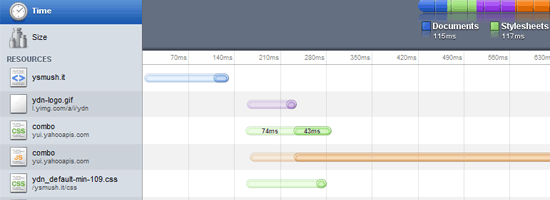
Web page speed and performance is very important to the user experience. If your site is too slow, you’ll not only be losing visitors, but also potential customers. Search engines like Google factor a website’s speed into account in search rankings, so when optimizing your site’s speed, you should take everything into consideration. Every millisecond counts.
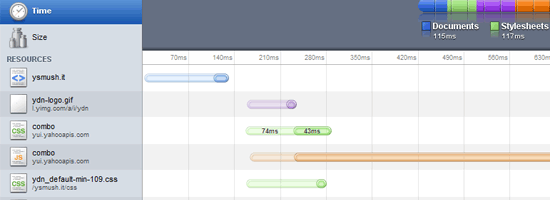
Here are just a few basic and general suggestions for improving a site’s performance.
1. Defer Loading Content When Possible
Ajax allows us to build web pages that can be asynchronously updated at any time. This means that instead of reloading an entire page when a user performs an action, we can simply update parts of that page.
We can use an image gallery as an example. Image files are big and heavy; they can slow down page-loading speeds of web pages. Instead of loading all of the images when a user first visits the web page, we can just display thumbnails of the images and then when the user clicks on them, we can asynchronously request the full-size images from the server and update the page. This way, if a user only wants to see a few pictures, they don’t have to suffer waiting for all of the pictures to download. This development pattern is called lazy loading.
Ajax/web development libraries like jQuery, Prototype, and MooTools can make deferred content-loading easier to implement.
2. Use External JS and CSS Files
When the user first loads your web page, the browser will cache external resources like CSS and JavaScript files. Thus, instead of inline JavaScript and CSS files, it’s best to place them in external files.
Using inline CSS also increases the rendering time of a web page; having everything defined in your main CSS file lets the browser do less work when rendering the page, since it already knows all the style rules that it needs to apply.
As a bonus, using external JavaScript and CSS files makes site maintenance easier because you only need to maintain global files instead of code scattered in multiple web pages.
3. Use Caching Systems
If you find that your site is connecting to your database in order to create the same content, it’s time to start using a caching system. By having a caching system in place, your site will only have to create the content once instead of creating the content every time the page is visited by your users. Don’t worry, caching systems periodically refresh their caches depending on how you set it up — so even constantly-changing web pages (like a blog post with comments) can be cached.
Popular content management systems like WordPress and Drupal will have static caching features that convert dynamically generated pages to static HTML files to reduce unnecessary server processing. For WordPress, check out WP Super Cache (one of the six critical WordPress plugins that Six Revisions has installed). Drupal has a page-caching feature in the core.
There are also database caching and server-side scripts caching systems that you can install on your web server (if you have the ability to do so). For example, PHP has extensions called PHP accelerators that optimize performance through caching and various other methods; one example of a PHP accelerator is APC. Database caching improves performance and scalability of your web applications by reducing the work associated with database read/write/access processes; memcached, for example, caches frequently used database queries.
4. Avoid Resizing Images in HTML
If an image is originally 1280x900px in dimension, but you need to have it be 400x280px, you should resize and resave the image using an image editor like Photoshop instead of using HTML’s width and height attributes (i.e. <img width="400" height="280" src="myimage.jpg" />). This is because, naturally, a large image will always be bigger in file size than a smaller image.
Instead of resizing an image using HTML, resize it using an image editor like Photoshop and then save it as a new file.
5. Stop Using Images to Display Text
Not only does text in an image become inaccessible to screen-readers and completely useless for SEO, but using images to display text also increases the load times of your web pages because more images mean a heavier web page.
If you need to use a lot of custom fonts in your website, learn about CSS @font-face to display text with custom fonts more efficiently. It goes without saying that you have to determine whether serving font files would be more optimal than serving images.
6. Optimize Image Sizes by Using the Correct File Format
By picking the right image format, you can optimize file sizes without losing image quality. For example, unless you need the image transparency (alpha layers) that the PNG format has to offer, the JPG format often displays photographic images at smaller file sizes.
To learn more about how to decide between JPG, PNG, and GIF, read the following guides:
- The Comprehensive Guide to Saving Images for the Web
- Web Designer’s Guide to PNG Image Format
- JPEG 101: A Crash Course Guide on JPEG
Additionally, there are many tools you can use to further reduce the file weights of your images. Check out this list of tools for optimizing your images.
7. Optimize the Way You Write Code
Look around your source code. Do you really need all the tags you’re using or can you use CSS to help out on the display? For example, instead of using <h1><em>Your heading</em></h1>, you can easily use CSS to make your headings italics using the font-style property. Writing code efficiently not only reduces file sizes of your HTML and CSS documents, but also makes it easier to maintain.
8. Load JavaScript at the End of Your Document
It’s best if you have your scripts loading at the end of the page rather than at the beginning. It allows for the browser to render everything before getting started with the JavaScript. This makes your web pages feel more responsive because the way JavaScript works is that it blocks anything below it from rendering until it has finished downloading. If possible, reference JavaScript right before the closing <body> tag of your HTML documents. To learn more, read about deferring the loading of JavaScript.
9. Use a Content Delivery Network (CDN)
Your site’s speed is greatly affected by where the user’s location is, relative to your web server. The farther away they are, the more distance the data being transmitted has to travel. Having your content cached across multiple, strategically placed geographical locations helps take care of this problem. A CDN will often make your operating cost a little higher, but you definitely gain a speed bonus. Check out MaxCDN or Amazon Simple Storage Service (Amazon S3).
10. Optimize Web Caching
Along with using caching systems, you should create websites that utilize web caching as much as possible. Web caching is when files are cached by the web browser for later use. Things that browsers can cache include CSS files, JavaScript files, and images.
Aside from the basics, such as putting CSS and JavaScript code that are used in multiple pages in external files, there are many ways to make sure that you are caching your files in the most efficient way possible.
For example, you can set HTTP response headers such as Expires and Last-Modified to reduce the need of re-downloading certain files when the user comes back to your site. To learn more, read about caching in HTTP and leveraging browser caching.
To set up HTTP Expires headers in Apache, read this tutorial on adding future expires headers.
Raphael Caixeta is a PHP and iOS developer and co-founder of 
57 Comments
Asif Ahmed
January 21st, 2011
Thanks for this helpful post…..
Alex
January 21st, 2011
Nice article, many points worth considering. What would be the best practice for external css/script files when considering not only loading times but also tidyness for the designer? I like to have my “style.css” @import “reset.css” and “grid.css” which are separate files, should this be avoided?
Alex
January 21st, 2011
Sorry for spamming, but forgot to ask about the image at the top of the article, is it from a desktop application or webservice? Looks like a good tool to check loading time.
Thanks!
Vivek Parmar
January 21st, 2011
Use of caching plugin + CDN +good wehosting company + small size of images all these help a blog to load blog faster
Martin Oxby
January 21st, 2011
Thanks for this – we are always looking at ways to improve page load speed for users as well as search engines. It’s hard to judge with broadband, so measuring it is better.
Ref Alex’s comment – I also would be interested to know which tool you use for speed checks. Thank you.
Jay
January 21st, 2011
@Alex – that image at the top of the page is from Safari’s web development tool. Similar but not as powerful at Mozillas firebug.
Syed Balkhi
January 21st, 2011
These are some great tips. For those who doubt the capability of CDNs, you need to think again. We switched to MaxCDN and the site got 4x faster.
IF you are looking for a discount, use the coupon “wpbeginner” for 25% off.
Nadim
January 21st, 2011
@Alex: It’s part of the Developer Tools on the Chrome Browser. Ctrl+Shift+I and select the “Resources” tab.
Jacob Gube
January 21st, 2011
@Alex: There’s definitely a sacrifice between page performance optimization versus the way you have to change your workflow/preference.
If you’re optimizing performance, you should avoid CSS @import. Here’s information on @import on Google’s Page Speed documentation.
My ultimate advice would be to do what you’re doing now, then when you go to production, use a tool like Minify to combine and minify them. I would set up a version control system like Git or Subversion for your projects. Here’s our tutorial on getting started with Git.
Then when you need to make updates to the CSS:
This is good practice EVEN if you don’t minify and concatenate your files. In the long run, the time to learn and set up a version control system pays off big time in efficiency and backing up your work and tracking changes. You could consider this as a value-added service (perhaps).
The tool in the screenshot is Google Chrome’s Developer Tool. It’s amazing and part of Google Chrome. Go to Tools > Developer tools (or press Ctrl + Shift + I) to access it.
Apple Safari has this too because Chrome is based off WebKit, and the Developer tools is Chrome’s port of WebKit Web Inspector.
If you use Firefox, you can use Firebug + Page Speed:
http://code.google.com/speed/page-speed/download.html
(Thanks @Jay and @Nadim, just realized you answered the question already.)
Young
January 21st, 2011
Ooh, I did not know about CDN and I think it could be very useful for me in the future. I’ve had a few Korean clients, and of course their site loads pretty slowly in Korea. I can push this on them. Thanks!
I realized I always comment about my Korean clients… well otherwise my projects aren’t THAT interesting, haha…
Barry
January 21st, 2011
I use an app called Website Maestro that optimizes all the code and images even making them smaller than I’ve already done in Fireworks. The difference is noticeable.
Great other tips I’ll be utilizing. Thanks
MuskratLove
January 21st, 2011
Optimizing page code is so important, but don’t forget about optimizing your CSS–making sure you don’t have redundant/conflicting styles or too many unused tags. I’ve seen so much css that just has extra styles added to the end of the sheet to overwrite something the designer/developer was too lazy (or in too much of a hurry) to try to find and change correctly.
“Inspect Element” in Chrome is a wonderful way to precisely identify your selectors without having to go through the code to find a specific location. And we all know that poorly defined selectors will slow things down.
Thanks for the reminders and the tips…
Alex
January 21st, 2011
@Jacob, Jay & Nadim: thanks for the answers, extra thanks to Jacob for the tips and guide!
Hannah Hurst
January 21st, 2011
A really helpful article. Optimising a websites speed is always something I am trying to improve and develop when coding clients websites. Some great tips given here, thanks for sharing.
Amos Vryhof
January 21st, 2011
Great article!
If you are working on a personal website, or don’t have much of a budget for a CDN, check out CloudFlare (http://www.cloudflare.com/).
For some things, you also have the option of using Google’s CDN (http://code.google.com/apis/libraries/devguide.html) or Cached Commons (http://cachedcommons.org/)
I also want to mention the html5 boilerplate. Even if you aren’t using the whole shebang with the build script and everything, adding the server config files (.htaccess, ngnix, etc) to your root directory will speed your site up a lot because it forces javascript, css, etc to be cached.
andretti brown
January 21st, 2011
Optimize all files, getting rid of all white space and doing one line code comments is a big key in load times.
Mike Pugh
January 21st, 2011
Awesome article, but I’m into flash web design. The learning and rendering of code somehow never appealed to me. My latest digital triumph is quite an amazing thing actually. I designed a newer way to surf the web entirely, its called FreeTop360. It is the very first ‘surf engine’ to ever grace it’s presence onto the web. It’s actually a free virtual desktop designed to help users navigate the most useful web locations, and web applications. Give it a spin if you like it’s bound to stir up convo and inspiration as well. Not a drop of code was put into its development.
Young
January 21st, 2011
@Mike Pugh: …really? seriously?
i don’t like attacking people on SR, but did anyone else actually check out this bonzibuddy2 he’s made? now i feel like i need to run an antivirus check.
Social SUNY
January 21st, 2011
Great article, all good advice. One important thing to keep in mind with bottle necks is hardware. If you upgrade your hosting obviously it will lead to better speed. Also if you install certain software (such as gzip) for compression, as well as server side caching and optimizations. Writing (and running) good code helps too ;)
Eko S
January 21st, 2011
Very useful for me, This is what I looking for, because alexa has been reported that my site is too slow.
I should fix it. Thanks…
googlex
January 22nd, 2011
Can you tell me which program it is, that i see in the image of this article.
Jahangir Hussain
January 22nd, 2011
Thanks for sharing these tips, very useful.
Jacob Gube
January 22nd, 2011
@googlex: Read the comments above. It’s Chrome’s Developer tools.
Usman
January 22nd, 2011
as I can see your site speed is very good.
its really very important to have good site speed, as I love browsing your site, because it really loads fast.
krish
January 22nd, 2011
Nice tips.
I read an article at digital inspiration that you can use dropbox as a CDN.
everlearner
January 23rd, 2011
Thanks for this post. We should always think how to do a faster website every time we build, maintain a website.
@8. Loading JavaScript on the end of document is a good point to follow. Howerver it is not an easy way to do for everyone.
For WP lovers there is a plugin http://wordpress.org/extend/plugins/footer-javascript/. If you love put this feature to your custome theme, just take a look inside the plugin and add to your functions.php. Then no need to use the plugin if you are using that theme.
For the Drupal lovers, just cut [?php print $scripts ?] from page.tpl.php (Drupal 6) header to footer part. (Should be in the [!-- /footer --> Div] Then Minify the CSS and JS files from admin/settings/performance.
Hopefully this can help someone.
For the CDN parts, I was finding a way “how to move uploads folder in a WP site to its subdomain”. So we can uploads/downloads images from sub-domain-com/uploads/ to serve main www-domain-com. This method is not good for some plugins.
Tri
January 23rd, 2011
This is a great article and very helpful! What kind of text editor is in that picture?
Elliot Ross
January 23rd, 2011
good post.
Re: point 4 about image size – does this directly affect SEO? does google’s rating of how fast your site loads consider just the HTML or everything else too (JS/images etc)?
also some good points about CMS stuff here – cuttting out un-needed plugins and caching your database really help cut down their load time
Identity
January 23rd, 2011
Point number 4 is partially wrong.
You should’nt resize images BUT you do want to add width and height attribute to your picture !
This is one of Google Pagespeed’s recommandation.
Kevin Cooper
January 23rd, 2011
The description in example 7 is pretty poor. You explain that using css rather than will reduce size? it will make your code easier to maintain but it will actually make your css & html larger overall (albeit by a small %)
Robert
January 24th, 2011
great tips. some of them are a no-brainer (down sizing images instead of html sizing), but you just gotta do it and it helps. small measures, big impact.
Jacob Gube
January 24th, 2011
@Identity: How is it partially wrong when it doesn’t say never to use
widthandheightattributes? It says don’t use it to resize images; it doesn’t say “never use width and height ever”.roezer
January 24th, 2011
I have used CSS Compression and a service called cloudflare some of you may know of it.But I like to edit themes so I change mine often it makes webmastering less boring than working with the same template all the time. However if you are an established and branded site you may need to use things like CDN. Also may I point out that with Java you can also use packer but it does not work with every java script code.
chris
January 24th, 2011
Good tips. I use most of these as starters when developing my sites. I also incorporate a lot of stuff in my .htaccess file and minify things on the fly.
Maybe another topic could be optimizing your htaccess file and other tools to minify your code.
Identity
January 24th, 2011
@Jacob Gube: I know it does’nt say not to use them, but someone reading point 4 would resize via photoshop or other their images and not use width or height. I found it misleading, no harm intended.
dhiraj
January 25th, 2011
Raphael, really eye opener post and @Jacob thanks for pointing excellent points.
diego
January 25th, 2011
Dont forget about yahoo smush.it, it seriusly reduces de size of images, and javascript and css compression also do the trick and if you can gzip the content even better :D
James
January 25th, 2011
I’d recommend this tool
http://siteloadtest.com
not so pretty but very practical
Ian Mason
January 26th, 2011
Thanks so much for the tips! I’ve already implemented many of them but I need to cut down the size of our CSS file… It’s 90k and some of it isn’t used.
Diego, isn’t Yahoo Smush.it not allowing API access anymore?
Joseph
January 26th, 2011
Used these tips, my site runs much faster now. Thanks!
The Adam
January 28th, 2011
Have to disagree w/ use of jpg’s over pngs /// typically I find png8′s to have a smaller file size than jpgs, not always but to rule it out is foolish.
Jacob Gube
January 29th, 2011
@The Adam: You use PNG-8 on photographic-quality images (as the example states in the article) and the result is lower in file size and retains quality?
Here’s the difference between JPG and PNG-8 on a photographic image (24.6KB for JPG versus 86.77KB for PNG-8):
http://min.us/mvxyov
Cre8ive Commando
January 29th, 2011
Don’t forget reducing HTTP requests by combining images into CSS sprites. Minifying and combining static JS and CSS files will also help reduce loading times.
Vaclav
February 1st, 2011
#4 is not always true. I have an image that grows in file size when resized to 60% (i.e. made smaller). I tried it many times in various tools. It grows from 66KB to 88KB. I also tried JPG. If anyone knows how it is possible please let me know. The image is here:
http://c0121071.cdn.cloudfiles.rackspacecloud.com/electrical-wiring.png
Anoop P R
February 4th, 2011
Thanks for the valuable tips…
Manish Singh
February 5th, 2011
Great Work, i am thankful to you for this.
Abolfazl
February 9th, 2011
Thankyou MR Raphael.
very good …
Praveen
February 10th, 2011
Good Tips Mate!!
If your are using a blog, then to speed up you can use all these tips and also you can use some cache plugins and image smusher plugins which is not mentioned in this article :)
Ralph
February 13th, 2011
Your article will read later. The topic of your article is interessting for me. Some points i know it already, but other points are nwe for me at the moment.
Mark
February 14th, 2011
THX for great Topic, Raphael!
I have a Question: for to be exact I should to mention a website, for example, of designb00m – their are not “solo” with that bizzare problem, when a site is blocked with jq script…the img isn’t possible to load correctly…and there jump such a frame asking to stop the script…
► Why arrive this problem and what to do for eliminate this really avoidable trouble?
THX in advance for any idea.
Cheers,
Mark
Ashish
March 11th, 2011
Really very useful………. thank you,…
Roshan
August 22nd, 2011
Perhaps you should have mentioned some speed test tools as well. One that i often use is http://tools.pingdom.com
ITsiti
September 7th, 2011
Nice and useful info.. :-)
Gowtham
September 9th, 2011
Nice post.. These tips will improve the speed of a site to a great extent..Thanks :-)
Ritu
October 16th, 2011
Awesome stuff, I was looking for the same from long time thanks for sharing this article and guiding newbie bloggers
Mathew
November 7th, 2011
This articles is good. Is it mainly meant for WordPress Blog? Is it applicable to Drupal site also?
qammar
June 17th, 2012
Great tips mate, I use w3 cache for my client wp websites to optimise the downloading speed of websites. thank you for sharing.
Leave a Comment